You can't find it because it doesn't exist at present. This is one of many gaps in the documentation currently. The Stager keyboard shortcut for the tool is D. (Many keyboard shortcuts have changed from their equivalents in Dimension, to bring Stager more in line with common industry practice in 3D software.)
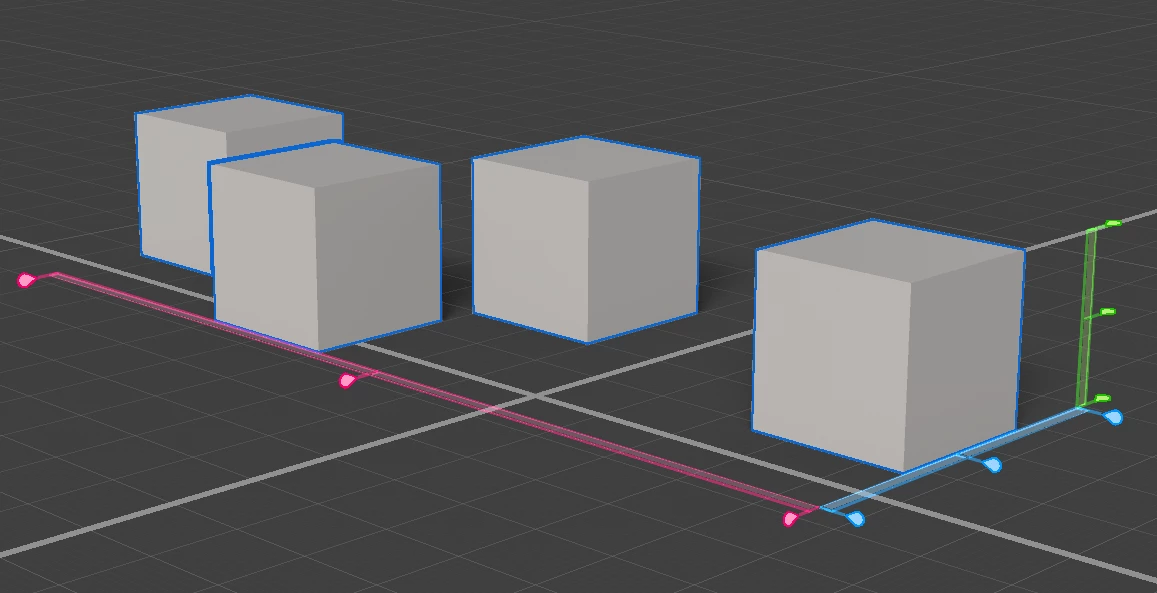
In the toolbar, the second tool from the top is the Align and Distribute tool. First click on that, or press D, then marquee select, or shift-click select, the items you want to align or distribute. You'll see the colored bars and small tabs appear:
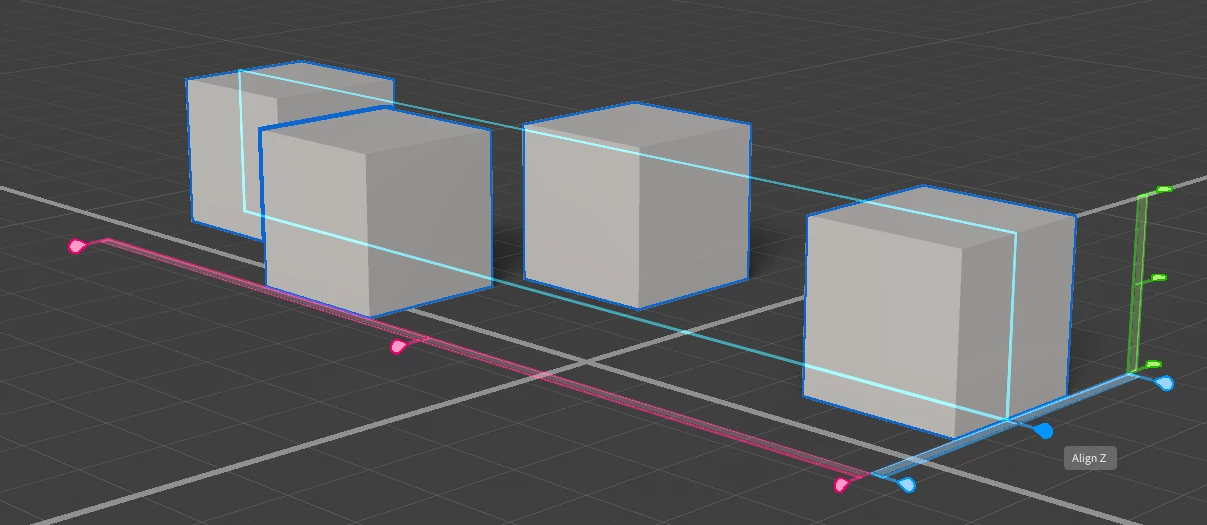
Aligning is easy. Hover the mouse on one of the tabs and Stager will show you how the alignment will go when you click. Here I'm hovering on the center blue (z axis) tab, which has turned a solid color. The cyan rectangle shows the plane on which the objects will align (on their centers, for a center tab, edges for the end tabs).
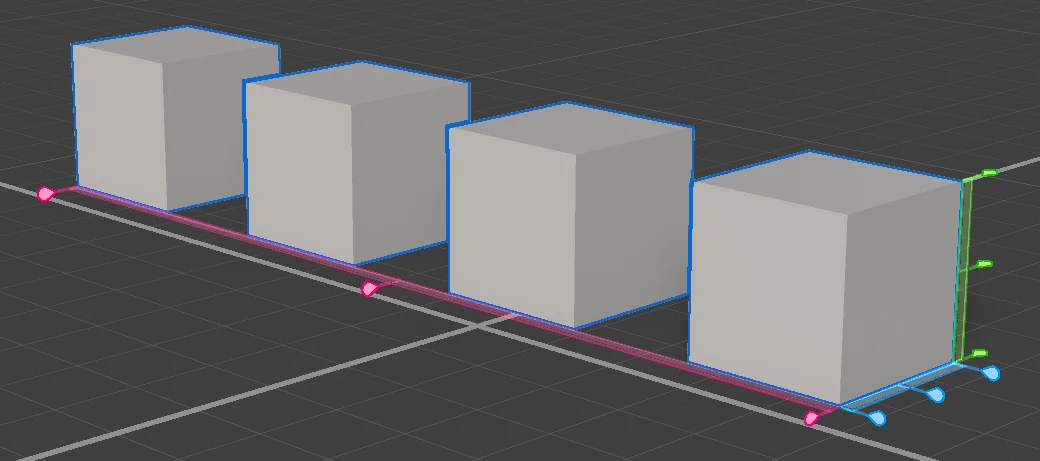
You access the Distribute function by hovering the mouse on the bar (not the tab) for the axis along which you want to distribute the objects. Here I'm hovering on the red (x axis) bar, which you can see has turned solid red. When I click, the space between the objects will be evenly distributed.
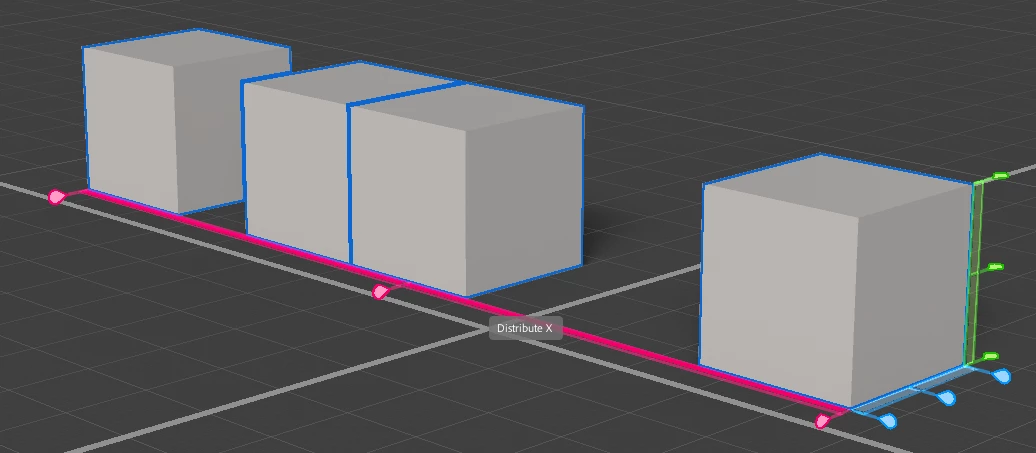
Like this:
I hope that helps. The 3D team is small, and it looks like the documentation is taking a while to catch up.





 AdChoices