Known Participant
January 5, 2025
Answered

How revert 3D Model to Image effect to Original object ?

  • January 5, 2025
  • 2 replies
  • 869 views

Hi Community,


Is there a easy way to cancel a 3D Model to Image generated render and revert to the initial object ?
I found how to hide or see the object guide but not how disable the effect applied.

Any assistance would be appreciate.
Thanks

Correct answer Ares Hovhannesyan

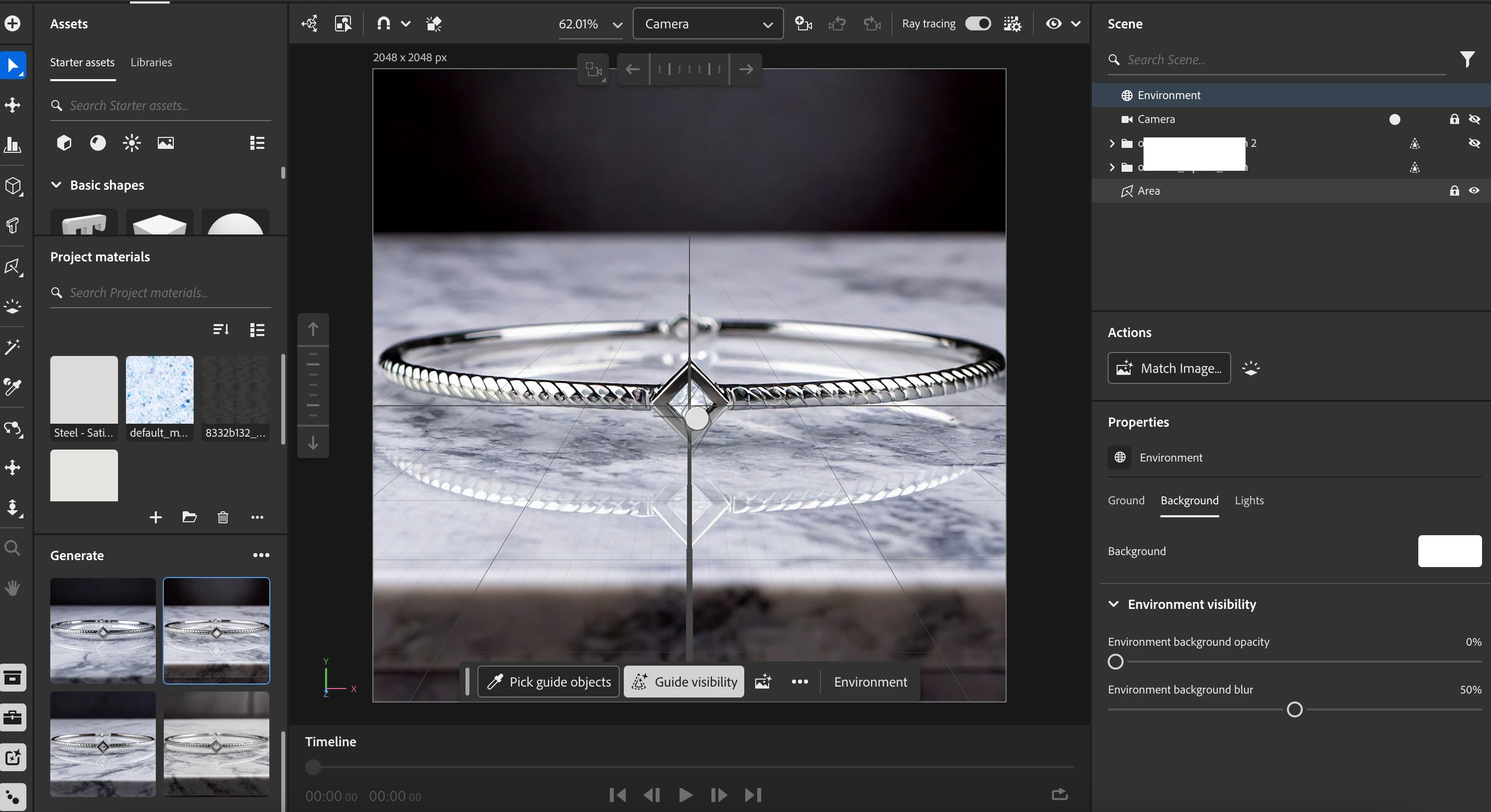
If I understand you, I can either upload  an image as background with match image directly (option available when the node environment is selected) or if I used the "text to background" to generated a such image, image will be generated then I can adjust the light to match this image using also match to image. 


Ex below, if I save a such project, I come back 1 day later and I want to revert the background and light adjustement, is their an easy way to? Or I need to backup a copy before as you suggest ?


IMHO baCkup a copy is the right way.

2 replies

Ares Hovhannesyan
Community Expert
Community Expert
January 7, 2025

Are you talking about creating 3D Model to Image like in my capture?


OxsmoseAuthor
Known Participant
January 7, 2025

Yes exactly

Ares Hovhannesyan
Community Expert
Community Expert
January 8, 2025

If you click on created image you can copy or download it. And than close image and you will get your object and scene back. 

But I think you mean another point. Can you explain your steps more in details? Thank you

JMathews
Community Manager
Community Manager
January 6, 2025

Hi @Oxsmose it may be helpful if you share a screenshot or two because I'm not sure which effect you're trying to disable.


When you disable the guide object status it will turn back into a standard rendered object.  If you're talking about the shadow catching effect, you can turn on/off the shadow catching effect from either the contextual tool bar or the viewport overlay management panel.


If you don't see the context bar you can enable it in the menus under Window > Contextual task bar.  Click on "Guide visibility" button and then "Disable shadow catching".


Or in the overlay manager: In the viewport, go to the top-right and click on the eyeball icon to manage the visibility and status of viewport items.  Disable guide shadow catching.


If it's a different effect you're looking for please let me know some more details with screenshots and we'll try to help!


Adobe Principal Product Manager, 3D & Immersive