Inspiring
January 23, 2025
Answered

Azure Blue 2022 latest update - problem of window bottom going below Windows 10 Task Bar

  • January 23, 2025
  • 4 replies
  • 496 views

Using WIndows 10 RH 2022 latest update, the HTML5 responsive output with Azure Blue:

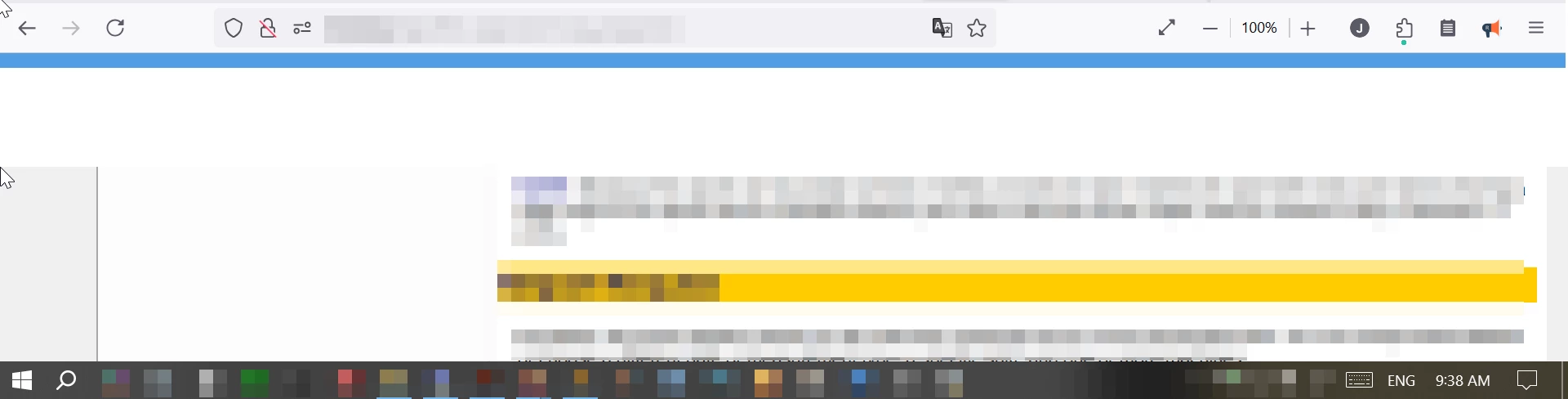
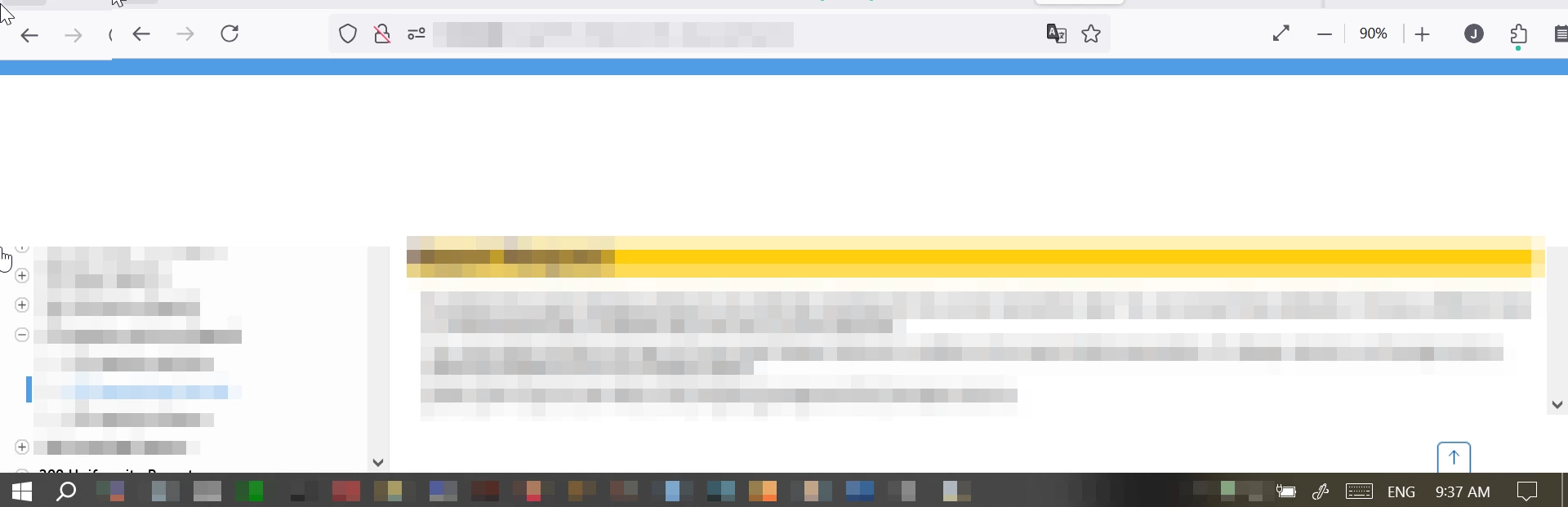
The entire window is not fitting in the windows screen, even in full view, with the bottom of the window going bellow the Task Bar, and this hides the right-side vertical scroll bar end,AND, hides the bottom menu with its single "Scroll Up" button. But when I shink the window to 90% on the browser setting, the view is normal. Here are two images of the situation:
 

    Correct answer Peter Grainge

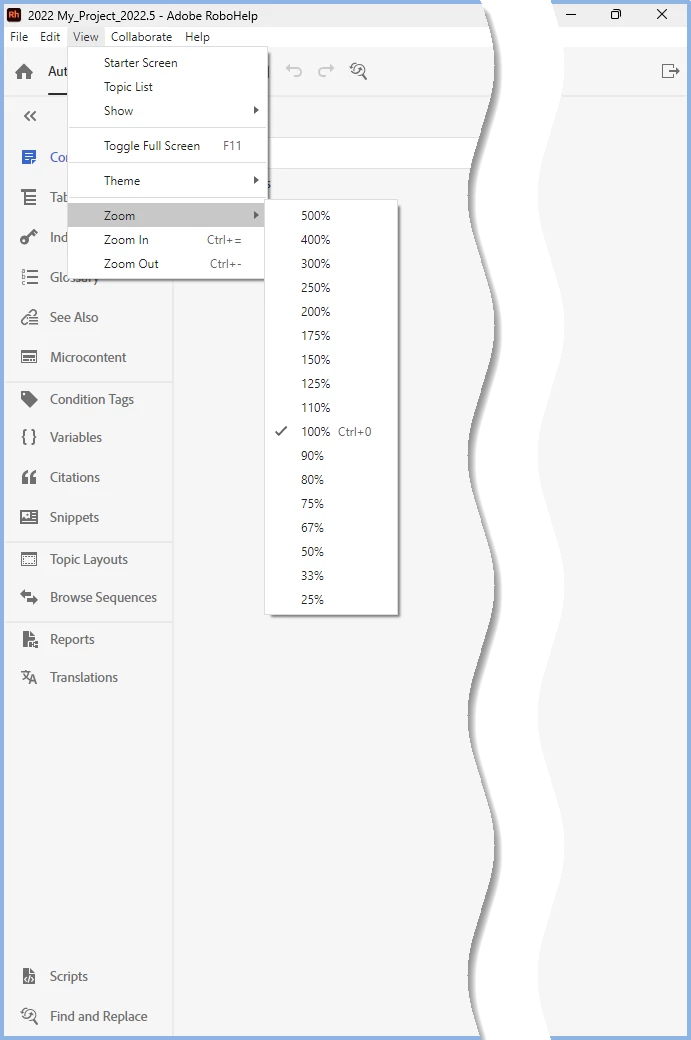
    As I said, they are on the View menu.


    CTRL+0 for 100% or you can select another zoom level

    CTRL+= for Zoom In

    CTRL+- for Zoom Out


    ________________________________________________________

    My site www.grainge.org includes many free Authoring and RoboHelp resources that may be of help.


    4 replies

    Peter Grainge
    Community Expert
    Community Expert
    January 28, 2025

    You're not missing anything. I can only suggest you submit a feature request.


    Please follow this link to report bugs or request new features. https://tracker.adobe.com. Post the link to your bug report / feature request in this thread and others can vote for it. The more people who do so, the higher it gets prioritised.

    ________________________________________________________

    My site www.grainge.org includes many free Authoring and RoboHelp resources that may be of help.


    Use menu (bottom right) to mark as Best Answer or to Highlight particularly useful replies. Found the answer elsewhere? Share it here.
    Inspiring
    January 28, 2025

    > I can only suggest you submit a feature request.


    If I need magnifier glasses to see the image map, so it may be more than a feature request 🙂 Anyway, so many new things I am noticing in my upgrade from  RH2019 to 2022, and one of them, is that RH2022 is not updating the image map properly after a map is created and the dialog is closed, untill the actual Output Generation. I suspect this is a bug. It also happened when I edited an image with an extrenal program, and it did not update as I am used to. I traced it to the fact that RH2022 was using a user-specific-cahe instead of the real images. I had to shut down the app and restart, and the update took effect. I am not good at filing error reports, and hope that Adobe is trolling these discussions, as they are worth a lot of user time time that their user-experience testing is getting for free.

    Jeff_Coatsworth
    Community Expert
    Community Expert
    January 28, 2025

    Nope - very little employee involvement here - want to get something on their radar, use the Tracker (https://tracker.adobe.com/).

    Peter Grainge
    Community Expert
    Peter GraingeCommunity ExpertCorrect answer
    Community Expert
    January 24, 2025

    As I said, they are on the View menu.


    CTRL+0 for 100% or you can select another zoom level

    CTRL+= for Zoom In

    CTRL+- for Zoom Out


    ________________________________________________________

    My site www.grainge.org includes many free Authoring and RoboHelp resources that may be of help.


    Use menu (bottom right) to mark as Best Answer or to Highlight particularly useful replies. Found the answer elsewhere? Share it here.
    Inspiring
    January 27, 2025

    The format of the menu options changed, and maybe that is why I missed it. Thank you so much for pointing this out. (I had the same problem with 'Master Pages' untill I was told it is now called "Topic Layout".) It is great to see magnification work in the editing pane where text is now legible,  But this menu option (magnification) is not working or not being appiled in the image map editor window. Am I missing something?

    Peter Grainge
    Community Expert
    Community Expert
    January 24, 2025

    @Jamil29463960jwf2 Also see how cluttered the UI became over the years in Classic. I suspect that was one of the casualties in tidying things up. I appreciate some users need or prefer to have a higher zoom level but generally users leave it at 100% to get a rough idea of the final output.


    The View menu has shortcuts for changing the level and restoring it to 100%.

    ________________________________________________________

    My site www.grainge.org includes many free Authoring and RoboHelp resources that may be of help.


    Use menu (bottom right) to mark as Best Answer or to Highlight particularly useful replies. Found the answer elsewhere? Share it here.
    Inspiring
    January 24, 2025

    > The View menu has shortcuts for changing the level and restoring it to 100%.


    What are these short cuts? I know I need this feature badly.

    Peter Grainge
    Community Expert
    Community Expert
    January 23, 2025

    Create a second copy of your template with no customisation. Try with that and see if the same problem occurs.


    Also try creating a new project with just the default topic and CSS. Maybe import one of your topics.

    ________________________________________________________

    My site www.grainge.org includes many free Authoring and RoboHelp resources that may be of help.


    Use menu (bottom right) to mark as Best Answer or to Highlight particularly useful replies. Found the answer elsewhere? Share it here.
    Inspiring
    January 23, 2025

    Problem solved.

    It turns out that if my computer display in WIndows 10 Pro settings in: Display : Scale and layout are anything above 100% it maybe a problem. I had it set to 150%, to get a bigger font. THIS IS THE PROBLEM.

    I changed to the "recommended scale of 125%, and it worked, but not sure if cosmetically correct.

    I set it to 100% and it seems to work correctly.

    I need to set it to 100% so that I can make sure the Output performs as intended, which I will do. But the font is extremely small on my display and difficult to see, and I may make it 125%.

    RH 2019 had a nice feature that seems missing in 2022, which is the ability to set the font display size for the edit window pane. I could not find this _needed_ and great feature in RH 2022.

    Anyway, now you know the solution to this little mystery. With that solved, it becomes possible to see in the image bellow the To_Top arrow button in the bottom-right corner. It is hard to be RH application developers when there are so many display variables to consider, but this is one more to add to their list to be aware off.


    Jeff_Coatsworth
    Community Expert
    Community Expert
    January 23, 2025

    Where was that "set font display size" feature in RH2019 (Classic or New UI?) 
    You sure you didn't turn off the responsiveness of your output?