
Inspiring
October 15, 2014
Answered

buttons in webhelp output

  • October 15, 2014
  • 2 replies
  • 436 views

I am unable to get a custom button to display in my webhelp output. I tried adding a custom button. In the Custom Toolbar Item window I added the required info (name, text, image) including a link to our product website (on the action tab), but the button does not show up in the toolbar. I tried editing the About option but it does not display either. I basically can't get any button to show up other than the defaults in the Toolbar -> Main panel. I am using the skin editor. The custom button shows up when I click Preview in the skin editor, but when I generate the help, the button is not there. Any tips?
This topic has been closed for replies.
Correct answer Captiv8r

Hi there

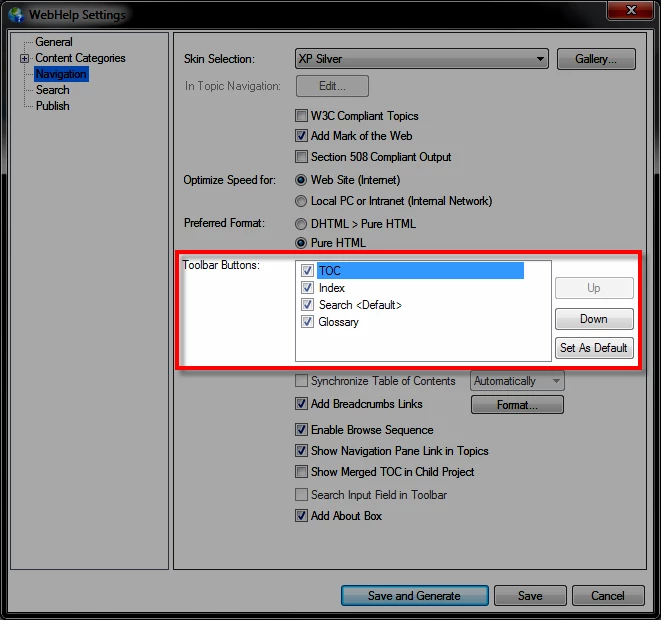
When you add a custom button, you need to be sure to tell the Single Source Layout recipe you want it to appear. So head on over to the Single Source Layouts pod and right-click the layout you are using. Then choose the Properties. You didn't say which version of RoboHelp you use and my darned crystal ball is broken. Not only that, but my psychic skills aren't really what the should be. So I'll talk about RoboHelp 11 and maybe from it you can figure out where your options are if your version is different.

On the left side of the dialog, click Navigation. Then on the right side you should see your button but it likely won't have a check mark. So click that puppy to give it a check mark, generate again and you should be set!

Cheers... Rick

2 replies

jkozzWorkAuthor
Inspiring
October 15, 2014

Got it to work. I didn't realize that I had to:

  1. Create the button.
  2. Go to WebHelp -> Properties -> Navigation and select it.
Captiv8r
Captiv8rCorrect answer
Legend
October 15, 2014

Hi there

When you add a custom button, you need to be sure to tell the Single Source Layout recipe you want it to appear. So head on over to the Single Source Layouts pod and right-click the layout you are using. Then choose the Properties. You didn't say which version of RoboHelp you use and my darned crystal ball is broken. Not only that, but my psychic skills aren't really what the should be. So I'll talk about RoboHelp 11 and maybe from it you can figure out where your options are if your version is different.

On the left side of the dialog, click Navigation. Then on the right side you should see your button but it likely won't have a check mark. So click that puppy to give it a check mark, generate again and you should be set!

Cheers... Rick

jkozzWorkAuthor
Inspiring
October 15, 2014

Sorry, I saw this right after I figured it out. Thanks for the answer though!