I guess you are not talking about the source code editor of RoboHelp 2019, which has pretty printing and syntax highlighting, right?
So, if you want to get syntax highlighting in your published output, you can simply use one of the many syntax highlighters available, e.g. highlight.js
Most highlighters work in the same way. Just add the link to the highlighter in the head section of your help file or master page. Here is an example for hightlight.js:
<link rel="stylesheet" href="https://cdnjs.cloudflare.com/ajax/libs/highlight.js/9.13.1/styles/default.min.css" />
<script src="https://cdnjs.cloudflare.com/ajax/libs/highlight.js/9.13.1/highlight.min.js"></script>
<script>
//<![CDATA[
hljs.initHighlightingOnLoad();
//]]>
</script>
Alternatively, you can download the syntax highlighter of your choice, place it in the assets/js folder and link it like this:
<link rel="stylesheet" href="assets/js/highlight/styles/dark.css" />
<script src="assets/js/highlight/highlight.pack.js"></script>
<script>
//<![CDATA[
hljs.initHighlightingOnLoad();
//]]>
</script>
Then add your code in the body and wrap it into the tags with attributes that the highlighter requires. E.g. for highlight.js like this:
<pre><code class="html">(your code)</code></pre>
You can change the class attribute value to one of many languages like XML, CSS, JSON, C++, C#, etc. for your code samples. See the documentation of the highlighter of your choice.
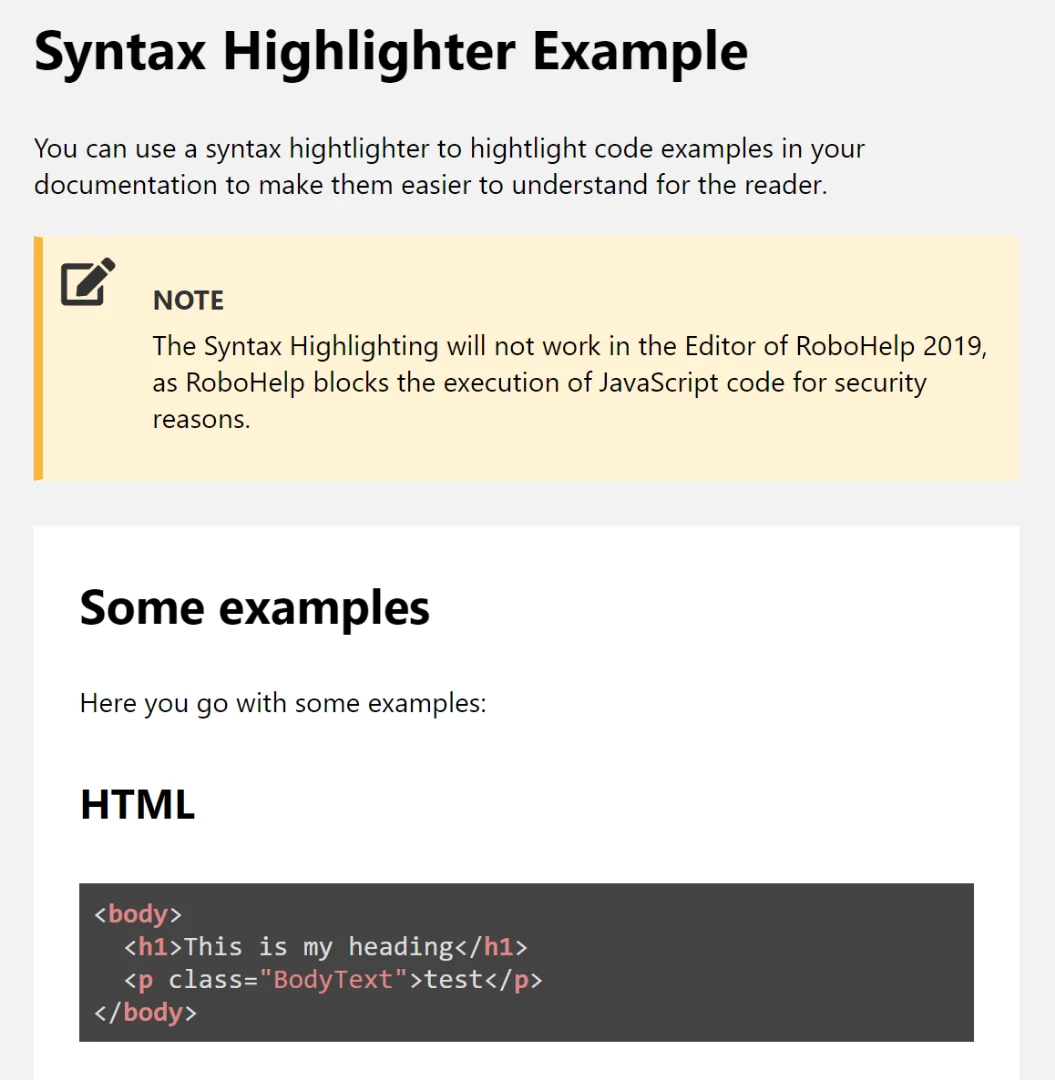
Note, that you will not see the highlighting in the RoboHelp editor, as RoboHelp will block the execution of JavaScripts for security reasons. But it will work fine in the published output.
The result can (in this example with a dark "theme") look like this:
Let us know if it works for you.



 AdChoices