Inspiring
August 3, 2021
Answered

Creating a Custom Bullet

  • August 3, 2021
  • 1 reply
  • 354 views

Greetings!


I am trying to create a custom bullet that I can use for one-step instructions. It would be an unordered list with the bullet graphic I created.


I opened the style sheet in RH2020 and added the style. When I open the style sheet in Notepad++, the code looks like this:

ul.OneStep {
list-style: none;
--prefix-size: 40px;
--prefix-fixed-size: false;
--prefix-gap: 4px;
--list-indent: 40px;
--vertical-spacing: 0px;
counter-reset: item1;
padding-left: var(--prefix-size);
margin-left: calc(var(--list-indent) - var(--prefix-size));
}
ul.OneStep>li:before {
counter-increment: item1;
content: counter(item1, none)url('../../IconImages/OneStep.png');
text-align: right;
position: absolute;
left: calc(-1 * var(--prefix-size) - var(--prefix-gap));
margin-right: var(--prefix-gap);
width: var(--prefix-size);
overflow: hidden;
}
ul.OneStep>li {
--prefix-size: 40px;
--prefix-fixed-size: false;
--prefix-gap: 4px;
--list-indent: 40px;
--vertical-spacing: 0px;
position: relative;
margin-top: calc(var(--vertical-spacing) / 2);
margin-bottom: calc(var(--vertical-spacing) / 2);
}


I have not done this before, and I have questions:

  • Why are there seemingly three styles? What do those entries mean?
  • Is there any way to get the text centered to the bullet?


This is my first try at adding something "complicated" to the style sheet, and I appreciate any guidance!


Cindy

 

    This topic has been closed for replies.
    Correct answer Peter Grainge

    It is highly complex and I don't understand it but Adobe assure me the three sections are required to make the lists work.


    Centering the number/bullet is easy when you know how!


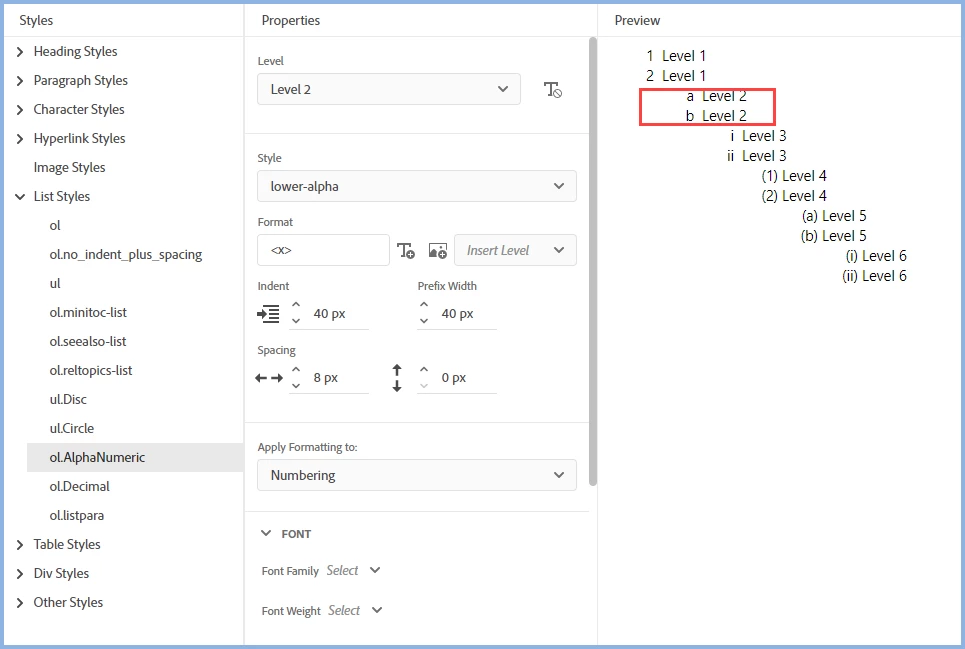
    First set the level to the level that needs adjusting. You can see that Level 2 is out of line here.


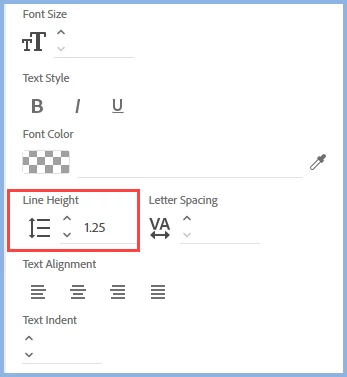
    You need to set the Line Height to whatever works. You can use the up/down icon or input manually.


    ________________________________________________________
    See www.grainge.org for free Authoring and RoboHelp Information

    1 reply

    Peter Grainge
    Community Expert
    Peter GraingeCommunity ExpertCorrect answer
    Community Expert
    August 4, 2021

    It is highly complex and I don't understand it but Adobe assure me the three sections are required to make the lists work.


    Centering the number/bullet is easy when you know how!


    First set the level to the level that needs adjusting. You can see that Level 2 is out of line here.


    You need to set the Line Height to whatever works. You can use the up/down icon or input manually.


    ________________________________________________________
    See www.grainge.org for free Authoring and RoboHelp Information

    Use the menu (bottom right) to mark the Best Answer or Highlight particularly useful replies. Found the answer elsewhere? Share it here.
    Inspiring
    August 4, 2021

    Thank you so much, Peter!


    I left the three sections alone.


    Then I applied your instructions to the bullet. The only thing I would add is that I had to select "Content" in the Apply Formatting to list. Then it all worked.


    Woo hoo! I learned something new today.


    Thanks again!

    Cindy