


Inspiring
July 22, 2021
Answered

Delete/Remove ALL Bookmarks at once

  • July 22, 2021
  • 2 replies
  • 1985 views

Robohelp Version 2020.5.71


For some reason my import is creating a bunch of bookmarks I don't want. I am sure it comes down to the formatting in my Word doc (which I can't figure out) but at this point I would be happy to just use one function within RH that removes ALL bookmarks. Does this exist?

 

    This topic has been closed for replies.
    Correct answer johndaigle

    Elaborating on Amber's good point, in Rh 2020, I helped a client solve this messy problem. It's better to delete the bookmarks while still in Word.

    1. First, delete MS Word's "automatic TOC" generated from Heading Styles. Delete the useless introductory Auto TOC pages from the Word doc. This is how Word created the bookmarks in the first place. You will be left with a lot of orphaned (and hidden) bookmarks. 
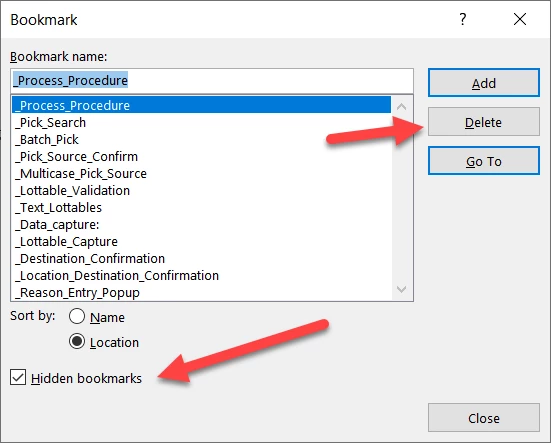
    2. In Word delete the bookmarks by going to Insert > Bookmarks > Tic the Hidden box to reveal them.
    3. Delete the offending bookmarks.

    (See more in next post.)

    2 replies

    Community Expert
    July 23, 2021

    If your word doc includes a table of contents, perhaps try deleting the table of contents before importing. In older versions I believe RH created a bookmark for each heading included in the word toc, and while i haven't tried an import in RH2020, it's something easy to try.

    johndaigle
    johndaigleCorrect answer
    Legend
    July 23, 2021

    Elaborating on Amber's good point, in Rh 2020, I helped a client solve this messy problem. It's better to delete the bookmarks while still in Word.

    1. First, delete MS Word's "automatic TOC" generated from Heading Styles. Delete the useless introductory Auto TOC pages from the Word doc. This is how Word created the bookmarks in the first place. You will be left with a lot of orphaned (and hidden) bookmarks. 
    2. In Word delete the bookmarks by going to Insert > Bookmarks > Tic the Hidden box to reveal them.
    3. Delete the offending bookmarks.

    (See more in next post.)

    John DaigleAdobe Certified RoboHelp and Captivate InstructorNewport, Oregon
    johndaigle
    Legend
    July 23, 2021

    (Continued from previous post)

    1. Save and import to RoboHelp as usual.
    2. To create your own TOC during the Word Import process, first create topics by selecting a Heading Style.

    John DaigleAdobe Certified RoboHelp and Captivate InstructorNewport, Oregon
    Jeff_Coatsworth
    Community Expert
    Community Expert
    July 22, 2021

    Not that I'm aware of - might be something that you could script though.