


Oct 17, 2019 6:09 AM UTC
Question

How do I delete Index & Glossary in WebHelp output in Robohelp Reimagined 2019?

Hi all,

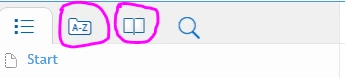
I would like to delete the "index" - and "glossary" tabs in the WebHelp output in Robohelp 2019 (reimagined). Does anybody know how to remove these?
 

Cheers,

K.

This topic is closed to new replies. Start a new post to keep the conversation going.

5 replies

Oct 17, 2019 10:57 AM UTC

Yes, thank you I finally figured out what you meant (new to robohelp, hence my slow comprehension).


Thanks!!

K.

Translate
Peter Grainge
Community Expert
Community Expert
Oct 17, 2019 9:57 AM UTC

Karin has shown you the Azure Blue layout open (tab selected top right) and where to change the layout settings. You have posted where to not include the index.


In Karin's screenshot, she has the leftmost icons contracted. If you do, click the double chevron to see what they all do. Click the one for Skins and open your skin to see it as Karin has shown.


To explain again, turning off the icons does not stop the index being part of the output. The user won't see it because you have removed the icon. However, unless you deselect Include Index the terms will be found by a search. So with Include Index selected but no icon, the user will not see the index but can still benefit from it.


Clear now?


Translate
Use the menu (bottom right) to mark the Best Answer or Highlight particularly useful replies. Found the answer elsewhere? Share it here.
Oct 17, 2019 8:55 AM UTC

I don't really understand how to find those settings (that you're showing Karin) in the Responsive HTML, the only thing that's close to index and glossary looks like this:

But this doesn't make any difference and the tabs are still showing in the output. Should I make a new Responsive HTML output preset or where should I navigate?

Translate
Peter Grainge
Community Expert
Community Expert
Oct 17, 2019 7:50 AM UTC

The index terms, if any, will still be included in the search unless you also deselect Include Index in the preset.


Translate
Use the menu (bottom right) to mark the Best Answer or Highlight particularly useful replies. Found the answer elsewhere? Share it here.
Legend
Oct 17, 2019 7:23 AM UTC

I assume you are talking about "Responsive HTML". Select your desired skin in the output preset and then click the pen icon to edit the skin. There, go to layout and disable "Show index" and "Show glossary". 

Translate