
johnvarvatsis
Inspiring
March 21, 2018
Question

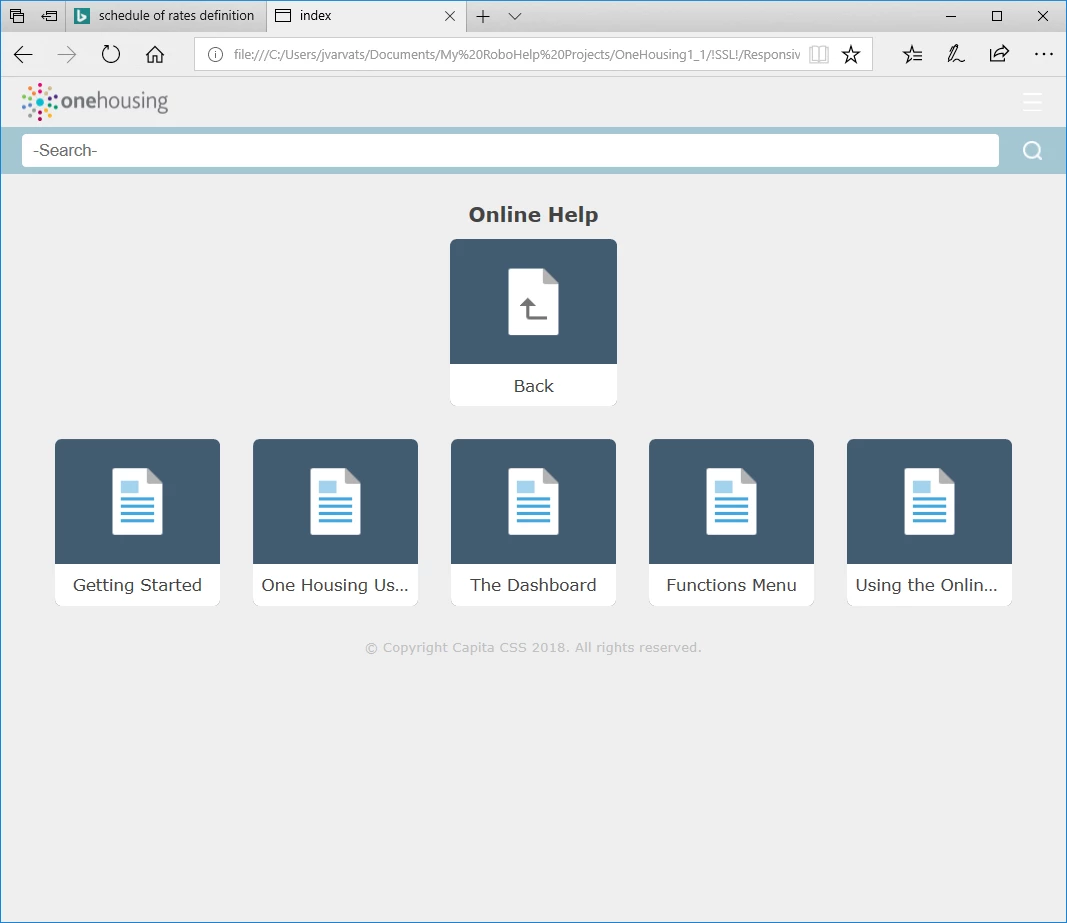
How do I hide the Back icon on Indigo navigation

  • March 21, 2018
  • 1 reply
  • 1192 views

When I was messing around with the evaluation copy of RH I managed to generate output without the Back icon (shown on the screenpic below).

I cant remember how I did it now!

Any ideas folks?
This topic has been closed for replies.

1 reply

Inspiring
March 21, 2018

Hi,

If the top/first book has the Book with Link ticked as below, the back button doesn't get displayed - or the other tiles.

Captiv8r
Legend
March 21, 2018

Hmmm, thinking about the history of the way RoboHelp has always worked, I'd be surprised if that was the answer. But hey, these new Responsive layouts behave in seemingly odd ways. So maybe it will be.

Hopefully if that fixes it, Johnvarvatsis will reply back.

What I would have asked to see is what the TOC looks like inside the RoboHelp editing environment. And my own guess is that I would see something like this when screen captured and posted:

Sooo, Johnvarvatsis - Am I close? Can you share a screen capture of your TOC editor in RoboHelp?

Cheers... Rick

johnvarvatsis
Inspiring
March 21, 2018

I tried doing what you suggested and when I clicked OK on the TOC Book Properties dialog (your screenshot, above) I was prompted to specify a Destination in the Link To drop down. When I did this, clickin on the top level book just took me to that topic. What I wanted to happen was for the "child" topics of the book I selected to be displayed, as shown in my original screenshot. but without the ​Back​ tile.

Here is a screenshot of the current toc.
