
Legend
August 7, 2014
Answered

How to add left and right margins in Topic?

  • August 7, 2014
  • 1 reply
  • 2664 views

Hi

I am using RH10, as part of TCS4. I am creating screen layouts by just modifying the existing ones.

I noticed that there is no margin/ space between the topic border and the topic content in it. When I searched for that in mobile.css, I did not find any relevant reference. When I did a Inspect Element on Firefox, it pointed to default.css which I don't find in my Project Setup pod.

How can I modify it? Here is the screenshot of the issue I am referring to:
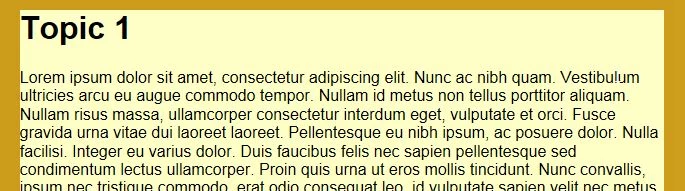
Please advise.

Sreekanth

This topic has been closed for replies.
Correct answer Willam van Weelden

This is done in the layout css. If you add padding to div.wTopic you will get the result you require. Just remember to substract any width you add in padding from the width of the div.wTopic or the container will become too large.

The project manager pod only shows the css files currently used by topics. Can you assign the css to a topic from the topic properties? There you should see all css files in your project directory.

Kind regards,

Willam

1 reply

Participating Frequently
August 8, 2014

The default.css is in your Project Manager pod, not the Project Setup pod. Scroll past your topics and just before the images, you should find the default.css. Double-click to open and you can set a left and right margin for your normal text, headings, etc. under Paragraph. Be sure to APPLY before moving to the next paragraph style.

As long as all your topics do not have inline formatting that overrides the css, they should pick up the new settings and apply them. Regenerate, then view to see if you added enough left and right margin to suit your needs.

Let me know. Thanks, Susan

Peter Grainge
Community Expert
Community Expert
August 8, 2014

Or right click the css, click Edit With > HTML Editor and apply a margin left and margin right to the Body tag.  That will affect all the styles in one go.


See www.grainge.org for RoboHelp and Authoring tips

@petergrainge

Use the menu (bottom right) to mark the Best Answer or Highlight particularly useful replies. Found the answer elsewhere? Share it here.