Answered
How to center an image (RH 2019)?
Hi, Everyone.
Can someone please tell me how to center an image?
Thanks!

Hi, Everyone.
Can someone please tell me how to center an image?
Thanks!
To manually centre images (inline formatting) you need to format the paragraph the image is in. If you haven't inserted the image yet, you can set the alignment of the paragraph then insert the image, as you discovered.
For images you've already inserted, don't click on the image. Instead, put the cursor in front of or behind the image, then set the alignment of the paragraph as normal.
If you want to be able to update all images you've centred at one time, you can create styles. There are two ways you can do it: a p style or an img style. Both have pros and cons.
p style
Pro: You can define the p style using the RH wysiwyg editor.
Con: You can only apply the style when the image is inside a p tag. However this is likely if you are adding all your images using RH.
img style
Pro: You can apply it regardless of the tag the image occurs in. For example if you're importing html code, the img tag might appear on its own, or within a div tag rather than in a p tag.
Con: You have to type it manually in the text editor, as the wysiwyg editor doesn't allow "auto" to be selected.
There's an extra step or two needed to apply the img style see below.
First, probably don't call the style 'centred' in case you change your mind about centering in future. Instead I recommend some common usage feature of the images. For example, maybe it's only images you use in overview material, or only in the middle of procedures, or an intro banner.)
/* p tag example */
p.overview {
    text-align: center;
}

/* img tag example */
img.overview {
    /* display must be set to block so the margins apply. img is 'inline' by default */
    display: block;

   /* auto means 'assign unused space to this side'.
      setting auto on left and right distributes the space
      evenly on each side */
    margin-left: auto;
    margin-right: auto;
}
(The /* */ markings denote comments. You can delete each block from /* to */ (displayed in orange in the RH code editor). I've just included them to explain what each segment of code is doing. )
To apply the img style, click on the image, select Image styles in the Styles tab, and click on the style.
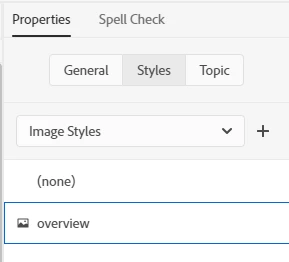
Regarding images already in your help content, you'll need to go through and manually format them either inline or using a style. You might be able to bulk replace using a regular expression find and replace, but that's a whole different kettle of fish. 🙂
Already have an account? Login
No account yet? Create an account
Enter your E-mail address. We'll send you an e-mail with instructions to reset your password.


 AdChoices