
Known Participant
September 13, 2016
Answered

How to edit the default text in the Search box ("Search")?

  • September 13, 2016
  • 1 reply
  • 616 views

Hi,

I would like the text that appears by default in my Search box to say "How do I...?" instead of the default "-Search-".  I believe this can be done by editing a bit of tagged text in the HTML for the help system's background/frame/whatever, but I don't know where to find that. How would I get to that text to edit it?

Thanks!

Tim Huddleston

Idol of Millions,

Friend to None

(Except the person who answers my question)
This topic has been closed for replies.
Correct answer Captiv8r

Glad you got it sorted!

For anyone that finds this thread down the road, here is another way to accomplish it.

From RoboHelp (2015 Release) click the Project tab in the ribbon and click Project Settings. (you can also easily open Project Settings by pressing Ctrl+Shift+?)

This should open the Project Settings dialog.

Ensure the General tab is in focus and click the button labeled "Advanced".

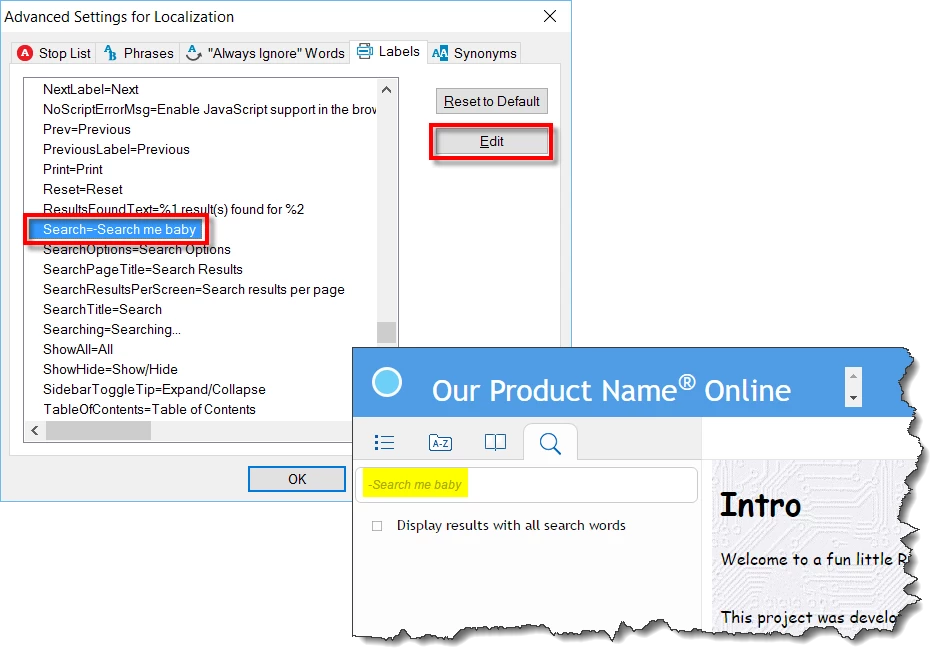
This should open the Advanced Settings for Localization dialog.

Scroll to the section that reads: [ResponsiveHelp] and find the setting that reads: Search=Search.

Click that line to give it focus, then click the Edit button.

Change the line to read Search=(Type What You Want to See Here)

Click OK and OK to dismiss the dialogs, then generate the output again.

Cheers... Rick

1 reply

Captiv8r
Legend
September 13, 2016

Hi there

For which output? WebHelp, FlashHelp, WebHelp Pro, FlashHelp Pro, Multiscreen HTML 5, Responsive HTML 5?

And what version of RoboHelp are you using?

Cheers... Rick

thuddlesAuthor
Known Participant
September 14, 2016

Yeah, I left out some important details, didn't I? Sorry about that.

I'm using RoboHelp 2015 and creating Responsive HTML 5 output.]

Meantime, I actually figured it out. I opened the skin for my layout, switched to HTML view, and found the section for the search box. I then found the placeholder that appears inside the search box, which is {{Search}}, and replaced it with {How Do I...?}. It worked!

Thanks for the reply,

Tim

Captiv8r
Captiv8rCorrect answer
Legend
September 14, 2016

Glad you got it sorted!

For anyone that finds this thread down the road, here is another way to accomplish it.

From RoboHelp (2015 Release) click the Project tab in the ribbon and click Project Settings. (you can also easily open Project Settings by pressing Ctrl+Shift+?)

This should open the Project Settings dialog.

Ensure the General tab is in focus and click the button labeled "Advanced".

This should open the Advanced Settings for Localization dialog.

Scroll to the section that reads: [ResponsiveHelp] and find the setting that reads: Search=Search.

Click that line to give it focus, then click the Edit button.

Change the line to read Search=(Type What You Want to See Here)

Click OK and OK to dismiss the dialogs, then generate the output again.

Cheers... Rick