Inspiring
September 2, 2020
Answered

How to set width of table style (RH 2019, new UI)

  • September 2, 2020
  • 19 replies
  • 611 views

Hi, Everyone.


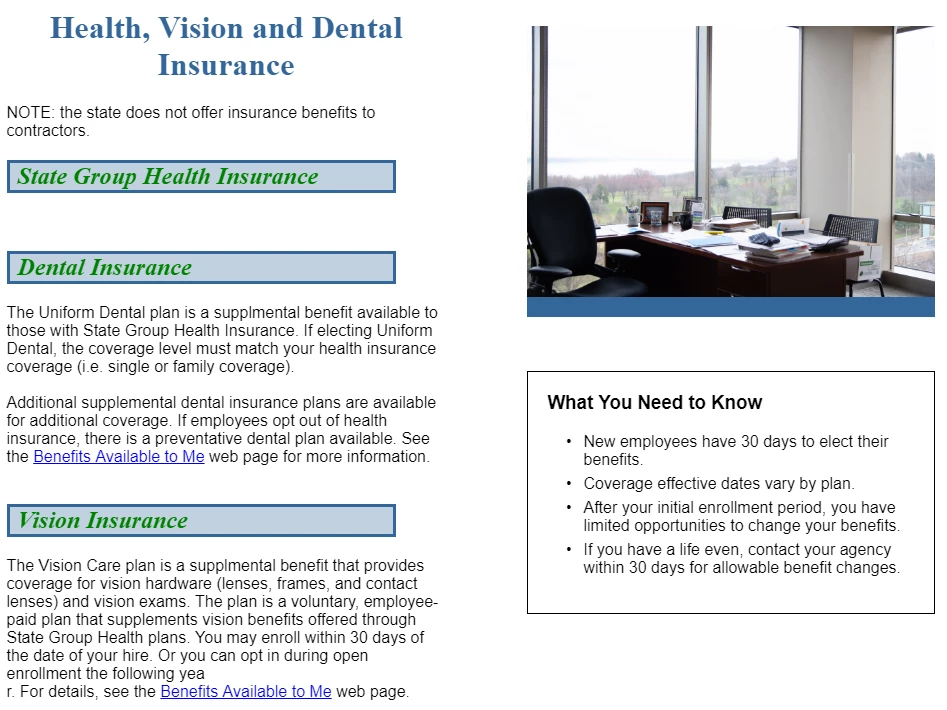
I'm creating a table style to create a "side bar" format. (See screenshot, right-hand column, beneath the image.)


I'd like to set the width in the style to be narrower. But I don't want to use pixels, afraid that would forfeit the responsive properties of my skin (Oceanic).


How do I do this? 


Thank you!

    This topic has been closed for replies.
    Correct answer Peter Grainge

    This goes back on what I suggested earlier but it should resolve your issue.


    CREATING A TABLE STYLE

    1. Open you CSS file in the CSS editor.
    2. Right click on Table Styles and select New.
    3. Enter a name in Class, ignore Pseudo Class.
    4. Go to the Border settings.
    5. Set the type of border (usually solid), the colour and the width.
    6. Not how the preview is showing those settings around the outside of the table only.
    7. Now do the same in the Cell settings. Note that the preview will show two lines between cells.
    8. Go to the General settings and select Border Collapse > Collapse.
    9. At the top of the Properties you will see that all the above settings have been applied to Whole Table.
    10. Use the dropdown to create row and column specific settings.
    11. When done, click Save.


    USING THE STYLE

    At this stage I suggest you create a folder and topic called Scratchpad or suchlike.

    1. On a fresh line and not within another table, go to the toolbar and insert a table with the required number of rows and columns.
    2. In Properties > Styles select that table.

    It should appear as you want. You can apply styles within the cells and I prefer that approach rather than defining text in the table editor.


    TABLES WITHIN A TABLE

    Within another table, the styles may go wrong through inheritance. Identify the value that is wrong and add !important.

    For example, if the colour does not stick look at the CSS in source view, edit it as below.

    From

    border-color: #FF0000;

    To

    border-color: #FF0000 !important;

     

    19 replies

    Peter Grainge
    Community Expert
    Community Expert
    September 4, 2020

    Why, when creating the table style for this, why add a border around the whole table? 

    Just the way CSS defines tables.


    And does the "border collapse" step eliminate that border?

    No. See what happens to the preview when you select it.


    Use the menu (bottom right) to mark the Best Answer or Highlight particularly useful replies. Found the answer elsewhere? Share it here.
    Inspiring
    September 4, 2020

    Haha! I'm delerious with excitement that this works. 🙂 


    Peter, thank you so, so much for walking me through it. I don't really understand why it works. The counterintuitive part is:

    • Why, when creating the table style for this, why add a border around the whole table? 
    • And does the "border collapse" step eliminate that border?


    I'm not complaining. Far from it. My head is just kinda spinning from this whole thing. I almost gave up at several different points b/c it wasn't making sense in the moment. But, as they say, the proof is in the pudding:


    Peter Grainge
    Community Expert
    Community Expert
    September 4, 2020

    Whatever you choose in the dropdown is what you will get, so even rows will apply to rows 2,4, 6 etc.


    Yes in your topic choose your new style.


    You can edit the table template by going to the CSS editor. You can edit a specific instance in the topic properties.


    Try it in the scratchpad. 🙂


    Use the menu (bottom right) to mark the Best Answer or Highlight particularly useful replies. Found the answer elsewhere? Share it here.
    Inspiring
    September 4, 2020

    Hi, Peter.


    In Step 10, you say, "Use the dropdown to create row and column specific settings."  Do you mean 

    repeat #1 - #9 for all add'l rows & columns? Or create specific settings to create the effect I want in the specific row/column?


    Also, under "Using the Style," Step 2 is "In Properties > Styles select that table."  Do you mean select the newly created table style?


    You also say, "You can apply styles within the cells and I prefer that approach rather than defining text in the table editor."  What/where is the table editor? Is that just Select table > Properties > General tab?


    Thank you!

    Peter Grainge
    Community Expert
    Peter GraingeCommunity ExpertCorrect answer
    Community Expert
    September 4, 2020

    This goes back on what I suggested earlier but it should resolve your issue.


    CREATING A TABLE STYLE

    1. Open you CSS file in the CSS editor.
    2. Right click on Table Styles and select New.
    3. Enter a name in Class, ignore Pseudo Class.
    4. Go to the Border settings.
    5. Set the type of border (usually solid), the colour and the width.
    6. Not how the preview is showing those settings around the outside of the table only.
    7. Now do the same in the Cell settings. Note that the preview will show two lines between cells.
    8. Go to the General settings and select Border Collapse > Collapse.
    9. At the top of the Properties you will see that all the above settings have been applied to Whole Table.
    10. Use the dropdown to create row and column specific settings.
    11. When done, click Save.


    USING THE STYLE

    At this stage I suggest you create a folder and topic called Scratchpad or suchlike.

    1. On a fresh line and not within another table, go to the toolbar and insert a table with the required number of rows and columns.
    2. In Properties > Styles select that table.

    It should appear as you want. You can apply styles within the cells and I prefer that approach rather than defining text in the table editor.


    TABLES WITHIN A TABLE

    Within another table, the styles may go wrong through inheritance. Identify the value that is wrong and add !important.

    For example, if the colour does not stick look at the CSS in source view, edit it as below.

    From

    border-color: #FF0000;

    To

    border-color: #FF0000 !important;
     

    Use the menu (bottom right) to mark the Best Answer or Highlight particularly useful replies. Found the answer elsewhere? Share it here.
    Peter Grainge
    Community Expert
    Community Expert
    September 3, 2020

    I'll write up some notes in the morning. 


    Use the menu (bottom right) to mark the Best Answer or Highlight particularly useful replies. Found the answer elsewhere? Share it here.
    Inspiring
    September 3, 2020

    Peter, will you please say a bit more about this?  You've recommended that I:

    • Create that style away from where you want it. It's easier to define it alone.
    • Set it up with the border and background colour in the CSS. Forget columns and rows there.
    • Then you create the table where you really want it, using the toolbar again . . .
    • . . . after which you apply the style you created.

    I'm not clear on the underscored parts.


    Thank you!

    Inspiring
    September 3, 2020

    Ohhhhh!! You're right, Peter, it is a table within a table.  I had misunderstood what I was doing. I had mistakenly thought I placed my new "side bar" below the existing table


    I'll see if I can format the cell to create the "side bar" effect, with a cell border and shading.


    Thank you for figuring out what the problem is. 

    Peter Grainge
    Community Expert
    Community Expert
    September 3, 2020

    That will be a table within a table, correct? The only way you are going to get that layout with two columns is a table. Well actually you can create columns, not table columns, that's described in About RoboHelp but I am not sure you can make them independant, I would need to check.


    It's a bit more tricky as the second table will inherit CSS from the main table. Essentially though create that style away from where you want it, it's easier to define it alone. Set it up with the border and background colour in the CSS. forget columns and rows there. Then you create the table where you really want it, using the toolbar again, after which you apply the style you created.


    Use the menu (bottom right) to mark the Best Answer or Highlight particularly useful replies. Found the answer elsewhere? Share it here.
    Inspiring
    September 3, 2020

    Well, here's what I want (circled in this screenshot):


    And this image is from the preview after applying the table style. So, it seems I'm setting it up properly. But the styling does not appear in the output.