Known Participant
August 1, 2016
Answered

HTML Help Home Button - How to Edit Content

  • August 1, 2016
  • 2 replies
  • 1455 views

I'm using Robohelp 11 and we display our content as microsoft HTML help.  I am wondering how to edit the content of the home button on the top of the page next to the forward and back buttons.  Since it's HTML Help I cannot use a skin to change the buttons but I need to change what displays when the home button is clicked.  I can't find how to change where the button links to.  I would just like to link it to our home topic.

Thanks!

Matthew
This topic has been closed for replies.
Correct answer Captiv8r

Hi there

On the outside chance you aren't really wanting to tackle the "skin in a CHM" quite yet, try this.

First, note the path and filename of the file you want to present when the user clicks the Home link.

Open the Project Setup pod. (View > Pods > Project Setup)

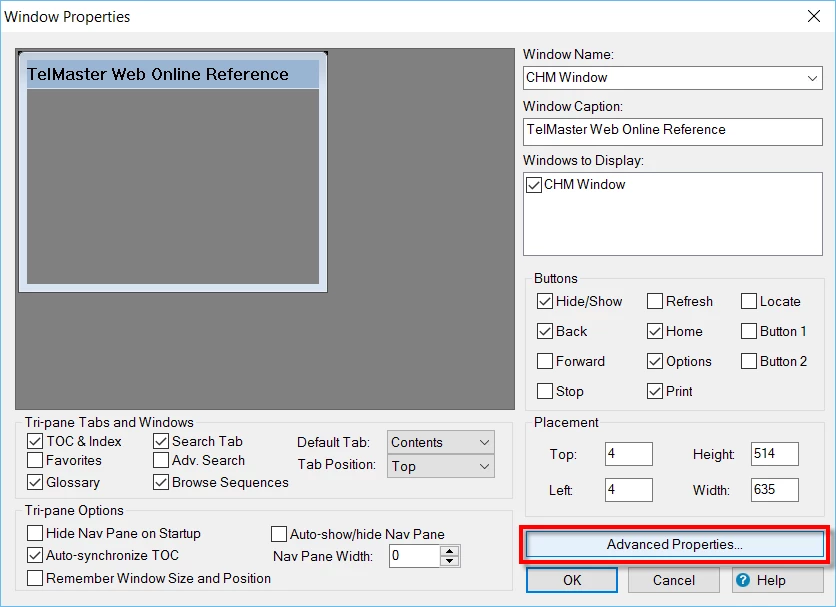
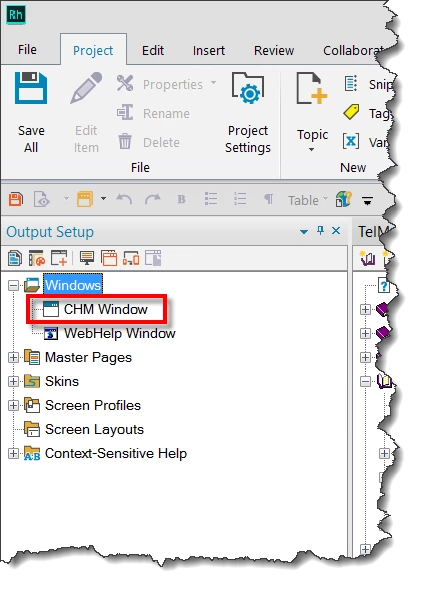
Then expand the Windows section and double-click the CHM window. (If you don't see a CHM window, you may need to create one)

From the Window Properties click the Advanced Properties button.

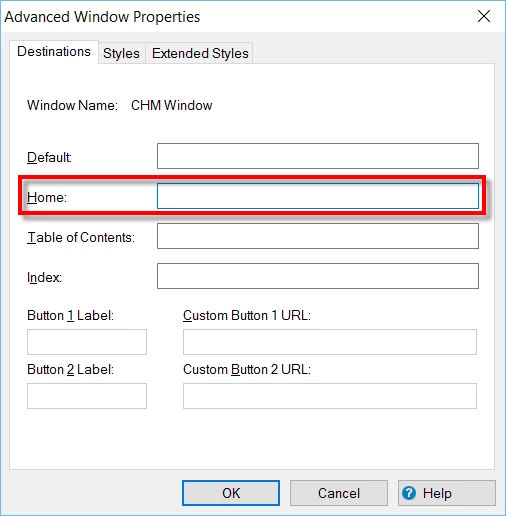
And from the Advanced Properties dialog, you type (yes, you heard that right, TYPE) the path and file name of the desired file. (Remember that first step?) Note that you can also type a URL pointing to a web site here.

Hopefully this helps... Rick

2 replies

Captiv8r
Captiv8rCorrect answer
Legend
August 1, 2016

Hi there

On the outside chance you aren't really wanting to tackle the "skin in a CHM" quite yet, try this.

First, note the path and filename of the file you want to present when the user clicks the Home link.

Open the Project Setup pod. (View > Pods > Project Setup)

Then expand the Windows section and double-click the CHM window. (If you don't see a CHM window, you may need to create one)

From the Window Properties click the Advanced Properties button.

And from the Advanced Properties dialog, you type (yes, you heard that right, TYPE) the path and file name of the desired file. (Remember that first step?) Note that you can also type a URL pointing to a web site here.

Hopefully this helps... Rick

Known Participant
August 6, 2016

Hi Rick,

Thanks for the help.  That is what I was looking for but couldn't find where it was.  It looks like the topic I want as a home talk already was entered in that window but it's not displaying correctly when the home button is clicked.  Do yout think it could be because the topic is the very first topic in my TOC and not in a subfolder while all other topics are in subfolders?

Thanks,

Matthew

Captiv8r
Legend
August 6, 2016

Hi Matthew

Not displaying at all or not displaying correctly? Can you share a screen capture of what you are seeing?

Thanks... Rick

Peter Grainge
Community Expert
Community Expert
August 1, 2016

You can use a skin! RoboHelp 10 introduced a script that converts webhelp to a CHM. See the RoboHelp Tour on my site and look at RoboHelp 10 New Features.

By using that you also get a few webhelp features that will work in the CHM.


See www.grainge.org for RoboHelp and Authoring information

@petergrainge

Use the menu (bottom right) to mark the Best Answer or Highlight particularly useful replies. Found the answer elsewhere? Share it here.
Known Participant
August 6, 2016

Thanks for the help Peter!  For now I would like an easy fix without having to set up a whole skin.  Could come in handy in the future though.