
Participating Frequently
March 13, 2019
Answered

Image Alignment and Text Wrapping Error in Web Output

  • March 13, 2019
  • 1 reply
  • 5701 views

I am having an issue in my final WebHelp Output using Robohelp 2019 but the classic version.

I converted a large 3000 page framemaker book and some images in the robohelp output are not aligned left. I mistakenly chose to align them left using robohelp but now I have the text wrapping around the image. I do not want the text to wrap, and I need the images aligned to the left. Can someone tell me how to fix this in my current robohelp project and when importing and converting for a new project to insure the proper alignment? Also, I did the same thing with some tables which were not aligning to the left, I have some tables with text wrapping around them.

I have attached a screen shot. In this screen shot I even have a footer wrapping?!
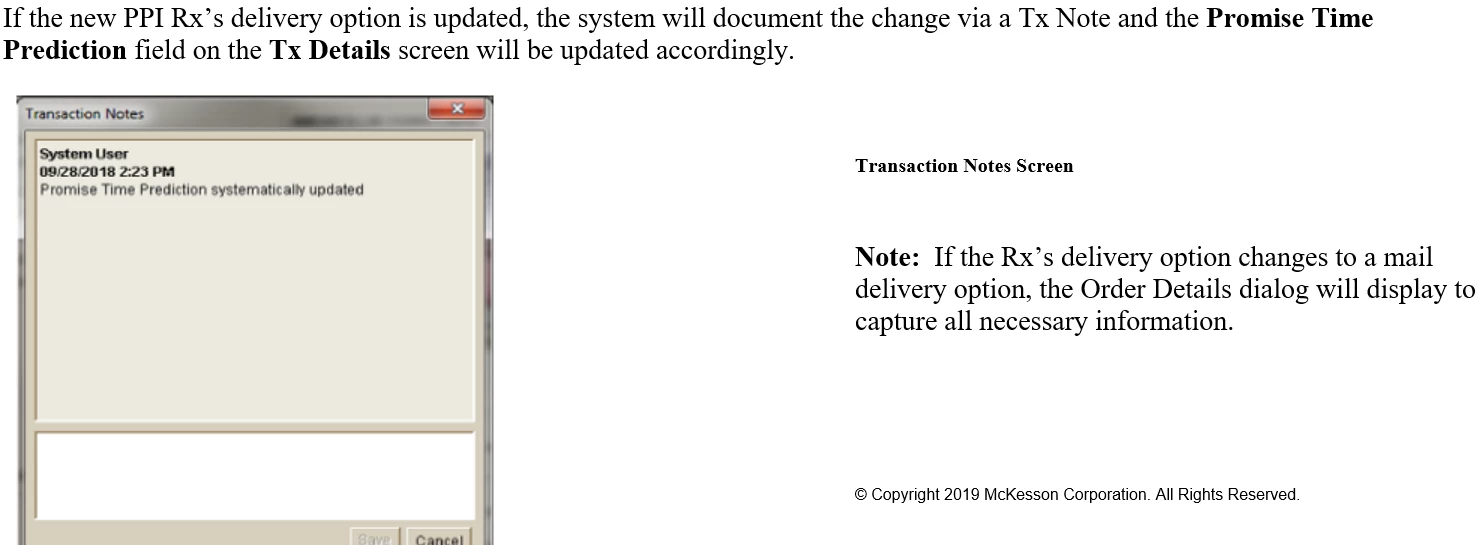
This topic has been closed for replies.
Correct answer Stefan Gentz

You have added an align="left" to the image. This is causing this effect. In XHMTL 1.0 it makes an image "floating" to the left (text wraps around).

In the code change this:

<img alt="Promise_Time_Prediction_Tx_Note.png" id="image4" src="Promise_Time_Prediction_Tx_Note.png" width="568" height="320" align="left" border="0" />

to this:

<img alt="Promise_Time_Prediction_Tx_Note.png" id="image4" src="Promise_Time_Prediction_Tx_Note.png" width="568" height="320" border="0" />

Then it should be back to normal.

If you want to left-align the image, it needs to look like this:

<div style="text-align: left;">

     <img alt="Promise_Time_Prediction_Tx_Note.png" id="image4" src="Promise_Time_Prediction_Tx_Note.png" width="568" height="320" border="0" />

</div>

If you want to center the image, it needs to look like this:

<div style="text-align: center;">

<img alt="Promise_Time_Prediction_Tx_Note.png" id="image4" src="Promise_Time_Prediction_Tx_Note.png" width="568" height="320" border="0" />

</div>

If you want to right-align the image, it needs to look like this:

<div style="text-align: right;">

     <img alt="Promise_Time_Prediction_Tx_Note.png" id="image4" src="Promise_Time_Prediction_Tx_Note.png" width="568" height="320" border="0" />

</div>

In a nutshell: Don't apply the alignment to the image, but to the div tag.

Hope that helps.

1 reply

Community Manager
March 13, 2019

Can you paste the HTML source code from the paragraph before the image, the image, and the paragraph after the image + the corresponding CSS code?

Without that, it's difficult to say. Probably there is some formatting involved that makes the image and the paragraph following floating.

Generally said, something like this should work just in the way you want it:

<p>Some text.</p>

<p>

     <img src="imgage.png" alt="my image" />

</p>

<p>Some text.</p>

Participating Frequently
March 13, 2019

When I am in the actual project the info is not formatted like that, but here is the code:

<p dir="ltr" class="FM_Body" style="margin-top: 2.000pt;">If the new PPI

Rx’s delivery option is updated, the system will document the change via

a Tx Note and the <span style="font-weight: bold;">Promise Time Prediction</span>&#160;field

on the <span style="font-weight: bold;">Tx Details</span>&#160;screen

will be updated accordingly.</p>

<div style="text-align: center;">

<img alt="Promise_Time_Prediction_Tx_Note.png" id="image4" src="Promise_Time_Prediction_Tx_Note.png"

width="568" height="320" align="left" border="0" />

</div>

<p dir="ltr" class="FM_Body" style="margin-top: 2.000pt;">&#160;</p>

<p dir="ltr" style="margin-top: 1.000pt; font-weight: bold; font-size: 10.0pt;">Transaction

Notes Screen</p>

<p dir="ltr" class="FM_Body" style="margin-top: 1.000pt; font-weight: bold;

font-size: 10.0pt;">&#160;</p>

<p dir="ltr" style="margin-top: 2.000pt;"><span style="font-weight: bold;">Note:</span>&#160;&#160;If

the Rx’s delivery option changes to a mail delivery option, the Order

Details dialog will display to capture all necessary information. </p>

</body>

</html>

or

Stefan GentzCommunity ManagerCorrect answer
Community Manager
March 13, 2019

You have added an align="left" to the image. This is causing this effect. In XHMTL 1.0 it makes an image "floating" to the left (text wraps around).

In the code change this:

<img alt="Promise_Time_Prediction_Tx_Note.png" id="image4" src="Promise_Time_Prediction_Tx_Note.png" width="568" height="320" align="left" border="0" />

to this:

<img alt="Promise_Time_Prediction_Tx_Note.png" id="image4" src="Promise_Time_Prediction_Tx_Note.png" width="568" height="320" border="0" />

Then it should be back to normal.

If you want to left-align the image, it needs to look like this:

<div style="text-align: left;">

     <img alt="Promise_Time_Prediction_Tx_Note.png" id="image4" src="Promise_Time_Prediction_Tx_Note.png" width="568" height="320" border="0" />

</div>

If you want to center the image, it needs to look like this:

<div style="text-align: center;">

<img alt="Promise_Time_Prediction_Tx_Note.png" id="image4" src="Promise_Time_Prediction_Tx_Note.png" width="568" height="320" border="0" />

</div>

If you want to right-align the image, it needs to look like this:

<div style="text-align: right;">

     <img alt="Promise_Time_Prediction_Tx_Note.png" id="image4" src="Promise_Time_Prediction_Tx_Note.png" width="568" height="320" border="0" />

</div>

In a nutshell: Don't apply the alignment to the image, but to the div tag.

Hope that helps.