
Participant
September 20, 2022
Question

Images not appearing in chm output

  • September 20, 2022
  • 4 replies
  • 634 views

Using RoboHelp 2020.8.34, I run into challenges with images when I try to compile chm (Microsoft HTML Help) output.


The output looks as expected when I generate PDF, Frameless, HTML5, etc., but for chm output my project looks like:
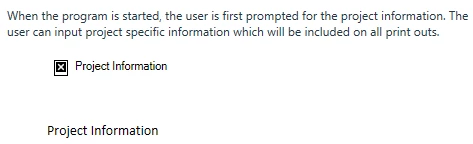
 

Remarks:

  1. chm files provided with software install on my computer displays as expected.
  2. The chm file I generate is located on my local drive, C:\, hence no network drive.
  3. Neither the folder path nor the image names contain special characters.
  4. The images are all currently located in the default folder .\contents\assets\images


The challenge is easily reproducible by the following procedure.

-----

Reproduction Steps:

  1. Create a new project
  2. On the Output panel, add a new output preset for Microsoft HTML Help. Leave all settings default.
  3. Generate the newly added output preset. (File size 47 KB)
  4. Open the generated chm file. The file displays as expected, see Image1 below.
  5. In the Author panel, edit the topic First Topic and add an image. For this experiment, I Googled RoboHelp, went on Images, right-clicked on the icon from the Wikipedia article, selected Copy image, went into RoboHelp, and pasted it into the topic, see Image2 below. RoboHelp refers to a file in its image repository, .\contents\assets\images. (Image file size 4 KB)
  6. Generate the CHM output preset again. (File size 51 KB)
  7. Open the generated chm file. The file displays, but instead of the image there is an X and the alternate text, see Image3 below.
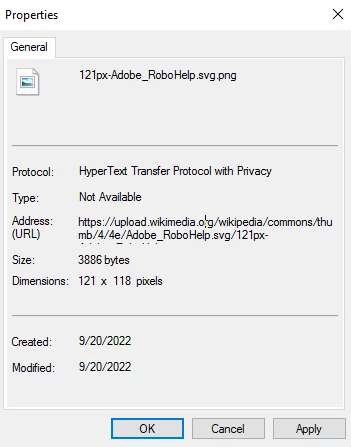
  8. Right-click the image placeholder, X, and select Properties. The Address information looks correct, see Image4 below.
  9. If I open the Wikipedia article, right-click on the icon in the information box on the right, select Copy image, go into RoboHelp, and paste the image, the image source is the URL, not a location on my PC. See Image5 below.
  10. Generate the CHM output preset again. (File size 51 KB)
  11. Open the generated chm file. The first image is the familiar X whereas the second image displays, see Image6 below.
  12. Right-click the image which displays and select Properties. The Address information points to the URL, see Image7 below.

-----


Does anybody have any clue what is going on here? What am I missing?


There seems to be an issue with images stored locally, but using a URL will not be a viable path when it comes to displaying snippets from software applications. And all files are on my local drive, not on a network drive, OneDrive, SharePoint, etc.


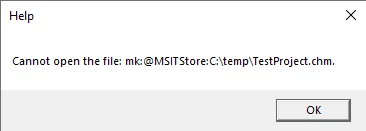
Finally, I have also noticed that some images kept locally may cause the chm to fail to open altogether, only producing the error message just below. If the image is removed and the output regenerated, the chm displays again.
 

-----


### Images ###


Image1
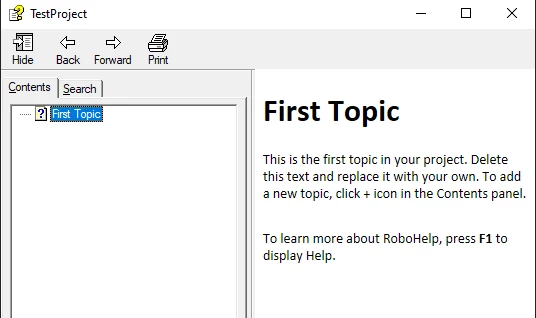
 

Image2
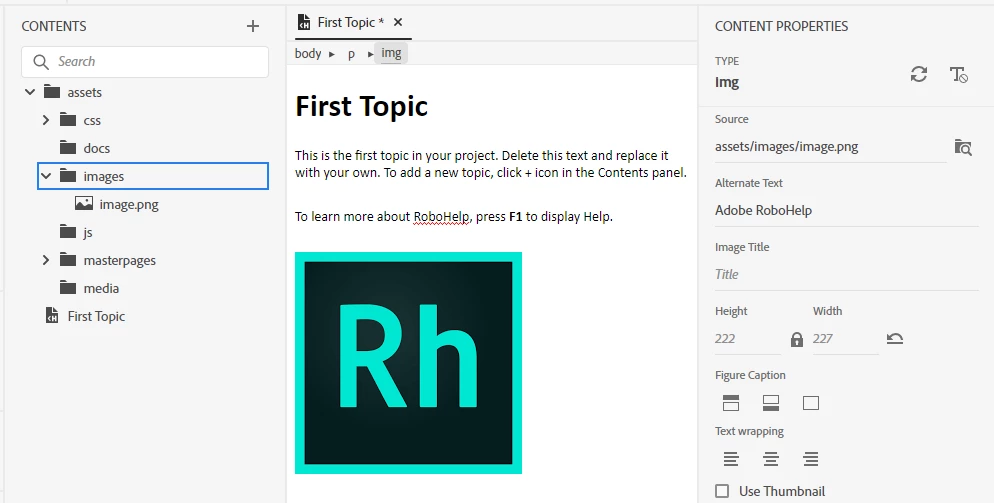
 

Image3
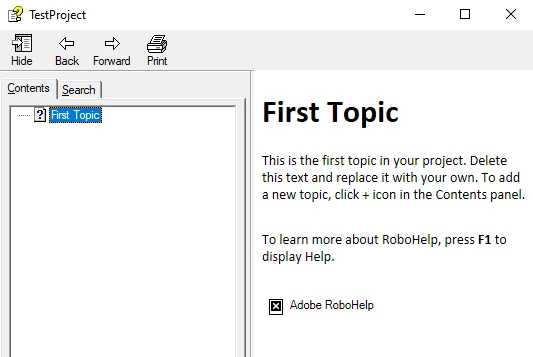
 

Image4
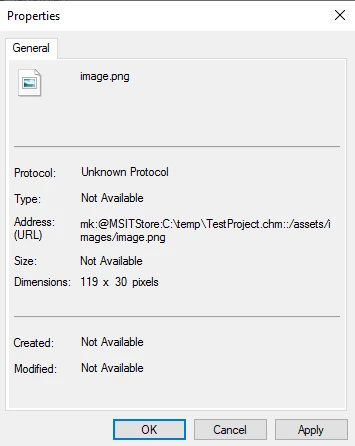
 

Image5
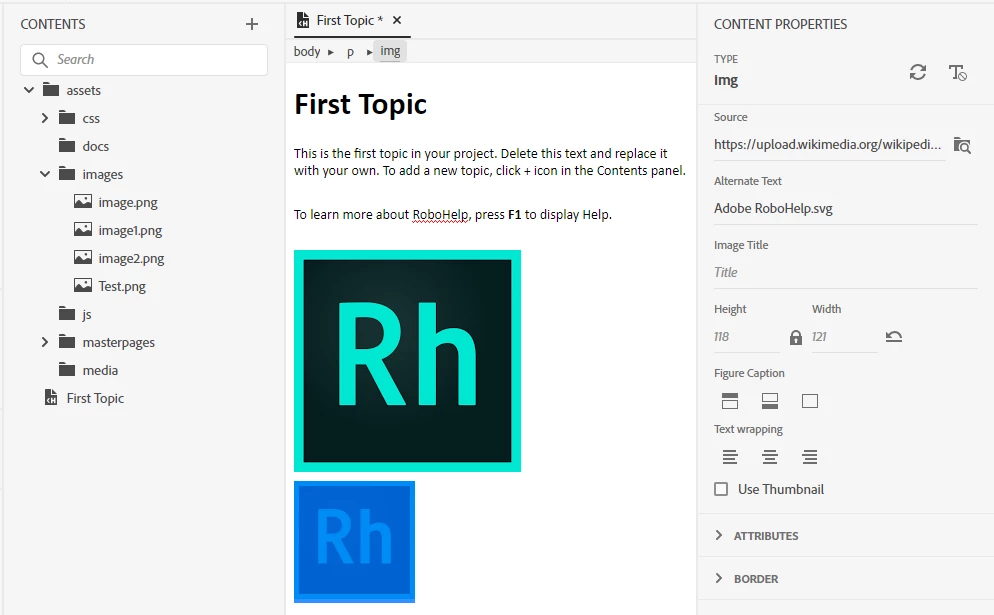


Image6
 

Image7


This topic has been closed for replies.

4 replies

Peter Grainge
Community Expert
Community Expert
September 26, 2022

I have emailed a reply. More information needed.

________________________________________________________

My site www.grainge.org includes many free Authoring and RoboHelp resources that may be of help.


Use the menu (bottom right) to mark the Best Answer or Highlight particularly useful replies. Found the answer elsewhere? Share it here.
Participant
September 28, 2022

Hi Peter,


I have responded to your email and I hope the information is what you requested.


In the meantime, I have also been in contact with Adobe support and we had a longer remote session yesterday without identifying and resolving the challenge. We went through relevant components to ensure there is no misalignment between component versions and did not find anything. We also reinstalled RoboHelp from scratch without success.


Since both you and Adobe have managed to compile functional versions of my RoboHelp test project using the same version of RoboHelp (2020.8.34), the conclusion is that the issue resides on my end. We have not been able to identify the root cause, but suspect it may be due to configurations imposed by corporate IT settings and policies.


I recommend that we leave this conundrum unsolved and conclude on this thread.


Thanks.

Peter Grainge
Community Expert
Community Expert
September 22, 2022

Can you reproduce this in a new project? If you can, then see the Contact page on my site and send the project as instructed there. Do make sure you include a link to this thread and please do not email the project direct.

________________________________________________________

My site www.grainge.org includes many free Authoring and RoboHelp resources that may be of help.


Use the menu (bottom right) to mark the Best Answer or Highlight particularly useful replies. Found the answer elsewhere? Share it here.
Peter Grainge
Community Expert
Community Expert
September 21, 2022

Could you not reduce the resolution of the image?


Instead of pasting it into the topic, try using the toolbar icon.


Beyond that see https://helpx.adobe.com/contact/enterprise-support.other.html#robohelp for your Adobe Support options. The email link tcssup@adobe.com is recommended as it reaches a team dedicated to Technical Communication Suite products including RoboHelp. 

________________________________________________________

My site www.grainge.org includes many free Authoring and RoboHelp resources that may be of help.


Use the menu (bottom right) to mark the Best Answer or Highlight particularly useful replies. Found the answer elsewhere? Share it here.
Participant
September 21, 2022

Hi Peter,


thanks for your suggestions and questions.


For the completeness of this thread:

  • Yes, I can reduce the resolution. It was not intentional and had no value in itself to use a large image, I just picked a random one for testing. Reducing the resolution addresses the challenge with "Cannot open the file at mk:MSITStore..." and lets me open the generated chm, however the image still does not show.
  • I have tried the Insert Image option, either by clicking the toolbar icon or using Ctrl+G, and it does not impact the outcome. Whether I download the image first and insert it using the toolbar icon, or copy-paste it straight into the editor, the two resulting images stored in the ./assets/images are identical on the byte level. Comparing the two in a HEX editor shows two identical files. It is seems as if the images are currupted when the chm output preset is generated. At least I can see that after unpacking the chm, all NUL elements in the binary image formats have been removed. NUL values are stripped from both png and jpg leading to image formats that are no longer recognized. Unfortunately, it seems as if the challenge is image formate agnostic, so there is no workaround by changing the image format.


Thanks again!

Peter Grainge
Community Expert
Community Expert
September 20, 2022

See Snippets (grainge.org) Item 6.

________________________________________________________

My site www.grainge.org includes many free Authoring and RoboHelp resources that may be of help.


Use the menu (bottom right) to mark the Best Answer or Highlight particularly useful replies. Found the answer elsewhere? Share it here.
Participant
September 21, 2022

Peter,

Thanks for your quick reply.


Unfortunately, neither thread under Item 6 resolves my problem. Further, as far as I understand this, that item only relates to the "Cannot open the file at mk:MSITStore..." error message. While I thougth that piece of information might be useful, I now think it is a red herring. This error only occurs when I try to include a large high resolution image which seems to cause the compilation fails as the resulting chm file is only 1 KB.


Hence, the true challenge remains:

When I include an image from the local harddisk, it does not show when I open the generated chm output, as illustrated in Image3 and Image6.


Continued Investigation:

I have carried out some further investigations. I did prepare a zip archive with the three different tests including RoboHelp project folders and the associated chm outputs, but unfortunately zip is not an allowed file type.


1) TestProject-NoImg:

  • Create new project by File > New Project
  • Add a Microsoft HTML Help output preset
  • Output chm file size: 47,183 bytes


2) TestProject-ImgURL:

  • Create new project by File > New Project
  • Add an image where the source references a URL at the bottom of First Topic
  • Add a Microsoft HTML Help output preset
  • Output chm file size: 47.277 bytes


3) TestProject-ImgLocal:

  • Create new project by File > New Project
  • Add an image where the source references a file on the local harddisk at the bottom of First Topic (Image file size: 3,734 bytes)
  • Add a Microsoft HTML Help output preset
  • Output chm file size: 51,439 bytes


chm outputs for all three projects are also attached.


The following is observed:

  • The chm files for the first two configurations work as expected.
  • The chm file for the last configuration does not show the image included
  • The chm files for the first two configurations are almost similar in size as the second one only uses a URL as a reference to the image
  • The chm file for the last configuration is about 4 KB larger, which corresponds to the size of the local image included.


So far, so good.


If I use 7-Zip to decompile the chm file for the last configuration, configuration 3), I get a folder structure which includes a folder assets. In turn, assets has two sub-folders: css and images. images contains a single file, image.png.

So far so good, this corresponds to the structure of the RoboHelp project.


If I try to open image.png the following message is displayed: "It appears that we don't support this file format."


Hence, image.png, as incorporated into the chm by RoboHelp has been corrputed.


The two figures below show the image properties. Comparing the two files, the original file is 3.734 bytes whereas the one extracted from the chm is 3,702 bytes, and more importantly, the latter lacks dimensions.

Investigating the two binaries in a HEX editor reveals that in the extracted, all values 00 have been removed.

The images below shows that following the default png file identifier 89 50 4E 47 0D 0A 1A 0A, the original file contains three 00 which seem to have been purged by RoboHelp. The same goes for any NUL (00) values in the png. In turn, this results in a currupt image which cannot be displayed.


I guess this explains the effect but not the cause.

Unless there are some settings I am not aware of which may address this, it seems as if I need to direct this query to Adobe rather than this forum. Nevertheless, I though I should share my findings.


original - Properties


extracted - Properties


original - HEX editor


extracted - HEX editor