OK so I think I'm missing something stupid here. Either that or I'm really idiotic here. Anyway, I now did this:
1. I deleted all the old screen layouts. Added Indigo, selected it as the layout for my project and then imported the .slz file like above. This created a folder called "Indigo1" below the normal "Indigo" one on the Output Setup pod under Screen Layouts. It didn't change anything - the width is still broken.
2. After 1 failed, I deleted all the layouts apart from the default two (Azure Blue and Charcoal Grey). I thought maybe there's something wrong with the .slz file, so I followed the instructions here (RoboHelp screen profiles and layouts) to the T to download and change all the files from start. Here's the process I followed:
A. I deleted all the old files (all of them) and downloaded a fresh copy of the scss-files-2017.zip file.
B. Unzipped the .zip file, and copied the indigo folder in there to the environment RoboHelp is installed.
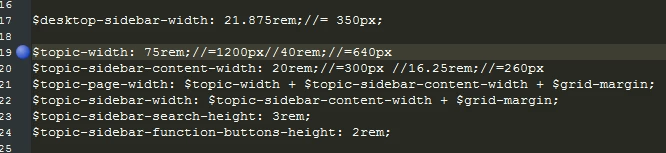
C. Edited the topic-width value in the layout.scss file Line 19 to 75rem;//=1200px as recommended here: RH2017 - increase Indigo content pane width Screenshot of the change here:
D. Downloaded the Koala app they recommend and compiled the file in the folder with the app. This created two files: layout.css and layout.css.map.
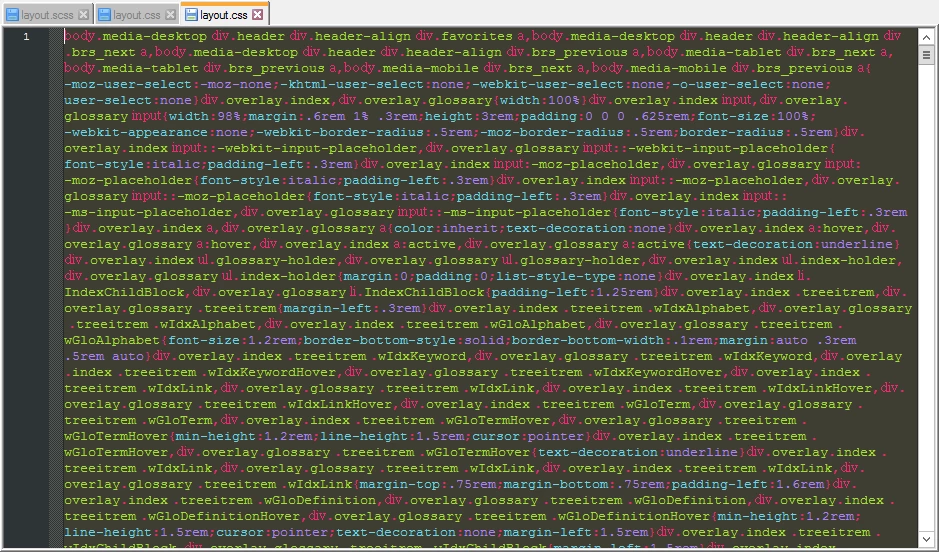
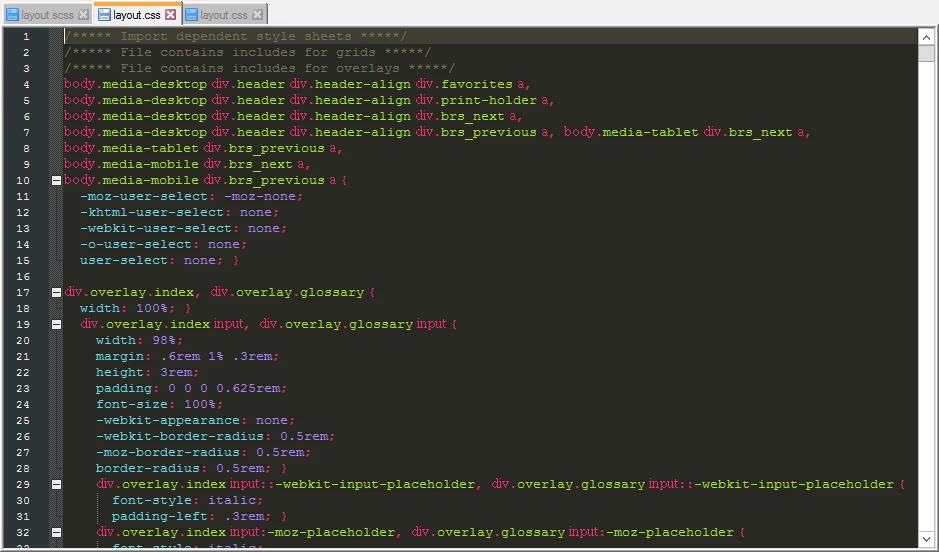
E. According to the instructions linked in 2. above I then copied the layout.css file to a fresh downloaded copy of the Indigo layout. Replaced the original layout.css with the one I compiled from the Koala app. What bothers me here is that the original CSS file looks completely different to the new one that's been created by Koala. See here:
Original:
The edited one created by Koala:
F. Ignoring the differences in the CSS file above, I zipped the folder containing the edited file and changed the extension to .slz.
G. Opened RoboHelp, went to Responsive HTML5 Settings and selected the Indigo layout under Gallery. No errors were given because I deleted all of them before, so it simply added Indigo to the list. Selected it, clicked OK and then Save on the Responsive HTML5 Setting screen. This added the Indigo layout to the Output Setup pod under Screen Layouts.
H. Right-clicked on the Indigo layout and selected Import. Imported the .slz file that I created between D and E. It ran the import, and RoboHelp reported "success". It then adds a layout to the Output Setup pod, but names it Indigo1. This Indigo1 layout looks different to the existing layouts and contains two seemingly broken files, as can be seen here:
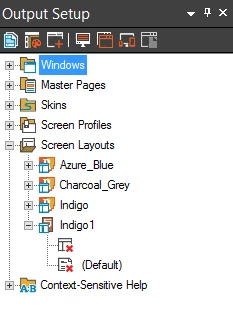
After this, there is no Indigo1 layout to select in the Responsive HTML5 settings and simply building the output does not change anything.
Is there something I'm missing? The difference in the CSS files does bother me, and I would have been fine with editing the original one if I could just make any kind of sense from it. The wording between the two does not correspond and I can't make heads or tails from the original CSS. It's a damn mess!
EDIT: Oh, and I ran the original CSS as well as the one created by Koala through an online CSS validator. Both fail with around 1,030 errors and 130 warnings.
Toxxyc, it's not you, it's RoboHelp. The read X means the file is missing (because RoboHelp doesn't know it's there.) I've encountered this frustration many times, and then I remember that I can't just paste things into the RoobHelp folders. You have to import them or created them in RoboHelp, especially layout files. Otherwise the db doesn't even know it's there.
What I do is create a default layout in RoboHelp. Then I paste the layout files (logo.png, Topic.slp, layout.css) that I've edited into the folder that holds the default layout files, overwriting the default ones. The files have to have the same names.
This is what mine look like: https://www.globalscape.com/help/
I'm using the Azure layout, highly customized (thanks to Peter, Rick, Willam, and this forum!). The more I mess with it (and break it and have to fix it) the more I learn about how it works.




 Seriously, I have searched high and low and can't find the simple answer. I have the file on my desktop, ready to go and all eager to change something, but I can't seem to import it. Can someone please help me?
 AdChoices