Participating Frequently
Sep 22, 2015 12:02 PM UTC
Answered

Is there a way to add a screen tip to an HTML drop down hot spot?

Is there a way to add a screen tip to an HTML drop down or expanding hot spot?  The hot spot displays as green text on the help screen, but short of writing an instruction within the help screen to have users click on the text, I haven't found any other way to convey this. A screen tip is preferable to a written instruction on the page because when I publish a user guide from the help, I have to painstakingly go through the document and remove all these references to "clicking on the green text". It would be ideal to have a mouse-over screen tip like there is for a hyperlink. Is there a way to do this? If not, can Adobe think about adding this feature? Thanks.

This topic is closed to new replies. Start a new post to keep the conversation going.
Captiv8r
Captiv8rCorrect answer
Legend
Sep 22, 2015 1:13 PM UTC

Hi there

For starters, you could apply a Conditional Build Tag to the text that instructs what is happening, then use a Conditional Build Expression to suppress that text when you target an output that shouldn't have it.

Adding a tool tip is pretty easy, but not intuitive.

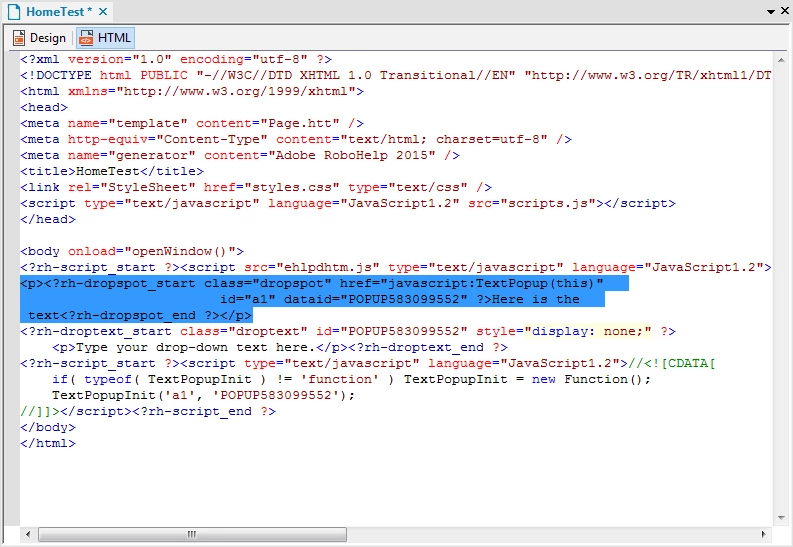
Select the drop-down text, then look at the HTML code. Should look something like this:

Amend the code as follows. Right after the class="dropspot" part, insert the following:

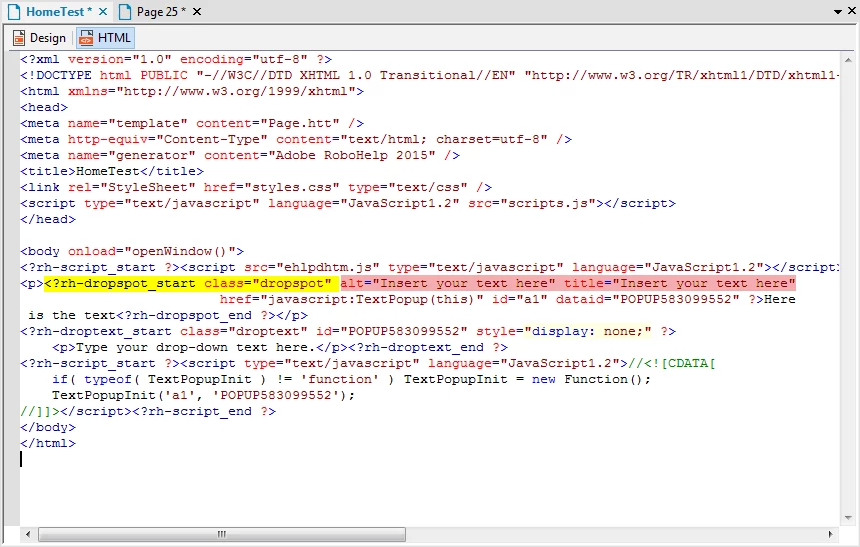
alt="Insert your text here" title="Insert your text here"

When you are finished, it should look like this:

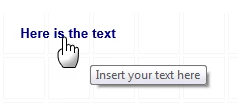
And after doing that, here's what my link looks like when I hover:

Cheers... Rick

2 replies

Captiv8r
Captiv8rCorrect answer
Legend
Sep 22, 2015 1:13 PM UTC

Hi there

For starters, you could apply a Conditional Build Tag to the text that instructs what is happening, then use a Conditional Build Expression to suppress that text when you target an output that shouldn't have it.

Adding a tool tip is pretty easy, but not intuitive.

Select the drop-down text, then look at the HTML code. Should look something like this:

Amend the code as follows. Right after the class="dropspot" part, insert the following:

alt="Insert your text here" title="Insert your text here"

When you are finished, it should look like this:

And after doing that, here's what my link looks like when I hover:

Cheers... Rick

Translate
Participating Frequently
Sep 22, 2015 1:47 PM UTC

Eureka!!!

Here's the result:

Thanks, Rick!!!!

Translate