

JenniR_12
Inspiring
July 16, 2024
Question

Is there a way to assign Microcontent to a button or a link? - Robohelp 2022 3.93

  • July 16, 2024
  • 2 replies
  • 423 views

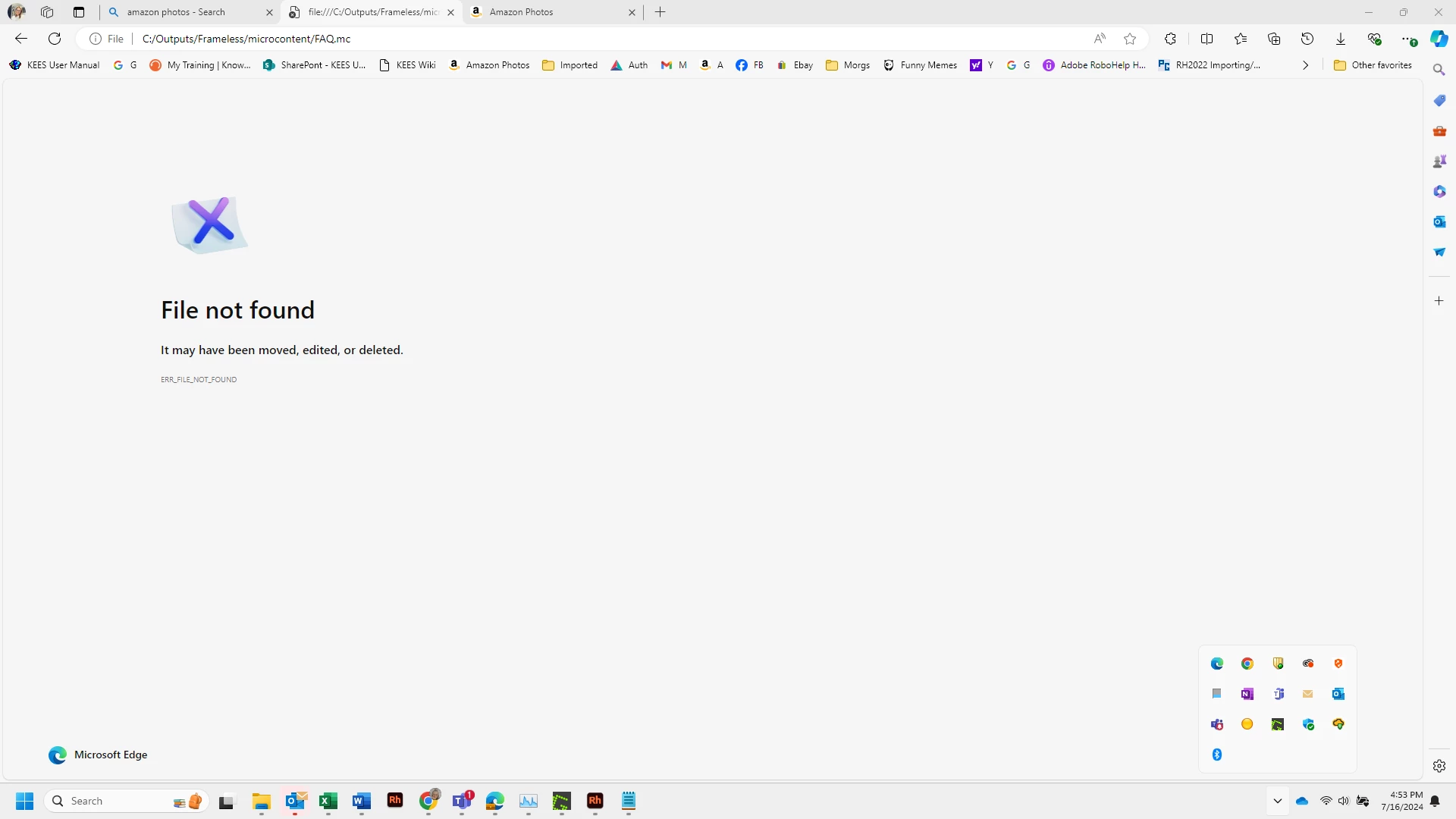
Is there a way to assign Microcontent to a button or a link?  I would like to add a button or a link or something somewhere on my home page and topic page that will open a FAQ page that was created by using the MicroContent feature in Robohelp.   I'm using Robohelp 2022 3.93.  I've tried to set a hyperlink to the FAQ mc but it doesn't work it brings up a page that says File not found.
    This topic has been closed for replies.

    2 replies

    Inspiring
    July 17, 2024

    Not something I've done, but I think this is what I would try to accomplish that.


    Publish the help file with the FAQ content, then go to the FAQ topic. Capture that URL and then use it to establish the link in your RH file. Once you understand the structure of the URL, you'll probably be able to just enter that without going to the trouble to publish.

    JenniR_12
    JenniR_12Author
    Inspiring
    July 17, 2024

    Thank you.  Great idea.  I'll try your suggestion and see if that gets me where I'm wanting to go.  Thank you!!

    Jennifer Rogers
    Inspiring
    July 17, 2024

    @JenniR_12  and thank you for giving me a great idea! We only have our FAQs in the TOC and as a tile on the home page. Now considering a link on the topic page for more visibility.

    Jeff_Coatsworth
    Community Expert
    Community Expert
    July 17, 2024

    Are you following Peter's page on the topic? See https://www.grainge.org/RoboHelp_Tour/rh2022/authoring/microcontent.htm 

    JenniR_12
    JenniR_12Author
    Inspiring
    July 17, 2024

    Hi Jeff.  I have looked at Peter's page on MC.  I watched the video on his page and also  a webinar by Beth Gerber on Microcontent.  I haven't found the exact answer to my question, but amie68 has a great suggestion below.  I'll try her suggestion and see if that gets me where I'm wanting to go.  Thank you!!

    Jennifer Rogers