
Participant
August 19, 2011
Question

PDF Settings button disabled

  • August 19, 2011
  • 38 replies
  • 8092 views

Trying to created Printed Documentation in RH9, but the "PDF Settings" button is disabled on the Print Document General - Printed Documentation window (I removed the client info)

.
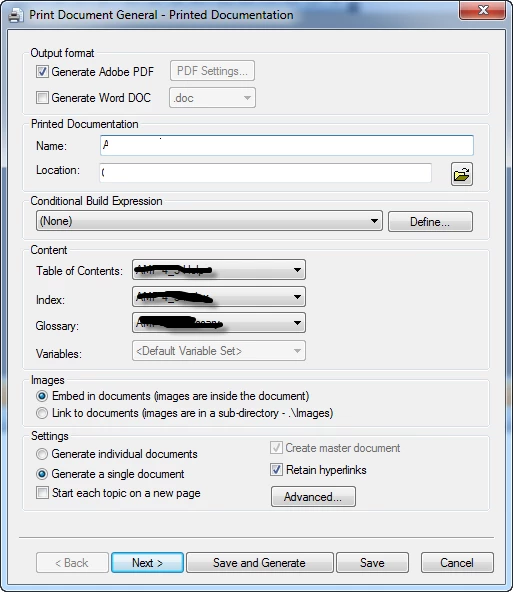
I can't figure out why I can't access this button. Anyone else run into this?

This topic is closed to new replies. Start a new post to keep the conversation going.

38 replies

September 16, 2011

Hi,

I'm experiencing the same problem. I recently upgraded from RoboHelp 7 to RoboHelp 9. In RoboHelp 9, both the "Generte Adobe PDF" option and the "PDF settings" button were disabled. After upgrading to MS Office 2010, the option was accessible but the button still wasn't.

I tried reinstalling RoboHelp, installing the latest version of Adobe Reader (10.1.0), uninstalling another PDF printer. Nothing seems to work.

My colleagues are using RoboHelp 9 as well and they are not having this problem, even though they have another PDF printer installed and they are using MS Office 2007 or 2010.

Peter Grainge
Community Expert
Community Expert
September 16, 2011

Adobe Reader has nothing to do with this process, it is for reading PDF files whereas you want to write them.

From what you have said I suggest you involve IT and get them to uninstall RoboHelp using RevoUninstaller using the Advanced option. Ensure they only delete registry keys that are shown in bold. It's a free application and it cleans out all the registry keys that RoboHelp itself would leave behind.

Then install RoboHelp 9 again and make sure you include the PDF add-on when you install. Hopefully doing it that way and with Word already on the machine, the problem will be fixed.

If not then you may have to take this up with Adobe. Installation problems are free but I am not sure if they would regard this as an installation issue. Argue the point if necessary.

Let me emphasise involving IT in this as it involves registry changes.


See www.grainge.org for RoboHelp and Authoring tips

@petergrainge

Use the menu (bottom right) to mark the Best Answer or Highlight particularly useful replies. Found the answer elsewhere? Share it here.
September 20, 2011

Thanks Peter,

I proceeded as you suggested (uninstalling RoboHelp 9 and all previous versions of RoboHelp on my computer using RevoUninstaller and installing them again). I've even tried uninstalling the "Save as PDF or XPS add-in for MS Office 2007". There is still no change.

As a result, I've created a support case on the Adobe website today.

Peter Grainge
Community Expert
Community Expert
August 20, 2011

Sorry but I don't think that having the check box enabled but the settings disabled has been reported before. The only thing I can suggest is a reinstall.

I'm assuming you are using the PDF writer that ships with RoboHelp.

The only other thing I can think of is that you post installing RoboHelp you have installed another PDF writer and that somehow it has clobbered Acrobat. Doubtful but it's a thought.


See www.grainge.org for RoboHelp and Authoring tips

@petergrainge

Use the menu (bottom right) to mark the Best Answer or Highlight particularly useful replies. Found the answer elsewhere? Share it here.
Participant
August 31, 2011

Thanks Peter,

I've tried reinstalling both RH and Acrobat, and neither fixed the problem with the button being inactive. I'm not sure how to change what program is used to generate PDFs from RH, but for some reason it's not wanting to use it's own PDF Maker.

Any other thoughts?

Peter Grainge
Community Expert
Community Expert
August 31, 2011

What version of RoboHelp and what version of Acrobat?

Are you able to install both of those versions in trial mode on another machine and, if so, do you get the same result?

Do you have any other PDF programs on your machine? Open Word and check the printers shown, any PDF apps will be shown there.


See www.grainge.org for RoboHelp and Authoring tips

@petergrainge

Use the menu (bottom right) to mark the Best Answer or Highlight particularly useful replies. Found the answer elsewhere? Share it here.