mauraa89901210
Known Participant
January 9, 2018
Answered

Proper Way to Use Images in RoboHelp 2017

  • January 9, 2018
  • 1 reply
  • 1267 views

Hi everyone,

I researched the RoboHelp forum on this issue and found that the recommended way to add photos to RoboHelp is to insert them. I didn't know that, so I've been using Snagit to capture my images and then pasting them into RoboHelp. I know RoboHelp has an image capture feature, but out of habit, I stuck with Snagit.

I have some questions:

  • In many cases, I have image 106.gif and image 106.png, and these are two completely different images. Can someone tell me why these have the same number and also why one is .gif and one is .png?
  • Many of my images appear in the Images folder in Project Manager, but many are outside of the Images folder in Project Manager. RoboHelp will not allow me to move the outlier images to the Images folder. Why?
  • Is it possible to rename these images within Project Manager without messing something up? Or would you recommend I leave things as they are?
  • Lastly, since it appears the recommended way to add images is to insert them, do you also recommend I use RoboHelp's image capture feature, or does it not matter?  To insert an image, does the image need to be added to the RoboHelp project somehow before inserting? Or can you just insert from a folder setup elsewhere?

Many thanks,

Maura
This topic has been closed for replies.
Correct answer Captiv8r

Hi Maura

In many cases, I have image 106.gif and image 106.png, and these are two completely different images. Can someone tell me why these have the same number and also why one is .gif and one is .png?

As for how the images were named, it's anyone's guess. The fact that they are just numbers seems to suggest RoboHelp did the naming. Is it possible that you have 105 other GIF images and another 105 PNG images?

When you simply paste an image into the editor, RoboHelp chooses the image format as well as the file name. So it's possible that for one of the images RoboHelp analyzed it and figured PNG was the best format while for the other it figured GIF was the best format. That's just an educated guess on my behalf.

Many of my images appear in the Images folder in Project Manager, but many are outside of the Images folder in Project Manager. RoboHelp will not allow me to move the outlier images to the Images folder. Why?

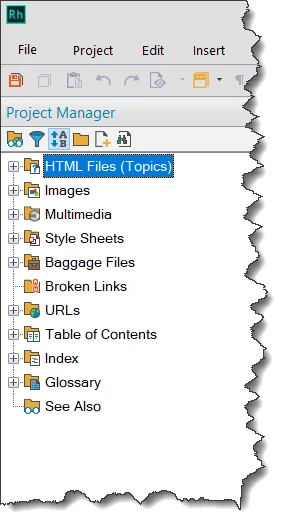
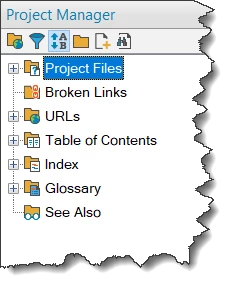
The answer to this depends on the view you have selected in your Project Manager pod. One view is called "Global" view and the other is "Classic" view.

In the Global view, the Project manager looks like this:

In the Classic view, the Project Manager looks like this:

Which view to you have? For that matter, are you looking at it in RoboHelp or are you looking at the project in Windows Explorer?

Is it possible to rename these images within Project Manager without messing something up? Or would you recommend I leave things as they are?

Renaming them via Project Manager is not only possible, but is the recommended way to rename them.

Lastly, since it appears the recommended way to add images is to insert them, do you also recommend I use RoboHelp's image capture feature, or does it not matter?  To insert an image, does the image need to be added to the RoboHelp project somehow before inserting? Or can you just insert from a folder setup elsewhere?

As for the capture program, either application is fine. They both allow you to capture, annotate, and save images to assorted formats. I personally use SnagIt. But that's simply my own preference.

Source images can be placed anywhere you like. When you properly insert images, you end up with a dialog that allows you to browse to and choose the image you want. When you click the OK button, the image is copied to your project location. At that point you now have two copies of the image.

If you need more information, just yell! Rick

1 reply

Captiv8r
Captiv8rCorrect answer
Legend
January 10, 2018

Hi Maura

In many cases, I have image 106.gif and image 106.png, and these are two completely different images. Can someone tell me why these have the same number and also why one is .gif and one is .png?

As for how the images were named, it's anyone's guess. The fact that they are just numbers seems to suggest RoboHelp did the naming. Is it possible that you have 105 other GIF images and another 105 PNG images?

When you simply paste an image into the editor, RoboHelp chooses the image format as well as the file name. So it's possible that for one of the images RoboHelp analyzed it and figured PNG was the best format while for the other it figured GIF was the best format. That's just an educated guess on my behalf.

Many of my images appear in the Images folder in Project Manager, but many are outside of the Images folder in Project Manager. RoboHelp will not allow me to move the outlier images to the Images folder. Why?

The answer to this depends on the view you have selected in your Project Manager pod. One view is called "Global" view and the other is "Classic" view.

In the Global view, the Project manager looks like this:

In the Classic view, the Project Manager looks like this:

Which view to you have? For that matter, are you looking at it in RoboHelp or are you looking at the project in Windows Explorer?

Is it possible to rename these images within Project Manager without messing something up? Or would you recommend I leave things as they are?

Renaming them via Project Manager is not only possible, but is the recommended way to rename them.

Lastly, since it appears the recommended way to add images is to insert them, do you also recommend I use RoboHelp's image capture feature, or does it not matter?  To insert an image, does the image need to be added to the RoboHelp project somehow before inserting? Or can you just insert from a folder setup elsewhere?

As for the capture program, either application is fine. They both allow you to capture, annotate, and save images to assorted formats. I personally use SnagIt. But that's simply my own preference.

Source images can be placed anywhere you like. When you properly insert images, you end up with a dialog that allows you to browse to and choose the image you want. When you click the OK button, the image is copied to your project location. At that point you now have two copies of the image.

If you need more information, just yell! Rick

mauraa89901210
Known Participant
January 10, 2018

Hi Rick,

Thanks very much for your answers. Below (in text that is bold, italic, indented) I answer your questions and follow up with a couple more:

[Maura] Many of my images appear in the Images folder in Project Manager, but many are outside of the Images folder in Project Manager. RoboHelp will not allow me to move the outlier images to the Images folder. Why?

[Rick] The answer to this depends on the view you have selected in your Project Manager pod. One view is called "Global" view and the other is "Classic" view.

[Maura] I'm using Classic view, which looks exactly like your Global view. My Default view also looks like your global view. I don't have a Global view option.

When I upgraded to RH 2017, I no longer had any workspace view options except Default, so at that time, I browsed and found a Classic view file and selected that. RH 2015, on the other hand, provided me with different workspace view options. Any thoughts on why I didn't have the different views available once I upgraded, and how I can get them?

Also, are you saying that if I were using the correct workspace views, I wouldn't have some images in the Images folder and some outside of it? I still don't understand why some are outside of the folder, no matter what view one is using.

-----------------------------------------------------------------------------------------------------------------------------------------------------------------------------------------------------------------------------

[Maura] Lastly, since it appears the recommended way to add images is to insert them, do you also recommend I use RoboHelp's image capture feature, or does it not matter?  To insert an image, does the image need to be added to the RoboHelp project somehow before inserting? Or can you just insert from a folder setup elsewhere?

[Rick] As for the capture program, either application is fine. They both allow you to capture, annotate, and save images to assorted formats. I personally use SnagIt. But that's simply my own preference.

[Maura] Re: the capture program of choice, got it. But should I stop pasting images and start inserting them? What is the advantage to this, other than having two copies once you insert an image into RH?

-------------------------------------------------------------------------------------------------------------------------------------------------------------------------------------------------------------------------------Thanks again for your help, Rick.

Maura

Captiv8r
Legend
January 10, 2018

Good morning!

[Maura] Many of my images appear in the Images folder in Project Manager, but many are outside of the Images folder in Project Manager. RoboHelp will not allow me to move the outlier images to the Images folder. Why?

[Rick] The answer to this depends on the view you have selected in your Project Manager pod. One view is called "Global" view and the other is "Classic" view.

[Maura] I'm using Classic view, which looks exactly like your Global view. My Default view also looks like your global view. I don't have a Global view option.

[Rick] Are you able to capture an image and share? I'm a bit confused. If you look closely at the row of icons at the top of the Project Manager pod, you should note that the Global view icon is that of a globe superimposed on a folder. The Classic view icon is that of some nerdy looking glasses superimposed on a folder. You click that icon to toggle between the two possible views. In the Classic view, you see what appears to be a folder and is named "Images".

[Maura]  When I upgraded to RH 2017, I no longer had any workspace view options except Default, so at that time, I browsed and found a Classic view file and selected that. RH 2015, on the other hand, provided me with different workspace view options. Any thoughts on why I didn't have the different views available once I upgraded, and how I can get them?

[Rick]  I'm not sure if you know, but I'm also an Adobe Certified RoboHelp instructor. I don't say this to tootle my own horn, but only to state that I've seen a number of instances where for whatever reason it seems to be commonplace for the included workspace arrangements to be missing. I suppose it's just a RoboHelp quirk. But it's simple to get them all in there and available on your list if you want. Just click Workspace then Load... and a file browsing window should open.

Odds are, that window will be already looking at the proper location for the workspace files, But if it isn't, just navigate to the "My RoboHelp Projects" folder by clicking the icon on the left side of the dialog and they should then magickally appear. You will need to repeat this process four more times in order to load up all the available workspace arrangements. Personally, even though several are offered, I only ever use the Classic arrangement. In my own view, Adobe messed up by making the Default what it is.

[Maura] Also, are you saying that if I were using the correct workspace views, I wouldn't have some images in the Images folder and some outside of it? I still don't understand why some are outside of the folder, no matter what view one is using.

[Rick] Workspace views only control which pods you see and where they are. They should have no bearing whatsoever on where the images are appearing to be. Again, a screen shot depicting exactly what you are seeing would be more than helpful to try and sort what is going on.

[Maura] Lastly, since it appears the recommended way to add images is to insert them, do you also recommend I use RoboHelp's image capture feature, or does it not matter?  To insert an image, does the image need to be added to the RoboHelp project somehow before inserting? Or can you just insert from a folder setup elsewhere?

[Rick] As for the capture program, either application is fine. They both allow you to capture, annotate, and save images to assorted formats. I personally use SnagIt. But that's simply my own preference.

[Maura] Re: the capture program of choice, got it. But should I stop pasting images and start inserting them? What is the advantage to this, other than having two copies once you insert an image into RH?

[Rick] As I stress in my RoboHelp classes, you really don't ever want to PASTE images. In my own opinion, inserting is the ONLY way you really want to work. When you paste images you sacrifice control. You can't choose the format (personally I almost exclusively use PNG) and RoboHelp chooses the image file name for you. You already have seen first hand how RoboHelp's naming of Image1, Image2 and others doesn't help you at all in identifying WHAT that image is. So if you capture and save the image BEFORE you Insert it, you have full control.

Something not mentioned is that another "cardinal rule" you want to follow with images is to never Ever EVER just grab a resizing handle and adjust the size of the image in the editor. If size adjustments need to be made, make them before you insert the image. THEN insert them. You will be much happier with the outcome.

Also, if you want to avoid the duplicate copies, when you save the images from SnagIt or your capture application, just save the images to your project location. Then when you insert the image, just select it from the file browsing dialog you would be using anyway. Because the image is IN the project location, there is no need to make the separate copy.

Cheers... Rick