
Participant
December 7, 2017
Question

Repeating Bookmark links in project

  • December 7, 2017
  • 2 replies
  • 440 views

I am having this strange issue with a few different RH projects I am working on. With certain bookmarks, the system will create this repeating miasma of links that repeat the bookmarks over and over again. 

For instance:

topic#Bookmark leads to topic#bookmark#bookmark and then topic#bookmark#bookmark#bookmark and so on.

Trying to open the affected projects becomes bogged down in this recursive hell of bookmarks. The main issue is that this results in an error for each instance of the this problem:
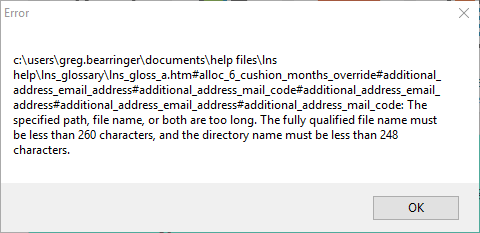
Here is a screen shot of me trying to update the help. This was after about 20 minutes of clicking 'OK' to the error above.
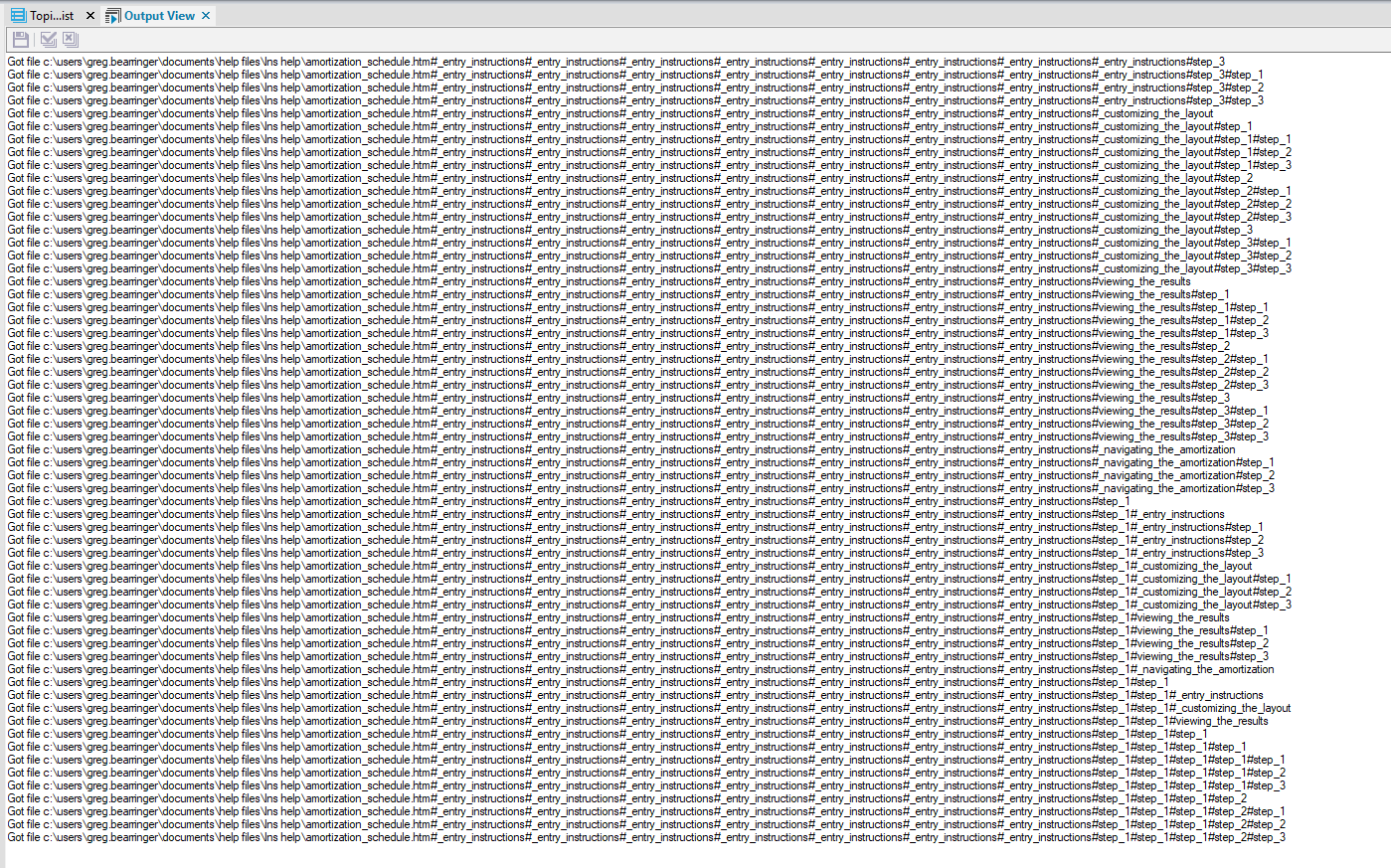
I have recently deleted these files, but they appear in my locally saved copy of the project as well.

Now, our team uses SharePoint, with copies of the project saved locally on our machine. For whatever reason, this keeps happening to projects I generate.

Does anyone have any idea what the heck is going on?

This topic has been closed for replies.

2 replies

bwhansen10286183
Participating Frequently
March 1, 2018

I have also seen this happen with some of our projects. We are fairly new to RoboHelp and have developed some bad habits that we are trying to break.

Sometimes the easiest (and quickest) way to get out of the loop is to use Task Manager (Windows) to kill the application.

Between RoboHelp and SharePoint we have a URL character limit of 255. This includes folder names, topic filenames, bookmarks, and drop-down (DHTML) text.

Our solution (still evolving):

  1. Go through the offending topic and shorten the aforementioned factors wherever possible.
  2. Right-click the topic and select Explore to view the files in the same folder as the topic. You will find a bunch of extra files that have a bunch of #s in the filenames.
  3. Delete the offending files (!! not the original .htm file !!)
  4. Using a text editor (like Notepad++) open the [filename].fpj file.
  5. You will see a bunch of <topic> tags. Delete the topics (including the topic tags) for all topics that have the #s in the name. - there should be many. (!! Do not delete the original .htm topic !!)
  6. Go back into RoboHelp and save the topic again.
  7. Generate/Publish as usual. If all of the long bookmarks, filenames, drop-downs, etc. are fixed, it should fly right through.

As always, your mileage may vary.

Hope this helps.

-Britton Hansen

Peter Grainge
Community Expert
Community Expert
December 7, 2017

No idea but a distant bell is ringing to say I have heard of this once before. You haven't said what version of RoboHelp you are using but it was several versions back.

The post could well still be accessible but good luck finding it.


See www.grainge.org for RoboHelp and Authoring information

@petergrainge

Use the menu (bottom right) to mark the Best Answer or Highlight particularly useful replies. Found the answer elsewhere? Share it here.