
peter_xxx
Participant
December 2, 2014
Answered

responsive html 5 layout: Search results

  • December 2, 2014
  • 2 replies
  • 917 views

Hello All,

I have some questions about the search result page in Responsive HTML5 layout.

If you do search in responsive html5 layout you get the topic title as a clickable link. And underneath that you get the htm path to that topic. The next line then is the first line from the topic.
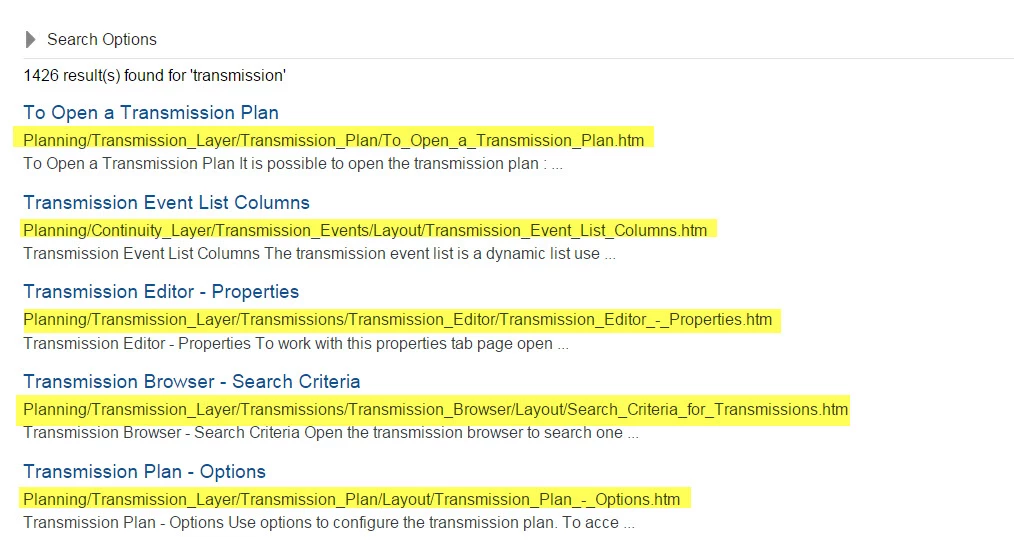
Does somebody know how to change this so that I don't thet the htm path in my search results. After the first clickable link I would like to get either just the first line, or if this is possible at all, the first two lines.

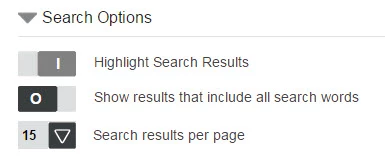
Also does somebody know where you specify the default settings for the search options?
We are using robohelp 11 if that might be important for this question.

thank you in advance

Peter

This topic has been closed for replies.
Correct answer Willam van Weelden

Before you begin, if you are on RH11.0.3, make sure you have the following hotfix installed: Issues in RoboHelp 11.0.3

This hotfix is required, otherwise you won't be able to open .slp pages.

Remove the URL from Theme1:

  1. Open Topic.slp.
  2. Switch to HTML mode.
  3. Remove the code: <?rh-msp-search-result-url class="wSearchURL" ?> (line 295 by default).

As for the length of the preview, I'm not sure that it can be changed.

Default settings:

  • Highlight search results:
    1. Open Topic.slp.
    2. Switch to HTML mode.
    3. Find  <?rh-msp-search-highlight-control id="highlightsearch"
    4. Set value for attribute checked. You can choose between true (enabled) or false (disabled).
  • All words search:
    1. Open Topic.slp.
    2. Switch to HTML mode.
    3. Find  <?rh-msp-search-and-control id="andsearch"
    4. Set value for attribute checked. You can choose between true (enabled) or false (disabled).
  • Number of search results: No matter what you choose in the layout editor, it simply gets reverted to default on generation. To fix this, I suspect you would need to change the output file. In the output, search for searchResCount and change the available options.

Kind regards,

Willam

2 replies

Community Expert
December 8, 2014

I just found where you set the default number of search results per page and how much of the topic text is display! It's in the SSL!

Willam van Weelden
Inspiring
December 8, 2014

Fantastic Amebr! Thanks for sharing.

Kind regards,

Willam

Community Expert
December 4, 2014

For the URL, that should be controlled by your screen layout. It should be simple to delete it. I can't help with your other questions, sorry.

Willam van Weelden
Willam van WeeldenCorrect answer
Inspiring
December 4, 2014

Before you begin, if you are on RH11.0.3, make sure you have the following hotfix installed: Issues in RoboHelp 11.0.3

This hotfix is required, otherwise you won't be able to open .slp pages.

Remove the URL from Theme1:

  1. Open Topic.slp.
  2. Switch to HTML mode.
  3. Remove the code: <?rh-msp-search-result-url class="wSearchURL" ?> (line 295 by default).

As for the length of the preview, I'm not sure that it can be changed.

Default settings:

  • Highlight search results:
    1. Open Topic.slp.
    2. Switch to HTML mode.
    3. Find  <?rh-msp-search-highlight-control id="highlightsearch"
    4. Set value for attribute checked. You can choose between true (enabled) or false (disabled).
  • All words search:
    1. Open Topic.slp.
    2. Switch to HTML mode.
    3. Find  <?rh-msp-search-and-control id="andsearch"
    4. Set value for attribute checked. You can choose between true (enabled) or false (disabled).
  • Number of search results: No matter what you choose in the layout editor, it simply gets reverted to default on generation. To fix this, I suspect you would need to change the output file. In the output, search for searchResCount and change the available options.

Kind regards,

Willam

peter_xxx
peter_xxxAuthor
Participant
December 5, 2014

thank you both