

Rh 11 Printed Documentation: How to shorten the gaps/spacing between topics
Hello all in RoboLand,
I am using Rh 11 and Word 2013 on a Win 7 machine.
I need assistance in finding a way to shorten the gaps between help topics that are generated (print documentation) from Rh (using a Word template). Please refer to the example (image) below, as well as my Styles settings below image.
Thank you,
~PM
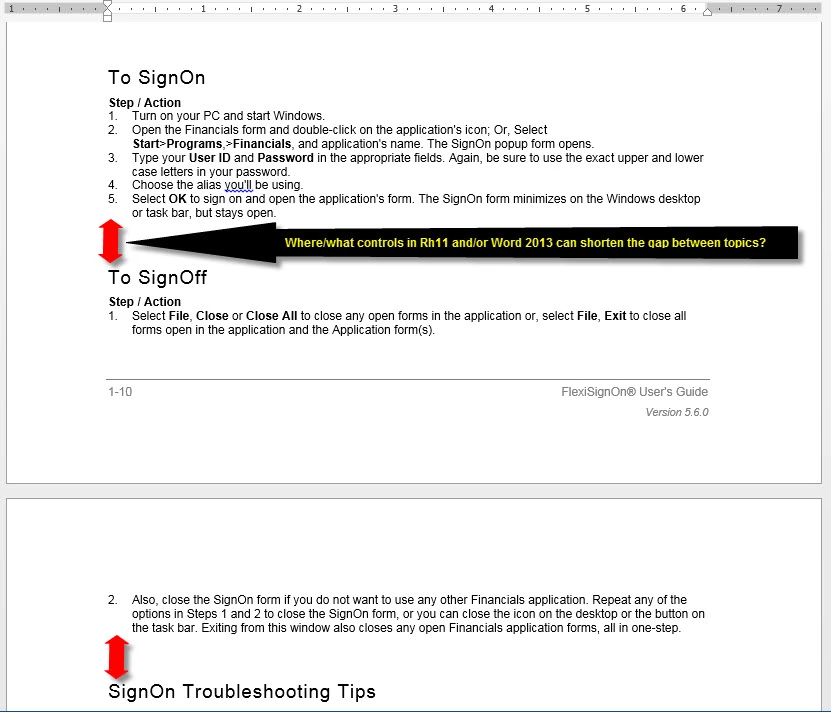
Attempts made in Word, which were unsuccessful are as follows:
- Keep Lines Together (on/off)
- Keep With Next (on/off)
NumberList Setting Rh 11 Styles - Formatting/Multilevel list
- Level 1 Style: Paragraph Style: blank, List Style: Decimal 1 2 3, Edit Style: <x>, Font: Arial/10pt
a. Level 2 Style: Paragraph Style: blank, List Style: Lower-alpha a b c, Edit Style: <x>, Font: Arial/10pt
FlexiNumberList Word template Styles - Formatting/Multilevel list
- Level 1 Number Position: Number alignment: Left, Aligned at: 0.15", Text indent at: 0.3"
a. Level 2 Letter Position: Number alignment: Left, Aligned at: 0.25", Text indent at: 0.4"
Rh 11 - Heading 2
- Formatting: Font = Arial, Font style = Bold, Size = 14pt, Highlight = Automatic, Font color = Automatic (black)
- Spacing (Font): Normal, Position = Baseline
- Advanced: Style = Normal, Weight = Bold, Overline = Off, Font Sets = Agency FB
- Style: Normal
- Paragraph: Alignment = Left
- Indentation: Left = 0pt, Right = 14pt, Special = none
- Spacing: Before = 14pt, After = 14pt, Special = none
- Line spacing: Single
Word - Heading 2
- Style Properties: Name = Heading 2, Style type = Linked (paragraph and character), Style based on = Normal, Style for following paragraph = Normal
- Formatting: Font = Arial, Font style = Regular, Size = 14pt, Font color = Automatic (black), Underline style = none
- Paragraph/Indents & Spacing: Alignment = Left, Outline level = Level 2
- Indentation: Left = 0", Right = 0", Special = none
- Spacing: Before = 18pt, After = 6pt, Line Spacing = Single
- Paragraph/Line & Page Breaks: Pagination = Window/Orphan control + Keep with next + Keep lines together, Tight wrap = None


 AdChoices