Tejas Dandekar
Inspiring
May 8, 2018
Answered

RH 2017 - Adding video thumbnails in help pages to play on click

  • May 8, 2018
  • 2 replies
  • 1079 views

If we have videos hosted on youtube or brainshark or some other video hosting site and we have a URL to play the video directly, can we in RH 2017 Responsive HTML5 insert a reference to that video as a thumbnail?

After you insert a reference to the video, it should shown a small thumbnail with the play button overlayed on it. When you click Play, it should start playing the video. We can maximize if required.

In short, we want to avoid video baggage files in the source but we want to reference an existing hosted video.

Any suggestions/pointers if this is possible?

..........

-Tejas

This topic has been closed for replies.
Correct answer Captiv8r

Hi Rick,

This is exactly what we are looking for.

Would you be able to share the steps of how you inserted the video thumbnail in the help page and how did you edit the properties the URL, attributes, autoplay, etc?

Can we resize the video thumbnail or is there a default size?

We have few videos on vimeo and few on brainshark as well.


ello again

Normally when you insert a video from Vimeo, it's pretty simple. You just click the little envelope to share, then copy the video URL. Then in RoboHelp, you click the Insert tab, then Multimedia, then choose Web URL and you paste the copied URL into the field.

Now, there are some videos where that doesn't work and I'm not exactly sure why. For example, I tried the "Staff Pick" video I saw when I opened my Vimeo page and as you can see below, something has gone wrong.
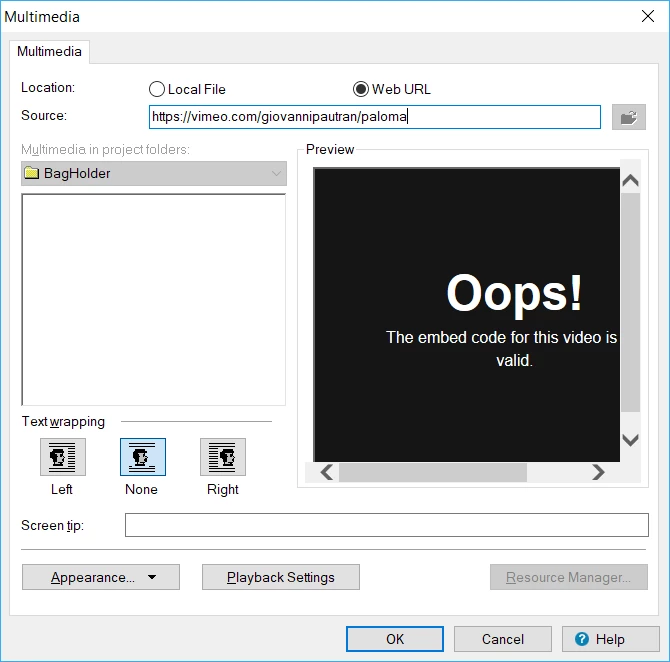
But if I grab the video URL from the embed code on Vimeo and paste it, things seem fine.

Now here is what Vimeo supplies as the basic link:

https://vimeo.com/giovannipautran/paloma

And here is what the embed code looks like:
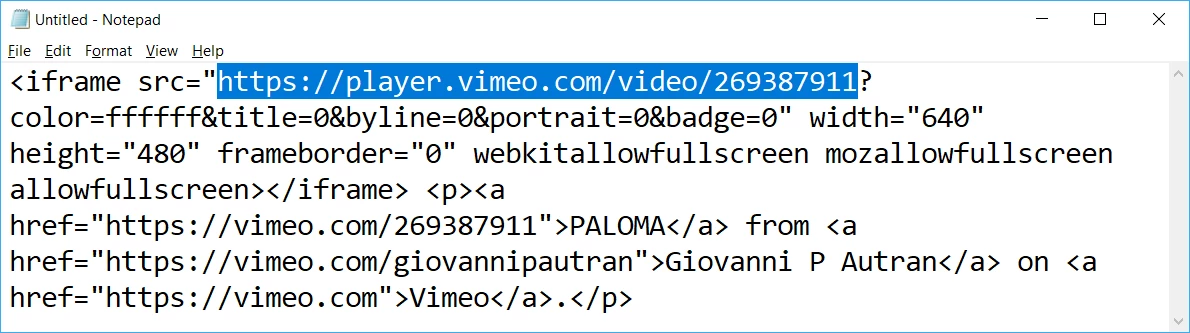
Note that I copied the highlighted bit from the embed code, then pasted that into the RoboHelp dialog.

Now you will also note that there is a button on the lower left that is labeled "Appearance". I clicked that and see this:
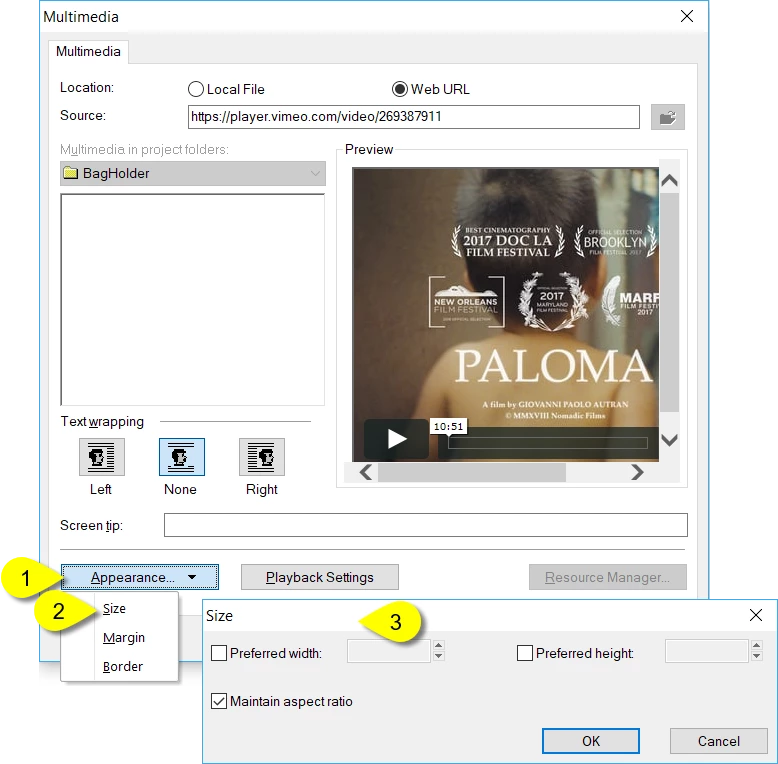
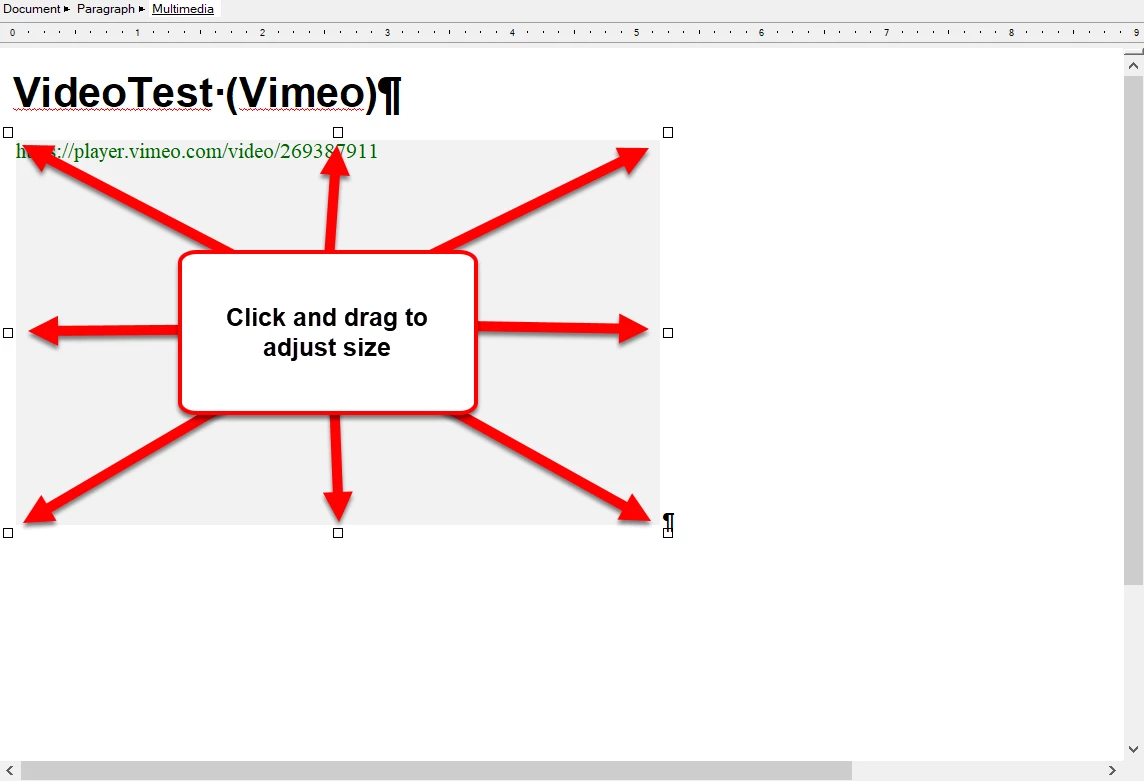
You might initially enable and complete the Preferred width field with 500px, then click the OK button followed by the next OK button. This should cause the video area to appear inside the RoboHelp topic and it should then have sizing handles you can use to just click and drag to adjust the size to your liking.
Hopefully this helps a bit. Just shout at me if you need more than this.

Cheers... Rick

2 replies

Captiv8r
Legend
May 8, 2018

Hi there

I have a RoboHelp project where I've done this literally hundreds of times. If you take a look at the link below, you can see the output. If you like it and want more information on how I achieved it, I'll post back with info on the steps I'm using.

Click here to view the site

Cheers... Rick

Tejas Dandekar
Inspiring
May 15, 2018

Sorry for picking up late...was on vacation.

Somehow www.moacr.com is getting blocked and I am unable to view. If you could post a screenshot, Rick, or the steps whichever is easier for you that'll be great.

Captiv8r
Legend
May 15, 2018

Okay, I recorded a video to demonstrate things. Give it a look and let me know if you need more!

MOACR - YouTube

Peter Grainge
Community Expert
Community Expert
May 8, 2018

In situations like this I create a small project with one or two topics to see if something will work. If it goes bang, your main project is safe.

Insert your thumbnail image, right click and select Insert Hyperlink.


See www.grainge.org for free RoboHelp and Authoring information.

@petergrainge

Use the menu (bottom right) to mark the Best Answer or Highlight particularly useful replies. Found the answer elsewhere? Share it here.
