
Inspiring
August 11, 2020
Answered

(RH 2019, new UI) How to remove formatting?

  • August 11, 2020
  • 6 replies
  • 547 views

Hi, Everyone. 


In RH 2019, new UI, can anyone please tell me how to efficiently remove numbered-list formatting that came from the original MS Word document that I imported into RH?


Here's what it looks like in the Author pane:
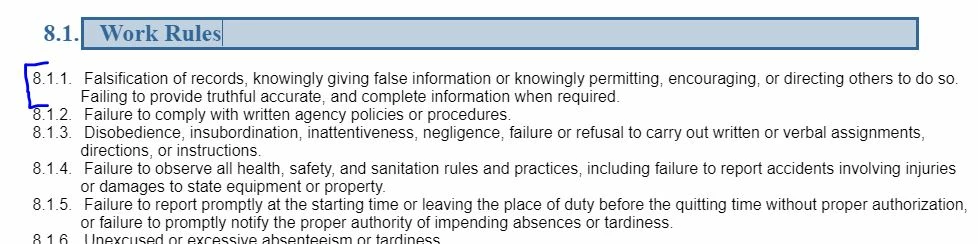
 

I'd like to get rid of the list numbers and the outdenting.


If it helps, the code looks like this:

 

Thanks very much!


Martin

    This topic has been closed for replies.
    Correct answer Peter Grainge

    Try selecting P. That should remove the class that is giving you the numbering. If not try selecting the Clear Formatting icon in Properties.


    6 replies

    Inspiring
    August 12, 2020

    Yessss!!! 


    Thank you, Peter. For anyone looking for the "clear formatting" icon, find it in Properties here:


    (By the way, selecting "P" under Paragraph Styles did not work.)


    Thanks very, very much, Peter. This is a major win.


    Martin

    Peter Grainge
    Community Expert
    Peter GraingeCommunity ExpertCorrect answer
    Community Expert
    August 12, 2020

    Try selecting P. That should remove the class that is giving you the numbering. If not try selecting the Clear Formatting icon in Properties.


    Use the menu (bottom right) to mark the Best Answer or Highlight particularly useful replies. Found the answer elsewhere? Share it here.
    Inspiring
    August 12, 2020

    Thanks for all your suggestions, Amber, Capit8r, and Peter.


    Peter, in following your suggestion, I found that "none" is already selected under the List icon (Screenshot):


    SCREENSHOT

    Captiv8r, for now, I'm using a workaround similar to your suggestion. But I'm working with a very long document that's already imported into RH. So I'm currently looking for a solution to this issue that streamlines the process of stripping out the numbered-list formatting, without having to leave RH.


    Does anyone have anything else I can try?


    Thank you!


    Peter Grainge
    Community Expert
    Community Expert
    August 12, 2020

    It should be as simple as selecting the list and clicking the list icon in the toolbar and selecting None (Extreme right).


    Use the menu (bottom right) to mark the Best Answer or Highlight particularly useful replies. Found the answer elsewhere? Share it here.
    Community Expert
    August 12, 2020

    If you want the numbering to be proper numbering, rather than being plain text numbers with weird formatting, you could try the Convert Word lists to HTML lists setting in the Import dialog box, on the Advanced tab.


    Otherwise, if you want to convert them to be plain paragraphs your best bet is probably to change them in Word before importing.


    Or get a friendly web developer to write a script to strip offending code out after import.

    Captiv8r
    Legend
    August 11, 2020

    One surefire way that typically works all the time is to perform a side trip. 

    Copy text from Word

    Paste text into something like Notepad

    Copy text from Notepad

    Paste text into RoboHelp and all formatting should now be absent