


Inspiring
May 7, 2021
Answered

RH 2020 Update 4 - How to add borders to a footer in a master page

  • May 7, 2021
  • 3 replies
  • 249 views

Does anyone know how I could recreate this footer in Word in a master page in RH?

I tried creating a p class called p.border1 and all I have configured are the border properties but as you can see from the preview, no border displays?
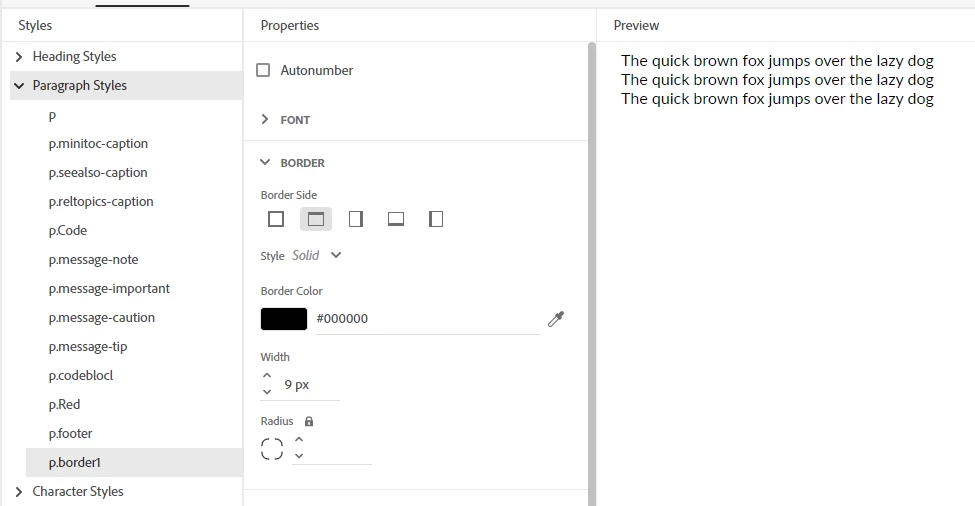
 

So I cant even get one border to display.

As for having 3 borders, how would I do this?

 

    This topic has been closed for replies.
    Correct answer Peter Grainge

    In the master page put focus on the footer and go to code view.


    Add something like this where the colour is what you want for that line.


    <hr color="#FF0000" />


    Add as many lines as you want. These are horizontal lines rather than borders but that seems to be what you want looking at the image.


    You can also change the width for example by apply other attributes. See HTML Colored Line Dividers (web-source.net) but user lower case rather than the uppercase you will see there.

    ________________________________________________________
    See www.grainge.org for free Authoring and RoboHelp Information

    3 replies

    Inspiring
    May 7, 2021

    Thanks Peter that worked! Beautiful!

    Peter Grainge
    Community Expert
    Community Expert
    May 7, 2021

    This page adds more to the attributes that can be used.


    HTML Global attributes (w3schools.com)

    ________________________________________________________
    See www.grainge.org for free Authoring and RoboHelp Information

    Use the menu (bottom right) to mark the Best Answer or Highlight particularly useful replies. Found the answer elsewhere? Share it here.
    Peter Grainge
    Community Expert
    Peter GraingeCommunity ExpertCorrect answer
    Community Expert
    May 7, 2021

    In the master page put focus on the footer and go to code view.


    Add something like this where the colour is what you want for that line.


    <hr color="#FF0000" />


    Add as many lines as you want. These are horizontal lines rather than borders but that seems to be what you want looking at the image.


    You can also change the width for example by apply other attributes. See HTML Colored Line Dividers (web-source.net) but user lower case rather than the uppercase you will see there.

    ________________________________________________________
    See www.grainge.org for free Authoring and RoboHelp Information

    Use the menu (bottom right) to mark the Best Answer or Highlight particularly useful replies. Found the answer elsewhere? Share it here.