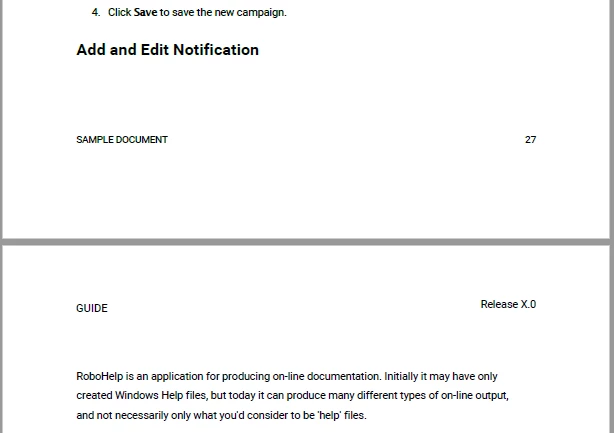
I have found a workaround for the headings issue. The text stays together if you do this:
<div style="page-break-inside:avoid;">
<h2>text</h2>
<p>text</p>
</div>
You could use a find-replace with regular expressions to add this in bulk to many different htm files if you've got a big project.
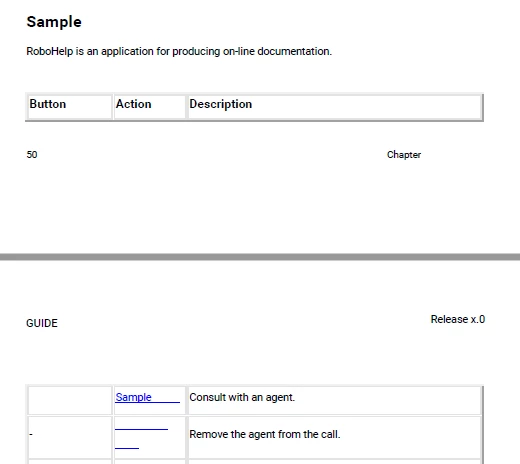
However, this doesn't work for the table issue because you can't put divs in tables like that. Maybe around them but then it would keep the whole table together, which is probably not what you want.
Anyway, I'm happy I found this workaround. I've already spent a lot of time getting the PDF output just right so now I don't need to abandon it just for this.
I'm not ready with the Word route yet anyway, the Word output from my project is still a complete disaster for now (huge fonts, mapped lists that are not mapped to the assigned list styles but end up being Normal typed text, etc.) But I do know how you could solve the staying together of headings and text in Word.
You need to add "keep with next" to all heading styles, as follows:
- Press Ctrl + Alt + Shift + S to open the Styles pane.
- In the list, right-click on the Heading 1 style and select Modify.
- Click the Format button and select Paragraph.
- Select the Line and Page Breaks tab.
- Select the Keep with next checkbox.
- Click OK etc. to confirm.
Repeat this for Heading 2 etc. If you're lucky, you'll find that the check box is already selected, if Heading 2 is based on Heading 1. In that case you don't have to do the other headings. Otherwise, repeat this for all headings that you want to modify.
Now, all headings stay on the same page as the text that comes after them.
The other options in the list can also be very useful BTW. For example, if you select Page break before for Heading 1, this heading will always start on a new page. Or Keep lines together can prevent text in a table from breaking to a new page mid-sentence.
Good luck!



 AdChoices