
RH2017 - Indigo layout, Customizing tile icons on home page
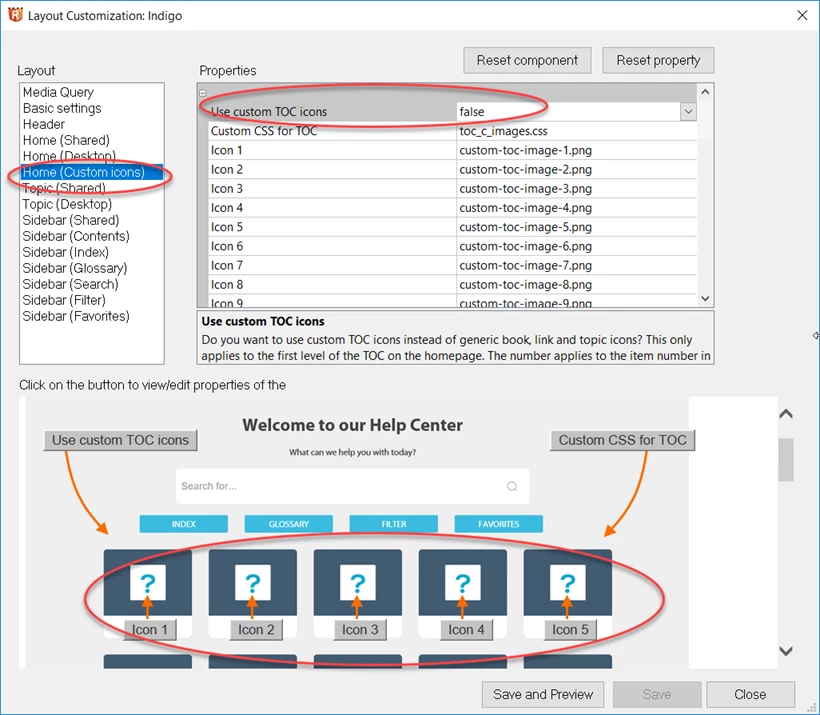
I am exploring the Indigo layout in a trial of RH 2017. In my trial copy, there's a Layout Customization section where you can customize the icons that show on the tiles of the main/home help page (I think RH calls it the landing page). However, according to this page Issues resolved in Adobe RoboHelp (2017 release), that part of the Layout Customization window is going away with Update 2 of RH 2017. The page says "The Home (Custom Icons) component in the Indigo layout is no longer available. With this, customizing TOC icons for the landing page is not possible through the Layout Customization interface. You can still customize the landing page icons through CSS."
How cumbersome (or not) is the process for customizing these icons behind the scenes? Do you only deal with the "toc_c_images.css" file, or are there other CSS files you have to deal with, for example to set the use of custom icons to True or to point your project to the right spot for retrieving your custom icon images? When I open the toc CSS file that I found, I don't see a true/false type of setting that would tell Robohelp to use or not use my custom icons.
I have limited experience with editing CSS files, but did locate the "toc_c_images.css" file in my project's "...\!ScreenLayout!\Indigo" folder. I see references to many icon files named "custom-toc-image-x.png" in the file, and I see those image files in the Indigo folder -- the files named "custom-toc-image-x.png". I was going to try either naming my files based on that "custom-toc--image-x.png" convention (x being the number for each applicable entry in my TOC) then copy/pasting my files over the existing files in the Indigo folder OR try using whatever names I want then copy/pasting my files to the Indigo folder and editing the CSS file with my custom names.
In my trial version, I was successful in changing images via the provided interface.


 AdChoices