
Known Participant
July 20, 2020
Question

RoboHelp 2019: How to change the Layout of Responsive HTML 5?

  • July 20, 2020
  • 8 replies
  • 712 views

Hello,


As per my project needs, I need to customize the layout of RHTML5 output.

I am done with all the changes applicable through the skin editor except the following one.
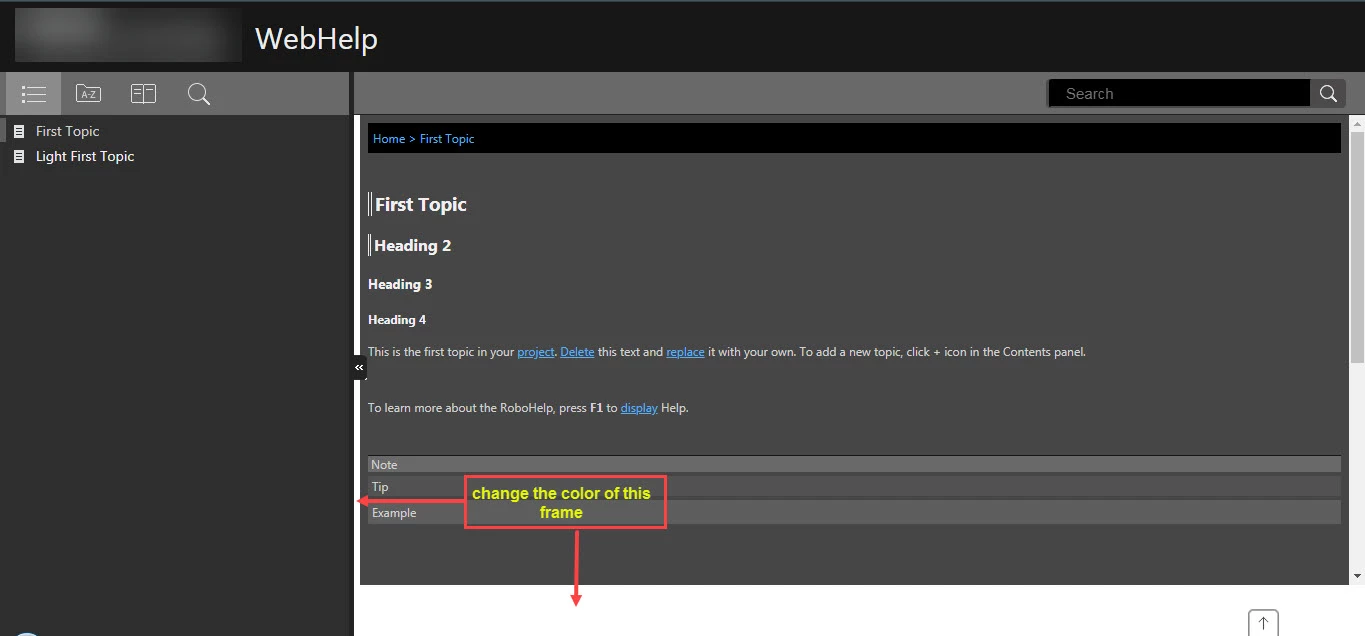


Can anyone pls help?

This topic has been closed for replies.

8 replies

Peter Grainge
Community Expert
Community Expert
July 28, 2020

Ironically how to do that with Charcoal Grey is on my site. Item 18 at http://www.grainge.org/pages/snippets/snippets.htm#html5


It will likely be something similar.


Use the menu (bottom right) to mark the Best Answer or Highlight particularly useful replies. Found the answer elsewhere? Share it here.
Community Expert
July 28, 2020

I believe that's the browser scrollbar, so no.


But maybe it's possible to create your own with fancy css. I've never tried it, and have no idea how to implement it for RH output. Or how cross-browser and stable it is.


https://css-tricks.com/the-current-state-of-styling-scrollbars/

s_wengAuthor
Known Participant
July 28, 2020

Thanks, will try it out!


Any idea on Header Search box labelled in my previous image!

Peter Grainge
Community Expert
Community Expert
July 21, 2020

Yes I did say you would need to make the change every time. 


Use the menu (bottom right) to mark the Best Answer or Highlight particularly useful replies. Found the answer elsewhere? Share it here.
s_wengAuthor
Known Participant
July 21, 2020

Thanks a lot Peter and Amber,

I got success with Azure Blue screen. Using User Asset option, I am able to change the skin layout.

Thanks once again, for your help!


s_wengAuthor
Known Participant
July 27, 2020

Hi,

I customized the Azure Blue Screen to support dark theme of my project.

But, I got stuck in few things again. Please refer the attached screenshot and help me providing a solution.

Thanks!


Peter Grainge
Community Expert
Community Expert
July 21, 2020

I have an answer from Adobe.


In your output locate the folder (template\<skin name>\layout.css), towards the end of the file.


By default it will be set to a hex value. Change that as required. I have changed it to an RGB value.


In other skins you could add the div.topic to a different CSS file and add that to User Assets so that it is applied whenever you generate. That option is not in the charcoal grey skin so you will need to make that change whenever you generate.


Use the menu (bottom right) to mark the Best Answer or Highlight particularly useful replies. Found the answer elsewhere? Share it here.
s_wengAuthor
Known Participant
July 21, 2020

Thanks Peter, this is exactly what I did in the layout.css placed at (template\<skin name>\layout.css). I made the changes in hex value only like this:

div.topic {
  background-color: #464646; }
  div.topic div.functionholder {
    display: none; }
  div.topic a.to_top {
    display: none; }

But I believe as the changes are done in the output folder, so we need to replicate it everytime when we generate, hence, making it a temporary solution to the problem.


So, it would be helpful if we get a permanent solution to this problem.

However, I am trying with Azure Blue. Will post here when done.

Thanks a lot for your help!

Community Expert
July 21, 2020

If worse comes to worst, perhaps you could customise the Azure Blue skin to match the charcoal grey colours (I think it's the same otherwise), except that the User Assets section is correctly available. Then you could add a custom css file which contains a div.topic selector with the correct background colour.

Peter Grainge
Community Expert
Community Expert
July 20, 2020

That may be the only answer but I have made some enquiries so let's see if anything comes back.


It would be helpful if you could post what you changed.


Use the menu (bottom right) to mark the Best Answer or Highlight particularly useful replies. Found the answer elsewhere? Share it here.
Peter Grainge
Community Expert
Community Expert
July 20, 2020

I have tried everything in the skin editor and some CSS changes but no luck so far.


Use the menu (bottom right) to mark the Best Answer or Highlight particularly useful replies. Found the answer elsewhere? Share it here.
s_wengAuthor
Known Participant
July 20, 2020

Yup I tried too but couldn't get anything! 


I was wondering if there is any js/css file that we can modify accordingly but couldn't find any in the source. However, if I change layout.css inside the output folder of the skin... I am able to change the frame color.


So, this way I got this temporary solution but I need a permanent one. 

Peter Grainge
Community Expert
Community Expert
July 20, 2020

Is that Charcoal Grey?


Use the menu (bottom right) to mark the Best Answer or Highlight particularly useful replies. Found the answer elsewhere? Share it here.
s_wengAuthor
Known Participant
July 20, 2020

Yes it is.