


RoboHelp 2022: Top table border flush with drop-down header text (list styles)
When I add a table inside a drop-down that's part of a list style, it does not add the margin space that is part of the css. Our paragraph and list styles have a top and bottom margin of 6pt to space things out a bit. When I add a table inside a drop-down that is part of a list style, this space is not added, but it is there if the drop-down is added to a paragraph style. In the example below, the top border of the table is almost flush against the "step 2" wording. We want it to look like the 2nd table, which is in a drop-down that was added to a regular <p> line instead - to have a little space between the drop-down header and the table.
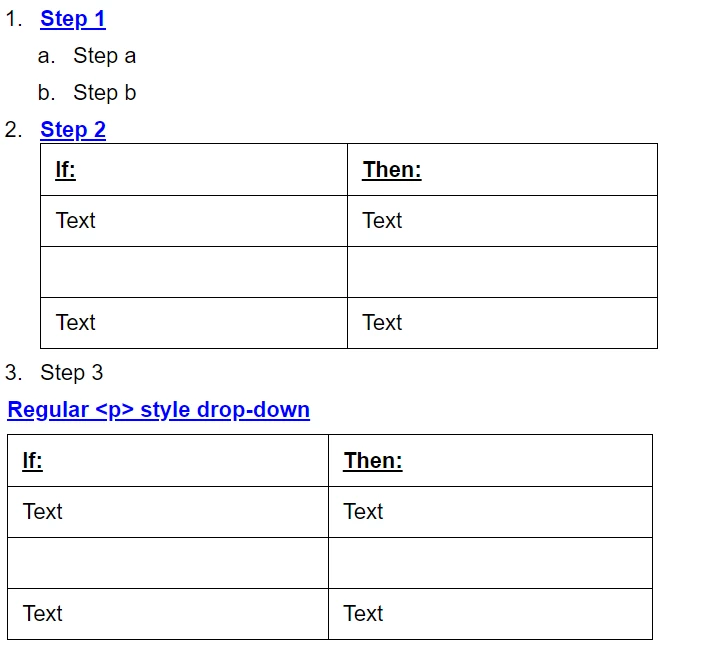
Is there a way to do this in the css that I might be missing?
It does honor that space when there is no table inside the drop-down or when the drop-downs are closed:
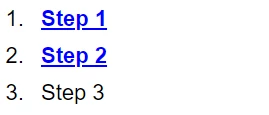
But nothing I can think of will make that space appear when the Step 2 drop-down is opened. In the <p> style and in all of the list styles in the css, I have this:
margin-top: 6pt;
margin-bottom: 6pt;
I've added that code to all of the OL, UL, and LI tags in the CSS, but it hasn't made a difference - the table is still flush against the text.
In classic, I got around this by selecting the drop-down header text (Step 2 in this example), right-clicking, selecting Paragraph, and then adding 6pt to the Before and After under Spacing. I didn't realize it until converting a project to 2022, but this adds a paragraph tag to the style, so it has both an li and a p tag.. In classic, the code for step 2 would look like this:
<li class="left-align"><p><?rh-dropspot_start class="dropspot" href="javascript:TextPopup(this)"
id="a4" dataid="POPUP924325029" ?>Step
2<?rh-dropspot_end ?> </p>
Whereas step 1, which does not have a table inside the drop-down, does not have a <p> tag:
<li class="left-align"><?rh-dropspot_start class="dropspot" href="javascript:TextPopup(this)"
id="a3" dataid="POPUP924314693" ?>Step
1<?rh-dropspot_end ?>
I tried to replicate adding the spacing in RoboHelp 2022 but with no luck. If I select Step 2 and go to the content properties, there is an option to add a margin and padding, and I've tried both, but it doesn't have any effect. I've found if I edit the code to add a <p> tag it will work, but I'd rather be able to do it in the CSS ideally, or at least in author mode vs editing the code.
thanks!
Chris
 AdChoices