



Marc M.
Inspiring
September 22, 2021
Question

"See also" Caption not included in Translation Management System

  • September 22, 2021
  • 3 replies
  • 491 views

We noticed that the "See also" function does not show up when exporting (XLIF file) to our Translation Management System (TMS).
In the XLIF file it is as in Robohelp design mode, but the text does not show up:

 

There is a file with the cross-references, but the text does not show up there either:
publish_mapfiles_TIKOSHILFE_ali.ali:

Where or in which file is this exported?


    This topic has been closed for replies.

    3 replies

    Adobe Employee
    October 2, 2021

    Hi,

    The attribute of see also caption seems to not go through the translation process. You can add it to your collection of attributes and make it work by following these steps:

    TL;DR:
    Mac OS:
    1. Go to the Applications tab in the finder, click on RH.
    2. You will find "Adobe RoboHelp 2020.app", right click on it and select "Show Package Contents".
    3. Now open "/Contents/Resources/resources/data/template/xliff_config.json" inside the folder that comes when you do step 2.

    Windows OS: 
    1. Go to the installation directory of RH.
    2. Inside the folder locate "\resources\data\template".Open the file "xliff_config.json" file.

    Now that we have located the xliff_config.json, we replace it with the attached file in this comment. In this config file attached, I have done what I am going to explain in the below mentioned detailed way, which you can choose to skip reading.

    Now, restart the app, and try exporting, it should work fine. Please let me know if the problem still persists.


    DETAILED WAY:

    Mac OS:
    1. Go to the Applications tab in the finder, click on RH.
    2. You will find "Adobe RoboHelp 2020.app", right click on it and select "Show Package Contents".
    3. Now open "/Contents/Resources/resources/data/template/xliff_config.json" inside the folder that comes when you do step 2.

    Windows OS: 
    1. Go to the installation directory of RH.
    2. Inside the folder locate "\resources\data\template".Open the file "xliff_config.json" file.

    The below steps are common for both the OSs, which involves editing of xliff_config.json file.

    1. open this file in any text editor (vs code in your case).
    2. You will see such entries in the json file: 


    "htm": {
        "attributePredicate": [.......],
        "attrList": [.....],
        ...
        ...
    }
    "htt": {
        "attributePredicate": [.......],
        "attrList": [.....],
        ...
        ...
    }
    .
    .
    . 


    and so on for  "htm", "mc", "html", "htt", "hts" in this file.
    For every item i mentioned in the above line, in the "attributePredicate" and "attrList" list, add "data-open-text".
    3. This is how the "htm" entry would look like after your change:


    "htm": {
        "attributePredicate": [
          "alt",
          "data-open-text", <!--- this is added newly --->
          "title",
          "data-xref-prefix",
          "data-xref-suffix",
          "data-xref",
          "aria-label",
          "aria-title",
          "aria-placeholder",
          "aria-roledescription",
          "content",
          "abbr",
          "accesskey",
          "label",
          "prompt",
          "standby",
          "summary",
          "value"
        ],
        "attrList": [
          "data-open-text", <!--- this is added newly --->
          "alt",
          "title",
          "data-xref-prefix",
          "data-xref-suffix",
          "data-xref",
          "aria-label",
          "aria-title",
          "aria-placeholder",
          "aria-roledescription",
          "abbr",
          "accesskey",
          "label",
          "prompt",
          "standby",
          "summary",
          "value"
        ]
        .
        .
        .
      },


    do this for "htm", "mc", "html", "htt", "hts" entries.
    4. Now restart your RH and export the topic again in the translation tab, the see also caption will start showing up.

    Peter Grainge
    Community Expert
    Community Expert
    September 23, 2021

    Sorry but I can't help you on that one. Support?


    See https://helpx.adobe.com/contact/enterprise-support.other.html#robohelp for your Adobe Support options. The email link tcssup@adobe.com is recommended as it reaches a team dedicated to Technical Communication Suite products including RoboHelp. 

    ________________________________________________________
    See www.grainge.org for free Authoring and RoboHelp Information

    Use the menu (bottom right) to mark the Best Answer or Highlight particularly useful replies. Found the answer elsewhere? Share it here.
    Marc M.
    Marc M.Author
    Inspiring
    September 24, 2021

    Thanks, i`ll do it like that!

    Peter Grainge
    Community Expert
    Community Expert
    September 22, 2021

    Have you selected See Also in Assets?


    ________________________________________________________
    See www.grainge.org for free Authoring and RoboHelp Information

    Use the menu (bottom right) to mark the Best Answer or Highlight particularly useful replies. Found the answer elsewhere? Share it here.
    Marc M.
    Marc M.Author
    Inspiring
    September 23, 2021

    Hello Peter,


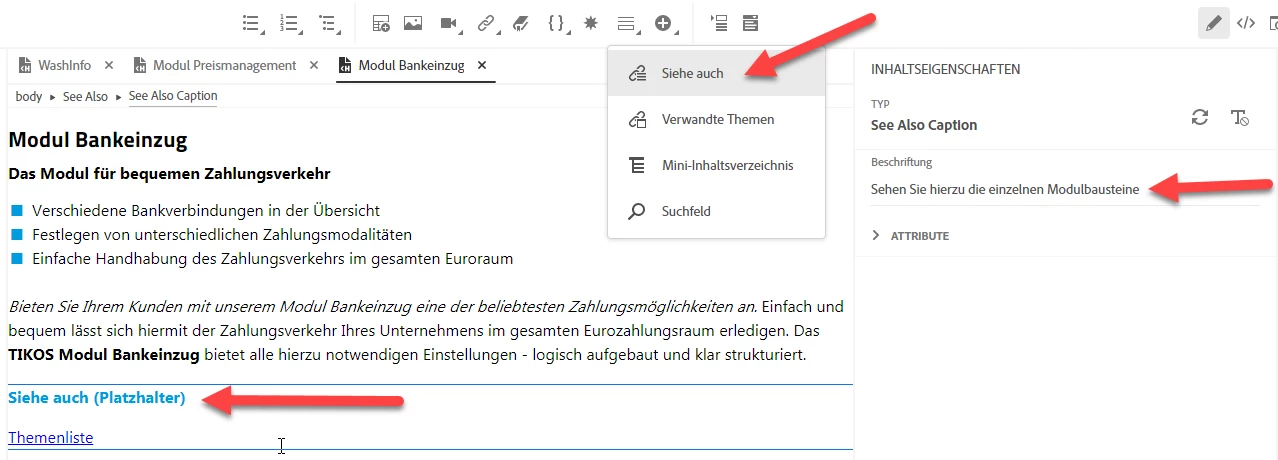
    Everything has been completely marked for export, including all 'Assets'. The links to the 'See also' topics have been translated. What is missing and we can't find is the caption (see my screenshot) in the XLIFF files to be able to translate them ...

    We also want to have the caption translated - but this is completly missing in the XLIFF file.