Participant
April 17, 2019
Answered

Table Formatting in 2019 Non-Classic

  • April 17, 2019
  • 1 reply
  • 768 views

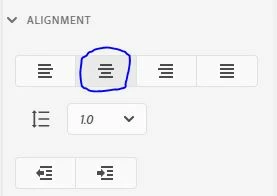
Can't seem to center a table. Alignment is centered:

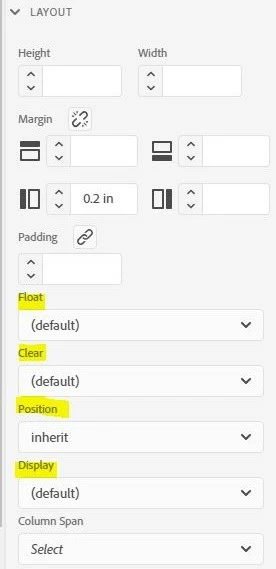
I could not find any definitions for "Position," "Display," or "Column Span" in the User Guide, so I have no idea what the settings should be if any. I have "Position" as "inherit" since it is within a paragraph that has the centered alignment, which I thought it would inherit. Help!

This topic has been closed for replies.
Correct answer Amebr

You can centre a table using CSS by setting the left and right margin for the table to 'auto' .

I'm currently on 2019.0.5 where there's a bug which means I can't set these through the UI. So, firstly try to type or select auto in the left and right margin fields. If you can, you should see the table magically centre on the page.

If you can't type 'auto', continue reading.

If you can't select or type 'auto; in the Margin fields (for example, in RH2019.0.5), you need to edit the code view:

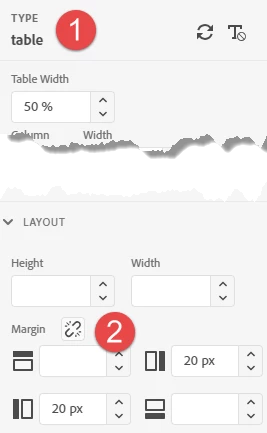
1. Make sure you've selected the table tag correctly. 'table' will display at the top of the Properties pane. 

2. Set left and right margin to 20px (or any number really).
3. Switch to code view. You'll see a table tag similar to:

<table cellspacing="0" class="table" style="margin-right: 20px;margin-left: 20px" width="50%">

All we care about are the margin-left and margin-right values.

4. Change margin-left and margin-right to auto:

<table cellspacing="0" class="table" style="margin-right: auto;margin-left: auto" width="50%">

5. Switch back to Author view and marvel at your centred table. Note that the margin values display completely wrong.
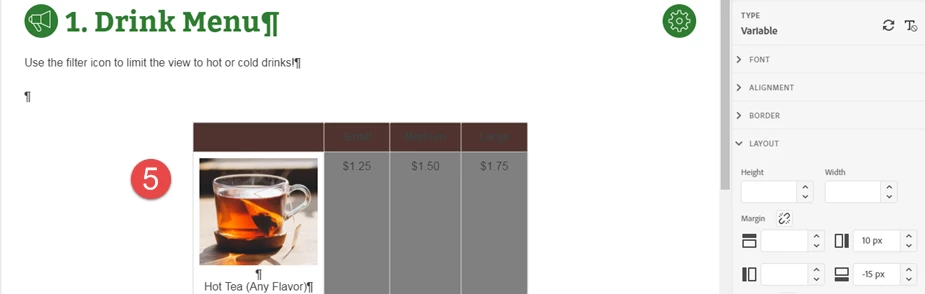
You can also do the same for specific table styles in your stylesheet so tables with that style are centred.

1 reply

AmebrCommunity ExpertCorrect answer
Community Expert
April 18, 2019

You can centre a table using CSS by setting the left and right margin for the table to 'auto' .

I'm currently on 2019.0.5 where there's a bug which means I can't set these through the UI. So, firstly try to type or select auto in the left and right margin fields. If you can, you should see the table magically centre on the page.

If you can't type 'auto', continue reading.

If you can't select or type 'auto; in the Margin fields (for example, in RH2019.0.5), you need to edit the code view:

1. Make sure you've selected the table tag correctly. 'table' will display at the top of the Properties pane. 

2. Set left and right margin to 20px (or any number really).

3. Switch to code view. You'll see a table tag similar to:

<table cellspacing="0" class="table" style="margin-right: 20px;margin-left: 20px" width="50%">

All we care about are the margin-left and margin-right values.

4. Change margin-left and margin-right to auto:

<table cellspacing="0" class="table" style="margin-right: auto;margin-left: auto" width="50%">

5. Switch back to Author view and marvel at your centred table. Note that the margin values display completely wrong.

You can also do the same for specific table styles in your stylesheet so tables with that style are centred.
Participant
April 18, 2019

Perfect!! Thank you so much!!