



kenl92739188
Inspiring
April 21, 2023
Answered

Thumbnails not working correctly in RH2022

  • April 21, 2023
  • 3 replies
  • 530 views

I'm trying to insert thumbnails into a RoboHelp project and not having much luck.

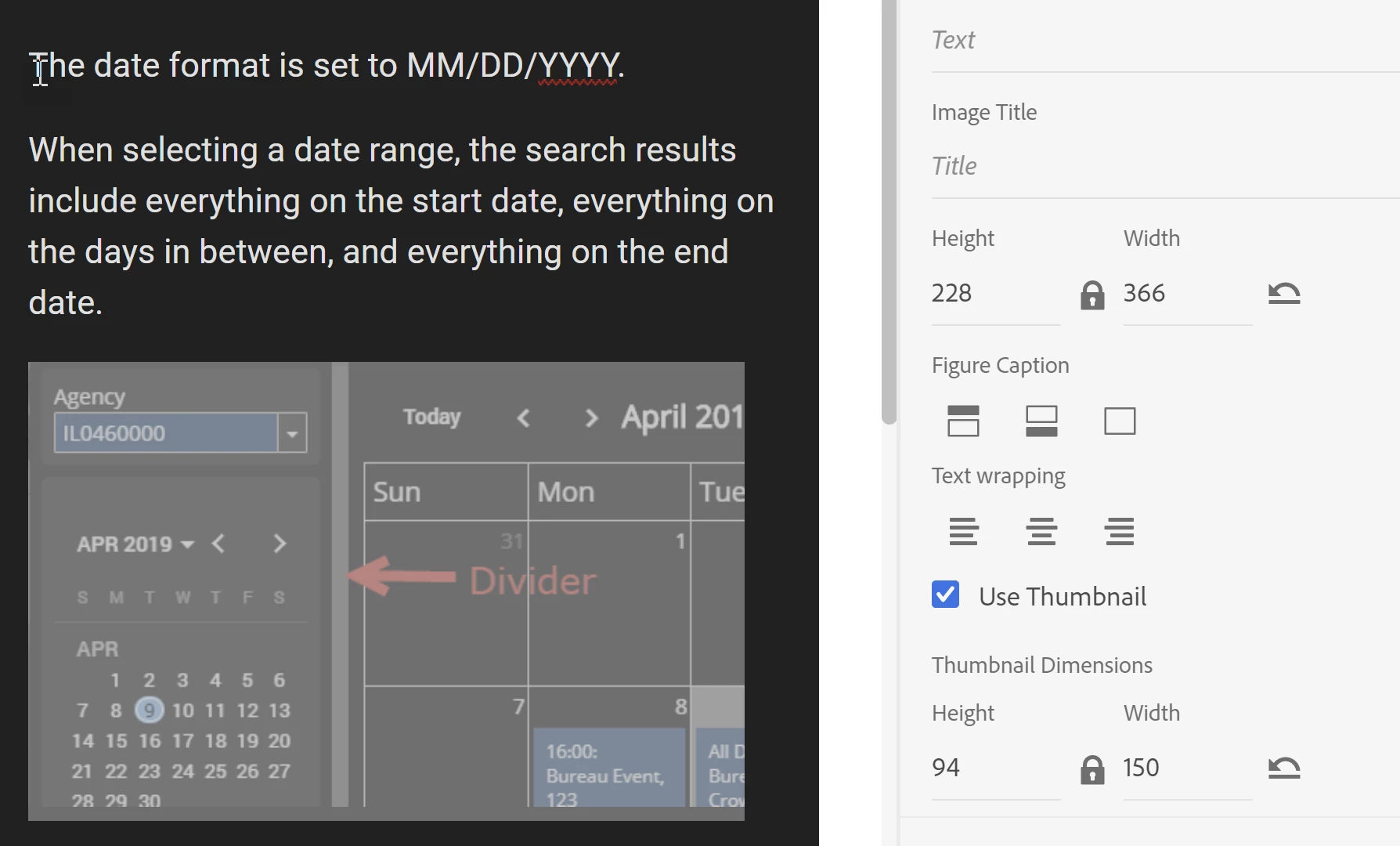
I inserted a graphic into a project page and clicked on the image. I selected Use Thumbnail in Content Properties and set the dimensions to Height 94 and width 150. The preview shows no different than in Author mode. 
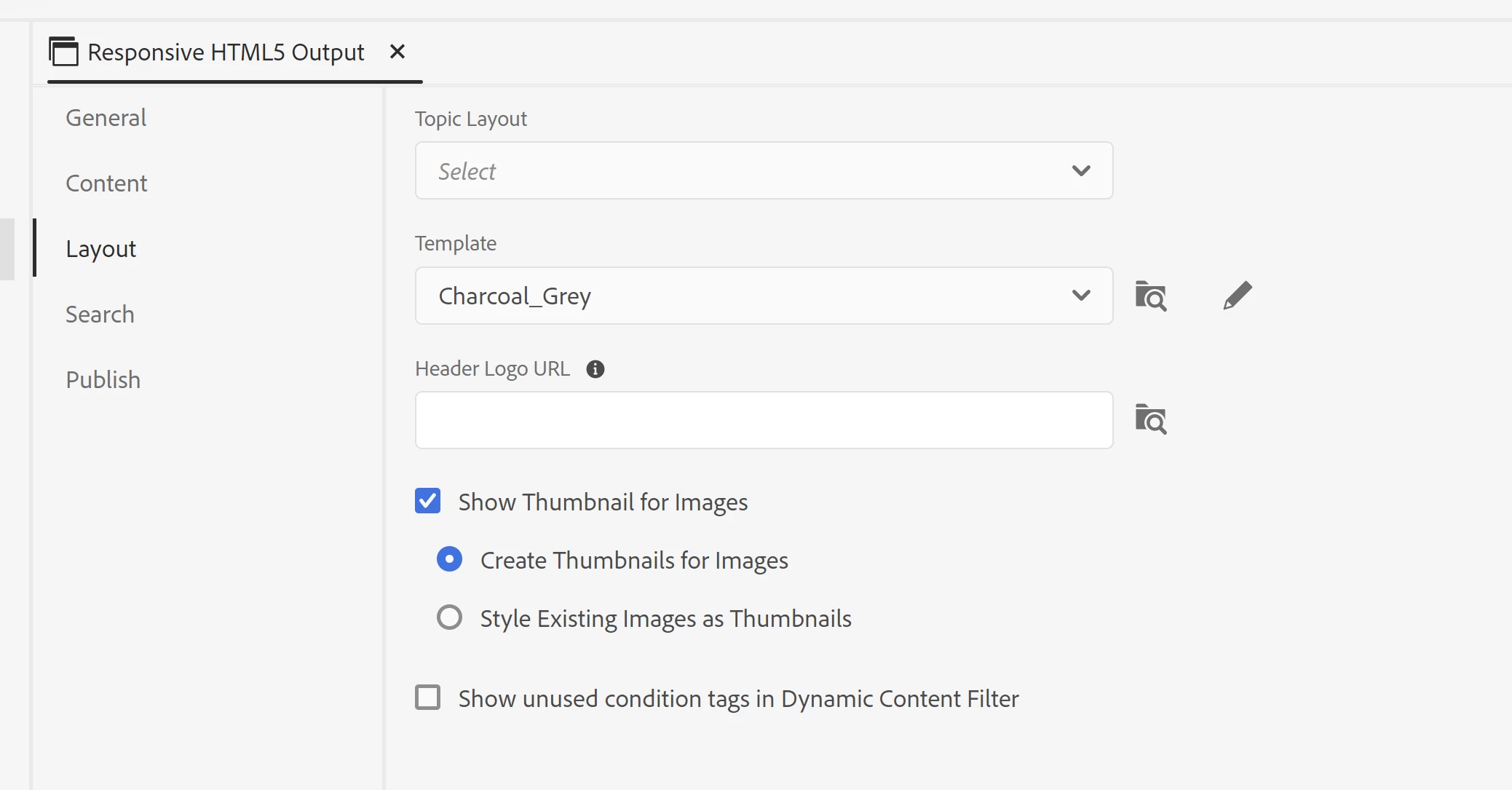
I selected Show Thumbnail for Images in the Output tab and Create Thumbnails for Images.
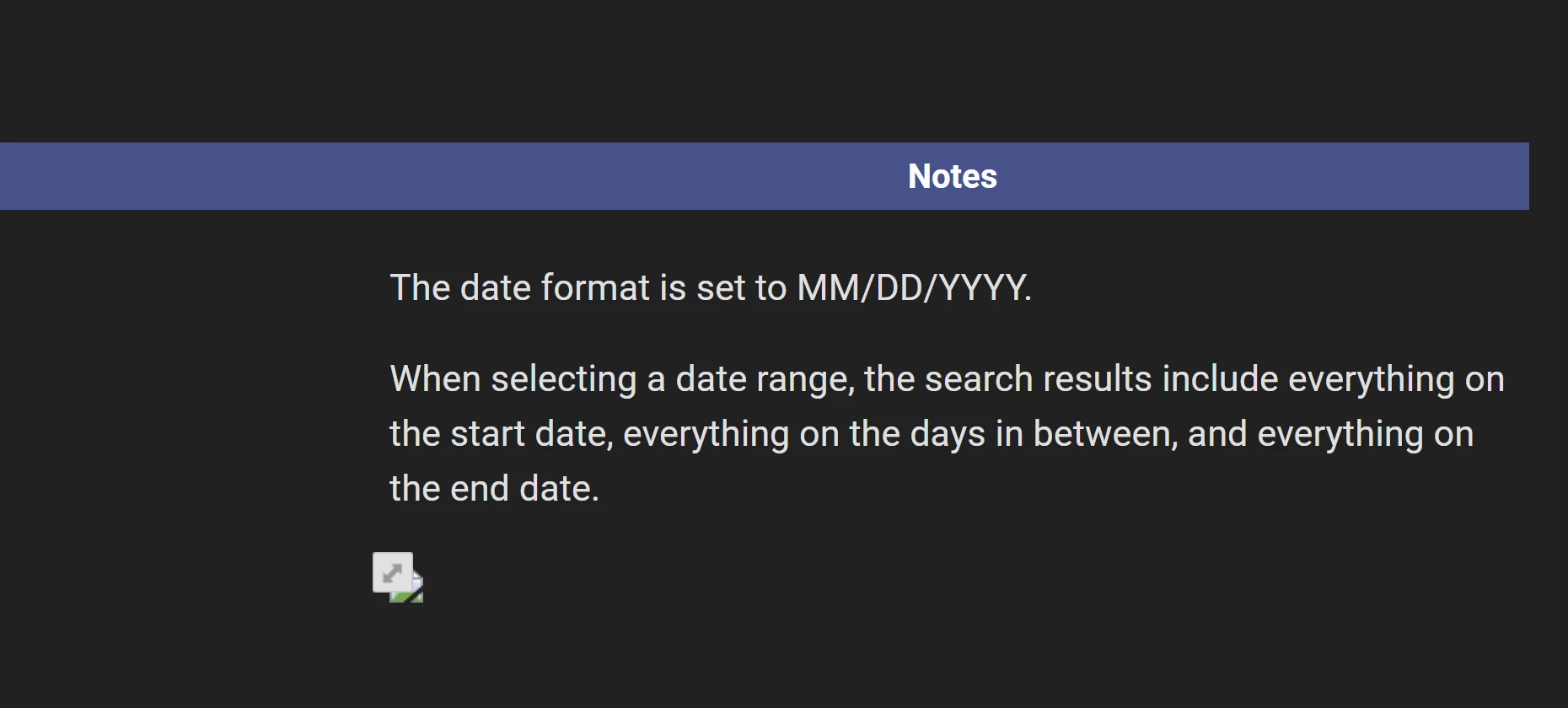
When I generate the output, it looks like this: 
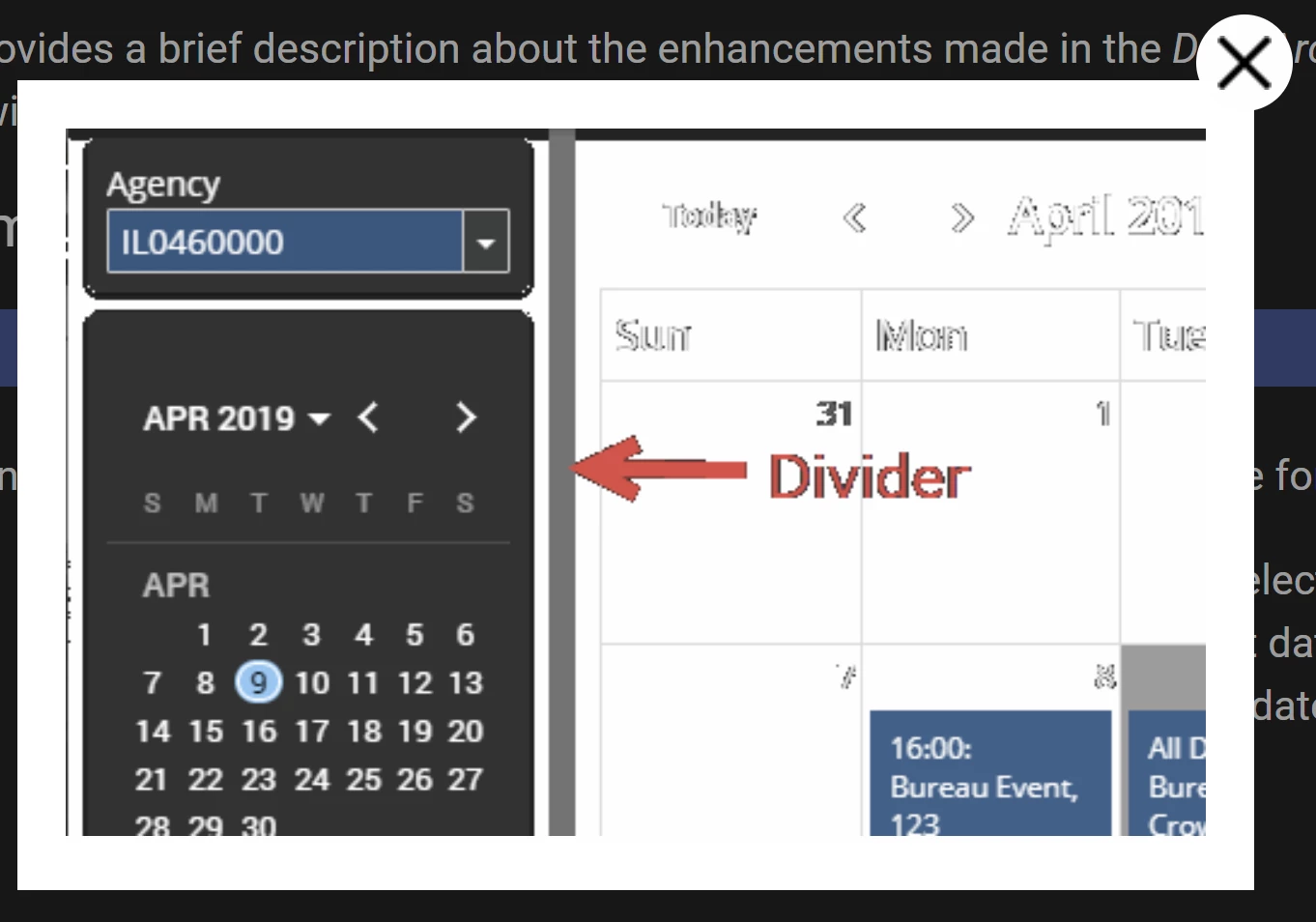
When I click on the thumbnail, the image looks nothing like the original (the original is dark-themed): 
Any ideas? My goal is a thumbnail that looks like the original but smaller and, when clicked on, expands to a larger size. 


This topic has been closed for replies.
Correct answer kenl92739188

I figured out the issue. First, I switched to "Style Existing Images as Thumbnails" in the output layout. The problem with the images was that I had transparent backgrounds set. When RH generates the output, the box that pops up with the full-size image has a white background, so the transparent image uses a white background. Problem solved. Thank you, Peter and Amebr, for your suggestions!

3 replies

kenl92739188
kenl92739188AuthorCorrect answer
Inspiring
April 27, 2023

I figured out the issue. First, I switched to "Style Existing Images as Thumbnails" in the output layout. The problem with the images was that I had transparent backgrounds set. When RH generates the output, the box that pops up with the full-size image has a white background, so the transparent image uses a white background. Problem solved. Thank you, Peter and Amebr, for your suggestions!

Inspiring
April 28, 2023

Thanks for having this details found out before we stumble into that trap...

Adobe Expert
April 23, 2023

I assume it's the calendar part of the image you're referring to, and the date picker bit is fine. There is nothing in the generation process that I'm aware of that would change the colour of half an image, but I suppose there could be a bug.


But let's check if it's something to do with the image first..


Create a new temporary project and pick a skin that is light coloured - I think Orange should be if you are using Frameless, or Azure Blue if you're using responsive.


Create a topic and insert the image. Does the whole image remain black or does the calendar part change to white?


Peter Grainge
Adobe Expert
April 21, 2023

Have you generated an output and checked it there? 

________________________________________________________
My site www.grainge.org includes many free Authoring and RoboHelp resources that may be of help.


Help others by clicking Correct Answer if the question is answered. Found the answer elsewhere? Share it here. "Upvote" is for useful posts.
kenl92739188
Inspiring
April 24, 2023

My last screenshot of the image is in the output. 

Except when I have it highlighted to work with the properties, this is what it looks like in the project: 

My goal is to have a postage-size version of the image in the output, which a user can then click on to see a much larger one. 


We are on version 2022.1.188 of RoboHelp and the Charcoal Grey template has had a few other problems with the output that we've had to contact Adobe Support to get fixed.