
Unable to publish a responsive HTML5 layout to the RoboHelp Server
I'm using trial versions of RoboHelp 2015 and RoboHelp Server 10. We've used the previous version of RoboHelp and RoboHelp Server to publish our help for quite some time. Our software is moving to be available to be viewed on various devices so we are trying to test publishing responsive HTML 5 to the RoboHelp server.
When we attempt to publish the project we get one of two errors "Publishing has been aborted. The FTP session was terminated." or " Failed to publish to "TEST_EM". Reason: The FTP session was terminated." We have attempted this on two different author machines and can't get past it.
Steps:
- We set up a server with RoboHelp 10 installed.
- We created a test project with RoboHelp 2015 with a responsive HTML 5 layout.
- We might be filling in the Server Directory field wrong but the documentation does not at all mention how to publish responsive HTML 5 to the RoboHelp server, or if it does, it doesn't match the actual screens. When you select a new destination, you get the following window that we have grown to love previously, except it doesn't have a refresh button that lists the server areas and it has this new field "Server Directory".
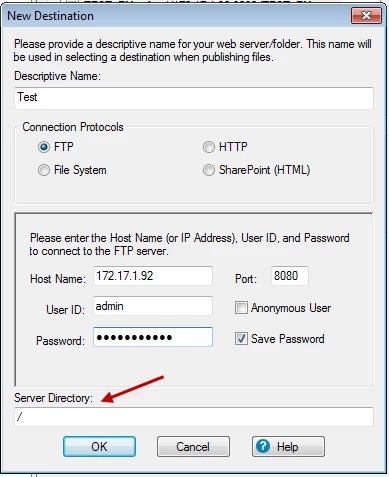
We have poured over the documentation and cannot find what to put there. We have reviewed all the other connection protocols and they do not seem to apply.
The RoboHelp Server Help says:
Publish projects from RoboHelp (2015 release)
1) Create or edit Responsive HTML5, WebHelp Pro, or FlashHelp Pro layout.
2) Do one of the following:
• Right-click the Responsive HTML5, WebHelp Pro, or FlashHelp Pro layout in the Single
Source Layouts pod and select Properties.
• Double-click the Responsive HTML5, WebHelp Pro, or FlashHelp Pro layout in the
Single Source Layouts pod.
3) In the Options dialog box, click Next to go to the Server selection screen.
4) Click New to create a RoboHelp Server destination to publish projects. In the New Destination
dialog box, provide Descriptive Name, Server Name, User ID, and Password to connect and
authenticate to the RoboHelp Server.
5) Click the Refresh button to get the updated list of areas from the server. If you do not select an
area, the project is published at the default area.
NOTE: To publish to the default context (robohelp), enter the server name in the
http://<server-name>:<port-number> format. RoboHelp appends
/robohelp/server to it. Else, to publish to a context other than robohelp, specify a complete
URL in the format http://<server-name>:<port-number>/<contextname>/
server
6) Click OK to save the server configurations and close the New Destination dialog.
7) Click Save and Generate to generate the output.
😎 Once the output is generated, click Publish to publish the project to RoboHelp Server.
NOTE: To view the project on the server, go to RoboHelp Server Web Administrator and in the Projects
tab, select the area where you have published the project.
Unfortunately, there is no Refresh button, as indicated in step 5.
Other Information:
We were able to publish the previously created WebHelp Pro project to the new server, just not the HTML5 project.
The server logs show nothing about a failed logon attempt so we feel we are not even contacting the server.
I installed update 3.
Can anyone tell us what to put in that field or explain why we are not seeing the refresh button?
Thank you,
Nita


 AdChoices