Inspiring
July 15, 2022
Answered

Unexpected effects of change to CSS (RH 2020.8.34)

  • July 15, 2022
  • 3 replies
  • 219 views

Hi, Everyone.


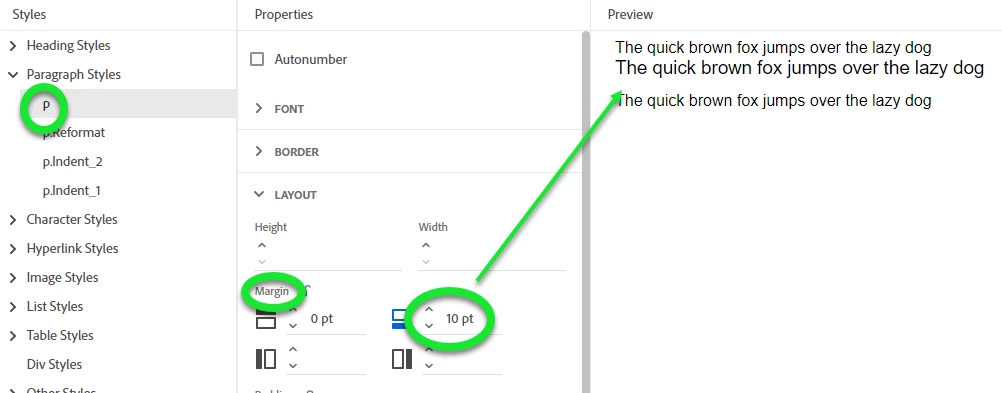
For accessibility purposes, I've adjusted my CSS so that there's automatically a 10 pt space after each paragraph (Screenshot-1). That way, I don't use blank paragraphs to indicate space between paragraphs. So far, so good.


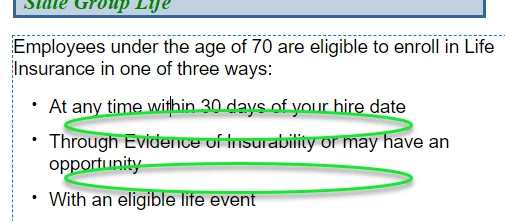
But the problem is that my bullet lists now also have the 10 pt space between each item (Screenshot-2). In case it would help you, I've included two more screenshots:

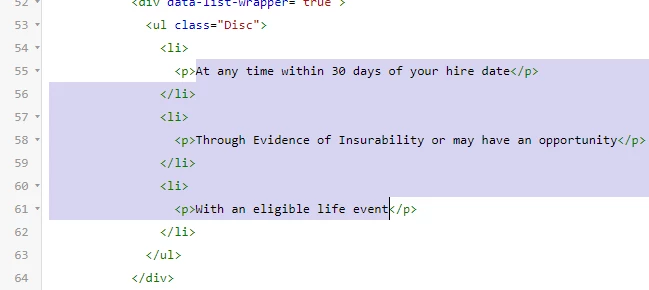
  • The HTML of the bullet list (Screenshot-3)
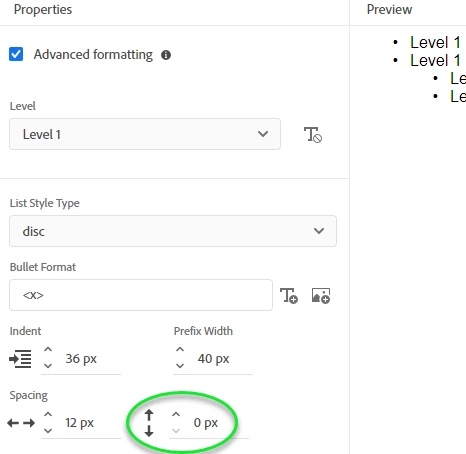
  • The properties of Disc Style in my CSS (Screenshot-4)


My question is, How do I get rid of that space between items in bullet lists?


Thank you!


SCREENSHOT-1
 

SCREENSHOT-2


SCREENSHOT-3


SCREENSHOT-4


    This topic has been closed for replies.
    Correct answer Peter Grainge

    It is because you have applied the P tag to the list items, that is overriding the list style margin.


    You can't remove the P tag in author view as the Clear Formatting only removes inline styles. At first it looked like a trip into source view to manually remove the P tags but I came up with a cunning plan.


    Go to the P tag in the Styles panel on the right. Right ciick the P tag and create a duplicate with a name such as NoBottomMargin. In that change just the bottom margin down to what it was earlier. Now apply that style to all the items in the list except perhaps the last one.


    Now all the items will have the old margin except the last one. I think you may want it that way for visual reasons.

    ________________________________________________________

    My site www.grainge.org includes many free Authoring and RoboHelp resources that may be of help.


    3 replies

    Inspiring
    July 18, 2022

    Excellent, excellent!  Such good solutions, from both of you, going forward.


    And I didn't understand that about P tags overriding the list style margin. Nor that "Clear Formatting" only clears inline styling. Glad you explained it. 


    Thanks so much, both of you.   

    Community Expert
    July 17, 2022

    This is what I have in my stylesheet for exactly this situation.


    li p {
        margin-bottom: 0;
    }

    It says "For a p tag anywhere inside an li tag, set the bottom margin to zero".

    Peter Grainge
    Community Expert
    Peter GraingeCommunity ExpertCorrect answer
    Community Expert
    July 16, 2022

    It is because you have applied the P tag to the list items, that is overriding the list style margin.


    You can't remove the P tag in author view as the Clear Formatting only removes inline styles. At first it looked like a trip into source view to manually remove the P tags but I came up with a cunning plan.


    Go to the P tag in the Styles panel on the right. Right ciick the P tag and create a duplicate with a name such as NoBottomMargin. In that change just the bottom margin down to what it was earlier. Now apply that style to all the items in the list except perhaps the last one.


    Now all the items will have the old margin except the last one. I think you may want it that way for visual reasons.

    ________________________________________________________

    My site www.grainge.org includes many free Authoring and RoboHelp resources that may be of help.


    Use the menu (bottom right) to mark the Best Answer or Highlight particularly useful replies. Found the answer elsewhere? Share it here.