


Inspiring
October 10, 2022
Answered

Unreadable colors for tablet navigation in Charcoal Grey skin

  • October 10, 2022
  • 4 replies
  • 862 views

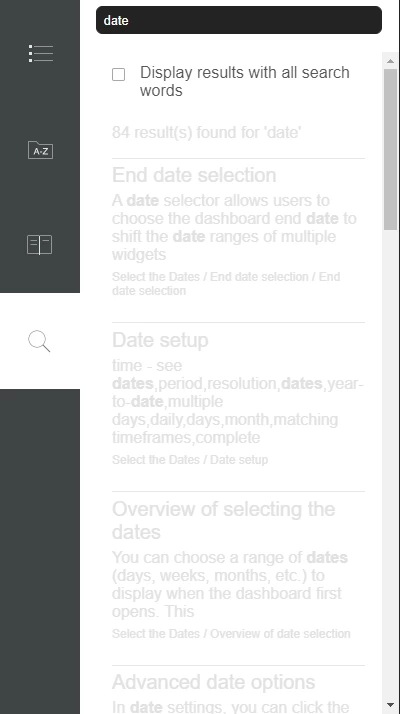
The default colors for the index, glossary, and search in the Charcoal Grey skin "tablet" format are unreadable. The background is white and the font colors are light (see below). I have looked through all the settings and can't find a way to change this. Modifying the font colors and background color in the skin only affects the desktop layout. Is there any way to change this?


    Correct answer JC @ Salient

    Hello, Thanks for the answer. It did not exactly fix my issue because I am using a Responsive HTML skins, which does not seem to have user assets. Also, the tablet and mobile layout colors are what seem to be the problem. 

    Your answer did guide me to a solution though.

    I modified the layout.css generated by RoboHelp to use darker font colors where necessary. It was a trick figuring out exactly what elements to change. Then I added a post generation script to put the correct layout.css in place.

    I would think that the Charcoal Grey layout would have colors that contrast enough to read "out of box" without going through hoops. But I have things working for the time being anyway so thank you.


    4 replies

    Peter Grainge
    Community Expert
    Community Expert
    March 28, 2025

    @Theresa Fisher iHM As covered in the thread, the only way to edit anything not covered in the template editor is to edit the CSS. I doubt this will get fixed as frameless templates are what Adobe now focus on.


    Changing to frameless would affect any context sensitive calls if you use URLs. The change is covered on my site and is not difficult for the developers to deal with.

    ________________________________________________________

    My site www.grainge.org includes many free Authoring and RoboHelp resources that may be of help.


    Use menu (bottom right) to mark as Best Answer or to Highlight particularly useful replies. Found the answer elsewhere? Share it here.
    Participating Frequently
    March 28, 2025

    There is not a .css file it is a html5.skn file with the css in it.  Figuring out what color changes what is very time consuming. 

    Inspiring
    March 28, 2025

    I think this issue went away for me after an upgrade awhile ago, although I can't remember which one. I am not using a post generation script anymore and no longer see the issue. I am on RoboHelp v2022.5.28. I would be curious to see what happens for you if you upgrade and then re-add the charcoal gray skin/template. Although, some of the upgrades are time-consuming and required some work as well.

    Peter Grainge
    Community Expert
    Community Expert
    October 13, 2022

    Not the answer you want but here it is.


    ****************************************

    This is a known issue. There is no solution to fix this from RoboHelp skin editor. To work around this, user will have to change colors from css files instead of making changes from skin editor. User will have to add css which only apply to desktop layout.

    Example-

    body.media-desktop ul.list {

    padding-top: 2rem;

    }


    In above example, style on list will only be applicable in case of desktop view. User will have to add these style in a css file and add that css file as user assets section in skin editor.

    ****************************************


    Put another way, set your tablet styles in the editor, then add styles for the desktop that need to be different.


    I don't have any infomation on a fix.

    ________________________________________________________

    My site www.grainge.org includes many free Authoring and RoboHelp resources that may be of help.


    Use menu (bottom right) to mark as Best Answer or to Highlight particularly useful replies. Found the answer elsewhere? Share it here.
    JC @ SalientAuthorCorrect answer
    Inspiring
    October 14, 2022

    Hello, Thanks for the answer. It did not exactly fix my issue because I am using a Responsive HTML skins, which does not seem to have user assets. Also, the tablet and mobile layout colors are what seem to be the problem. 

    Your answer did guide me to a solution though.

    I modified the layout.css generated by RoboHelp to use darker font colors where necessary. It was a trick figuring out exactly what elements to change. Then I added a post generation script to put the correct layout.css in place.

    I would think that the Charcoal Grey layout would have colors that contrast enough to read "out of box" without going through hoops. But I have things working for the time being anyway so thank you.


    Community Expert
    October 16, 2022

    They forgot to put the User Assets section in the Charcoal Grey skin in RH2019 New UI, but it's available in RH2020 - I'm not sure when it was added but I can see it in RH2020.8 at the bottom of the Layout panel.


    (In Rh2019 New UI I'm pretty sure it's available in all the other Responsive skins, though, in case that's the version you're using).

    Peter Grainge
    Community Expert
    Community Expert
    October 10, 2022

    Indeed it does work as you say. Let me check with my Adobe contacts.

    ________________________________________________________

    My site www.grainge.org includes many free Authoring and RoboHelp resources that may be of help.


    Use menu (bottom right) to mark as Best Answer or to Highlight particularly useful replies. Found the answer elsewhere? Share it here.
    Peter Grainge
    Community Expert
    Community Expert
    October 10, 2022

    At the top of the screen when you change desktop colours, there is a tablet icon. Tap that to  change tablet colours.

    ________________________________________________________
    My site www.grainge.org includes many free Authoring and RoboHelp resources that may be of help.


    Use menu (bottom right) to mark as Best Answer or to Highlight particularly useful replies. Found the answer elsewhere? Share it here.
    Inspiring
    October 10, 2022

    If I click the tablet icon, it changes the preview. It shows me what it will look like in tablet, but it doesn't seem to allow me to change the settings that go with the tablet. The settings area stays the same and if I change one while in this "tablet" preview, it still only changes the desktop version.