
gabrielap80392066
Participating Frequently
May 9, 2015
Question

Urgent - CHM Child Project Now Showing in Output

  • May 9, 2015
  • 1 reply
  • 410 views

Hello,

I am trying to create a merged help in RH 11. I am able to add the .chm child project to the master project (see snippet below). However, when I generate the master project, the child does not show. Is there an extra step after adding the .chm file to the master to allow the child to be viewed in the output? If yes, what is that step and how is it done?

Thanks.
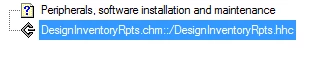
(I should probably add that I have looked at Peter's recommendations re: setting up the merge (Merging WebHelp - RoboHelp 9 and 10). I am not sure, but from reading the instructions I suspect that the step I am missing is generating the .chm file. I am not sure how this is done. If this is indeed the step that I'm missing, please explain how to generate the .chm file after adding it to the master.)

This topic has been closed for replies.

1 reply

Captiv8r
Legend
May 9, 2015

Hi there

Think of generating a CHM file as the same as baking a cake. You can't eat the cake until it's baked, no?

CHM files are the same way. You can't view them until you generate them.

So you open each project and generate the CHM. Then you ensure all the associated CHM files are in the same folder. Once they are all in the same folder, the master CHM should then "see" the associated CHM files and present their TOC structures. Assuming, of course, that everything else has been properly set up.

Cheers... Rick

gabrielap80392066
Participating Frequently
May 12, 2015

Hi Rick,

Thanks for the fast reply. What I am unclear about is how to generate the CHM file. I know how to generate an .xpj file, but not a .chm file. Please kindly walk me through the steps of "generating the .chm."

Much appreciated,

Gabriela

Captiv8r
Legend
May 12, 2015

Okay.

So you open RoboHelp.

From RoboHelp, open the project.

Now that the project is open in RoboHelp, you click View > Pods > Single Source Layouts.

Double-click the Microsoft HTML Help Single Source Layout and click the Save and Generate button.

Cheers... Rick