


Vote on these feature requests please: Accessibility, Spelling, Usability
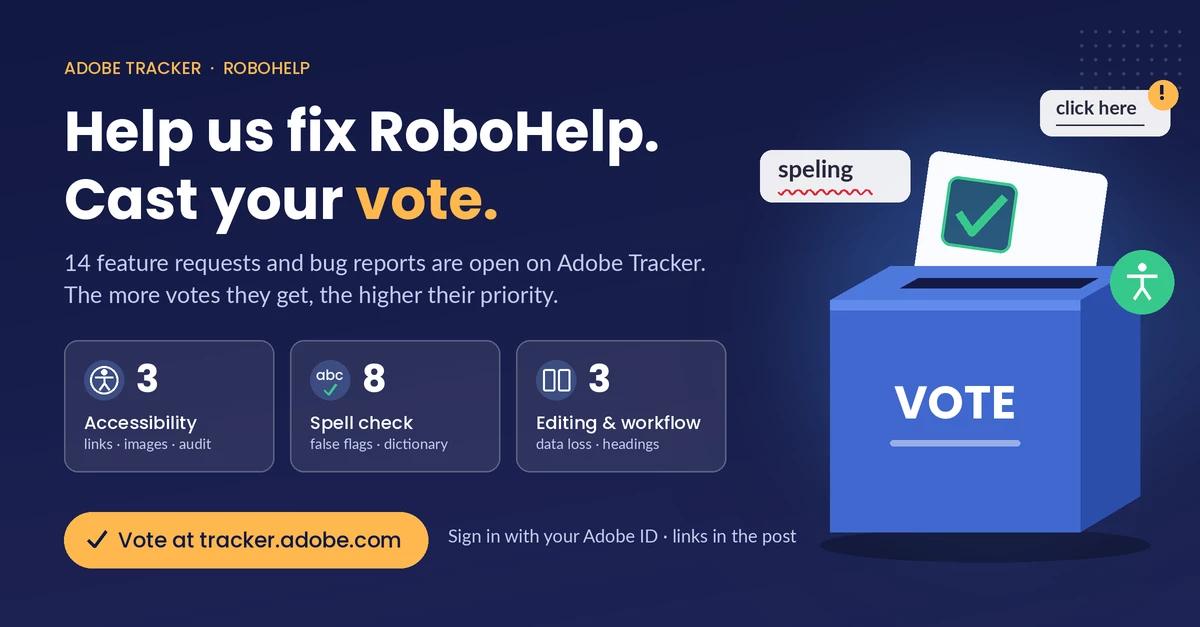
I’ve submitted several RoboHelp feature requests and bug reports to Adobe Tracker. Adobe looks at vote counts when deciding what to fix, so a few minutes of your time could help get these implemented. Every vote counts.
I have made sure none of these were fixed recently in the 2026.09.43 release.
How to vote
- Click any link below. If you aren’t signed in, click Login in the top-right corner and sign in with your Adobe ID (the account you use for RoboHelp).
- You may be asked to create an Adobe Community profile the first time. If so, complete that step, then return to the link.
- Scroll to the bottom of the issue, add an optional comment, and click Vote.
A short comment about how the issue affects your work is especially helpful, because it shows Adobe the real-world impact.
Accessibility
These three requests would help us publish content that meets WCAG and similar accessibility requirements.
- Link accessibility features: Adds an optional accessibility check to the Link dialog. It flags vague link text such as “click here,” adds an aria-label field, warns about popups and new windows, and asks you to confirm before you create a link with issues.
https://tracker.adobe.com/#/view/RH-14502 - Image accessibility features: Adds an Alternative Text field, a “Decorative image” option, and a Long Description field to the Insert Image dialog. It also flags missing or poor alt text and animated GIFs.
https://tracker.adobe.com/#/view/RH-14503 - Accessibility Audit Report: Adds a new report that scans the whole project for issues with images, links, color contrast, fonts, headings, tables, language, multimedia, and skins. Each issue links to its WCAG criterion and comes with a suggested fix.
https://tracker.adobe.com/#/view/RH-14504
Spell check
Spell check problems slow down every review cycle. Together, these issues cover the most common frustrations.
- Spelling issues (original report): Words next to special characters, words split by a span, and capitalized versions of dictionary words are all marked as misspelled.
https://tracker.adobe.com/#/view/RH-12475 - Spell check incorrectly tokenizes punctuation and special characters: Contractions (we’ve), possessives (EA’s), hyphenated words, and words next to em dashes or quotation marks are reported as misspelled.
https://tracker.adobe.com/#/view/RH-14367 - Manually corrected words remain marked as misspelled: If you fix a word by typing, it stays underlined until you close and reopen the topic.
https://tracker.adobe.com/#/view/RH-14368 - Spell-check suggestions are inaccurate and lose capitalization: For example, “Realted” suggests “realtor” but not “related,” and “Reprots” suggests “reports” in lowercase.
https://tracker.adobe.com/#/view/RH-14369 - Project spell check stops on topics with no misspelled word: A project-wide check stops on topics showing “<None>,” so you have to click Skip to continue.
https://tracker.adobe.com/#/view/RH-14370 - Custom dictionary entries do not behave consistently: Multiword terms (such as Sesotho sa Leboa) can’t be added as a single entry, and custom words are never offered as suggestions.
https://tracker.adobe.com/#/view/RH-14371 - Spell check identifies non-word technical content as misspelled: URLs, file extensions, and math symbols are flagged as spelling errors.
https://tracker.adobe.com/#/view/RH-14372 - Add configurable spell-check options: Adds preferences to skip URLs, file extensions, ALL CAPS terms, words with numbers, and other technical content.
https://tracker.adobe.com/#/view/RH-14373
General editing and workflow
- Loss of information when using multiple search results in one document: In Find and Replace, clicking another result in the same topic throws away your unsaved edits without warning. This one can cause real data loss, so please prioritize it.
https://tracker.adobe.com/#/view/RH-14374 - Deleting an empty paragraph in Author View deletes or reformats adjacent headings: Pressing Backspace or Delete next to an empty paragraph deletes the heading above it or changes the heading below it to body text.
https://tracker.adobe.com/#/view/RH-14366 - Dual-pane drag-and-drop for content management: Adds a second Contents pane so you can drag topics between folders in large projects without long scrolling.
https://tracker.adobe.com/#/view/RH-12941
Thanks for taking the time to vote. If you’ve run into any of these yourself, please add a comment so Adobe can see how widespread they are.
 AdChoices