
John_Meidl
Inspiring
April 4, 2017
Answered

Why is my images folder not viewable from within the RoboHelp "Project Manager" tab?

  • April 4, 2017
  • 3 replies
  • 1099 views

Why can I not see my images folder (IMAGES_ web) when viewing the folders in the Project Manager tab?
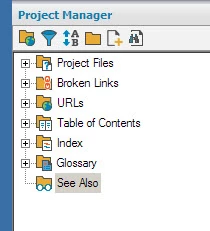
Might it be because I probably created the IMAGES_web folder when I was in Windows Explorer?
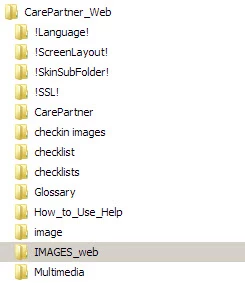
Is there a way to make the IMAGES_web folder viewable in the "PRoject Manager" tab in the RoboHelp project?

(I'm using RoboHelp 2015. This is a project that I opened from RoboHelp 8 and have been adding, updating and deleting the contents of project -- htm files, image files, etc. in this recent version -- 2015 -- of RoboHelp)

Thank you!

This topic has been closed for replies.
Correct answer Germanedge Solutions GmbH

Hi there,

if I remember right, it worked for me this way: I also created an images folder for my RH project in Windows Explorer. Then I created a new folder within RH with the same name as my images folder in Windows Explorer. Then, automatically all images used in my RH topics were also displayed within this folder in RH. However, images in my Windows folder that are not used in any topic will not be displayed.

Right now, I haven't the time to test this again and verify, but I think this is how it worked for me. If you like, just give it a try.

Best regards
Karin

3 replies

Captiv8r
Legend
April 5, 2017

It occurs to me here that you may be expecting to see your IMAGES_web folder in the root level here alongside the other folders.

Have you tried simply clicking the plus symbol to expand the Project Files folder and when you do that, is it not listed "inside" that folder?

If so, you are golden. But if not, that's when you would need to follow the steps I outlined.

Cheers... Rick

Germanedge Solutions GmbH
Inspiring
April 5, 2017

Hi there,

if I remember right, it worked for me this way: I also created an images folder for my RH project in Windows Explorer. Then I created a new folder within RH with the same name as my images folder in Windows Explorer. Then, automatically all images used in my RH topics were also displayed within this folder in RH. However, images in my Windows folder that are not used in any topic will not be displayed.

Right now, I haven't the time to test this again and verify, but I think this is how it worked for me. If you like, just give it a try.

Best regards
Karin

Peter Grainge
Community Expert
Community Expert
April 5, 2017

Karin is referring to a bug I have encountered in older versions where if a folder contained only images, then it would sometimes disappear and the method Karin describes would bring it back.

If that is not the problem, then what view are you using in Project Manager. The icon to the left of the folder in your image toggles the view. One way shows the images in the folders they are really in, the same as if you look in File Explorer. The other way shows a pseudo Images folder with all the real folders, the same as in Project Manager when you expand the Project Files.

I think you are using the first option so are you not seeing the images in any folder?


See www.grainge.org for RoboHelp and Authoring information

@petergrainge

Use the menu (bottom right) to mark the Best Answer or Highlight particularly useful replies. Found the answer elsewhere? Share it here.
Captiv8r
Legend
April 4, 2017

Hi there

You cannot make edits using Windows Explorer outside of RoboHelp. Well, I mean you clearly CAN, but in order for RoboHelp to understand you want a folder added that will be part of the project, you need to create the folder from inside RoboHelp.

I'd recommend renaming the folder in Windows Explorer, then create the folder using the desired file name in RoboHelp. Then from inside RoboHelp, add the images you want to be in the project.

Cheers... Rick

John_Meidl
Inspiring
April 4, 2017

Thanks, Rick, for your insights. However, I'm wondering whether I'm too far into development to create a new images folder in RoboHelp and import the images from my WindowsExplorer-created folder. This is why: There are about 1,330 images in my WindowsExplorer-created folder (IMAGES_web), and those images have already been added to many htm files (topics) in the project. (I've been working on updating this RoboHelp project for over a year, so you can image the volume...)

So (with my limited knowledge of RoboHelp, but imaging how RoboHelp works) I'm concerned that if all of those images were moved to a different folder (i.e., a folder added to the RoboHelp Project Manager tab) that the htm files may no longer display the appropriate image as the path would have changed and that I may have to re-insert those 1330 images.

Could you please help me understand what is possible and what may mess things up...  Perhaps it may be best to leave the images in the WindowsExplorer-created folder in this situation... ?

This project requires a lot more topics (with their related images) to be added in a tight time frame, so I don't have time to do a lot of re-work in the RoboHelp project.Thanks again!

Racing to the Finish line,

Jan

Captiv8r
Legend
April 4, 2017

I'm surprised you haven't seen issues where RoboHelp is squawking about things being mismatched and folders not existing and all. Then again, sometimes things like that have a check box one can click that says something to the effect of "don't nag me again" or something like that. So perhaps you enabled that option a while back.

I'd make a backup copy of your project and experiment to be certain. The trick is getting that folder to be recognized by RoboHelp.

My thought is that the topics are already correctly referencing the folder, right? I'm wondering if RoboHelp will just create the folder for you. So I'd try the following steps using a backup copy.

Close the project.

Make a backup copy. Click here for a video if you are unfamiliar with this process

In the backup location, use Windows Explorer and simply rename the folder full of images to something different.

Open the project. (at this point, RoboHelp may very well create that folder for you). So after opening the project, see if the folder now appears in RoboHelp. If that happens, you may see that there are all manner of red X's indicating missing images. Don't be alarmed!

Close the project in RoboHelp.

Clobber the CPD file. Click here for a video if you are unfamiliar with this process

Copy all the images from the folder where they exist to the new folder that RoboHelp likely created for you.

Let us know how you get on!

Cheers... Rick