Participant
April 6, 2018
Answered

Team Project and Proxy Workflow

  • April 6, 2018
  • 1 reply
  • 6930 views

Hello all,

I'm exploring Premiere's Team project and proxy workflows. I am looking for a simple way to:

  1. Construct an edit with high-res media
  2. Proxy all those media automatically
  3. Share the project and its proxy media online
  4. Edit remotely using proxy media
  5. Roll remote changes back into the original high-res edit

The key thing for me here is that only the proxy media should be pushed through the internet; and that the proxy generation should be automatic. I can see how to accomplish these steps independently, but not how to limit it to just the proxies or to fully automate their creation.

And help gratefully received.

/ben

This topic has been closed for replies.
Correct answer anurajk2819285

Hi Ben,

The workflow you have proposed is possible

  1. Construct an edit with high-res media
  2. Proxy all those media automatically
    • While creating a new Team Project you can go to ingest settings tab and enable create proxies. This setting will enable automatic proxy creation for any media imported and save it to the Proxy Destination folder.
  3. Share the project and its proxy media online
    • You can specify the location of a folder on Creative Cloud storage to achieve this.
  4. Edit remotely using proxy media
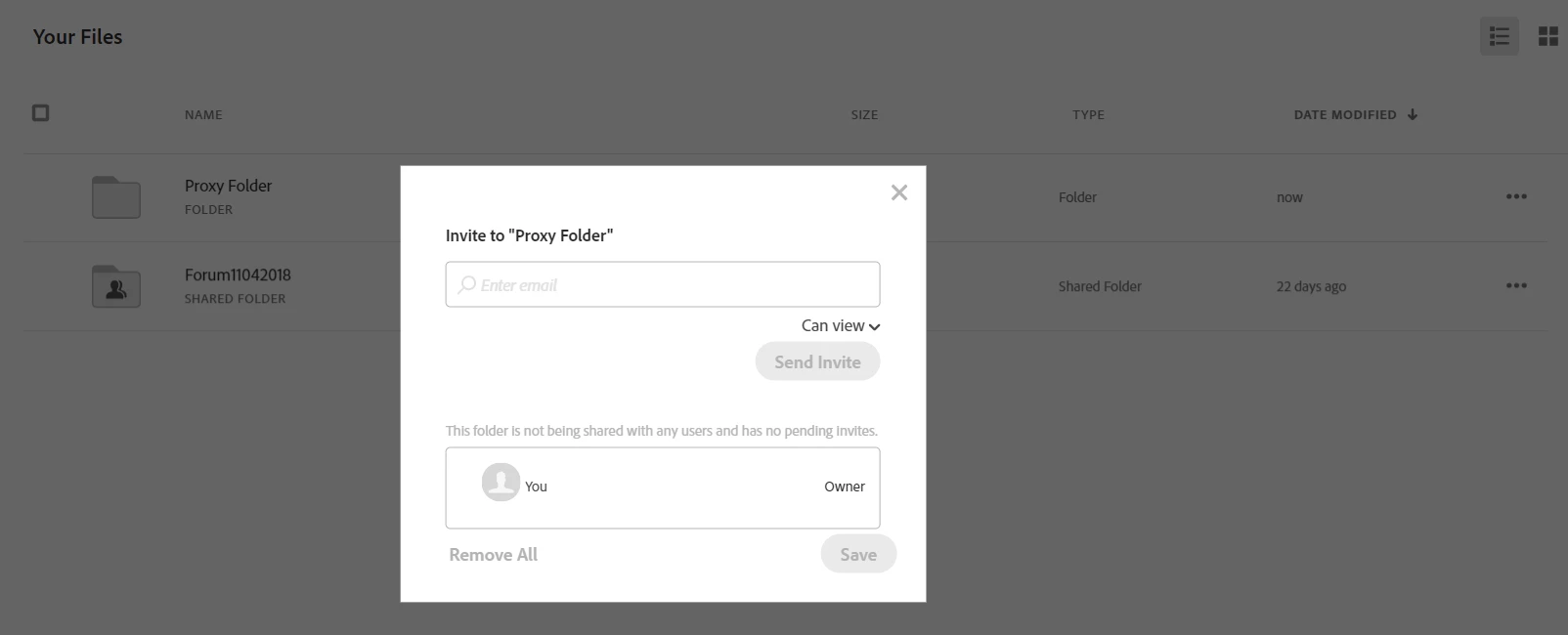
    • In Case you have used Creative Cloud for storing the proxy files, these files will be available online. You can invite other collaborators to this folder by using Creative Cloud Web App. They will be able to see those files after accepting the invite.

Thanks,

1 reply

anurajk2819285Correct answer
Participant
May 3, 2018

Hi Ben,

The workflow you have proposed is possible

  1. Construct an edit with high-res media
  2. Proxy all those media automatically
    • While creating a new Team Project you can go to ingest settings tab and enable create proxies. This setting will enable automatic proxy creation for any media imported and save it to the Proxy Destination folder.
  3. Share the project and its proxy media online
    • You can specify the location of a folder on Creative Cloud storage to achieve this.
  4. Edit remotely using proxy media
    • In Case you have used Creative Cloud for storing the proxy files, these files will be available online. You can invite other collaborators to this folder by using Creative Cloud Web App. They will be able to see those files after accepting the invite.

Thanks,

Nwalme
Participant
October 15, 2018

Hi, I would like to know if you can only share and download in an invited computer editor the proxy files to work with the team project, or do you need to download and have the original files to work with the project you share.

Thanks.

PeterELee
Adobe Employee
Adobe Employee
October 15, 2018

Only the proxy files need to be available to your collaborators, though they can also work with the original media if they have access to it. Proxies and/or original media can be shared via WAN, or Creative Cloud Files, or a service like Dropbox, or by copying hard drives. As long as copies of the media and/or proxies are available from the collaborator's machine in roughly the same directory structure, they will be able to edit using those copies.