Hi everyone,
Thank you for sharing your concerns with us. We understand how frustrating recurring AI prompts can be during everyday PDF workflows.
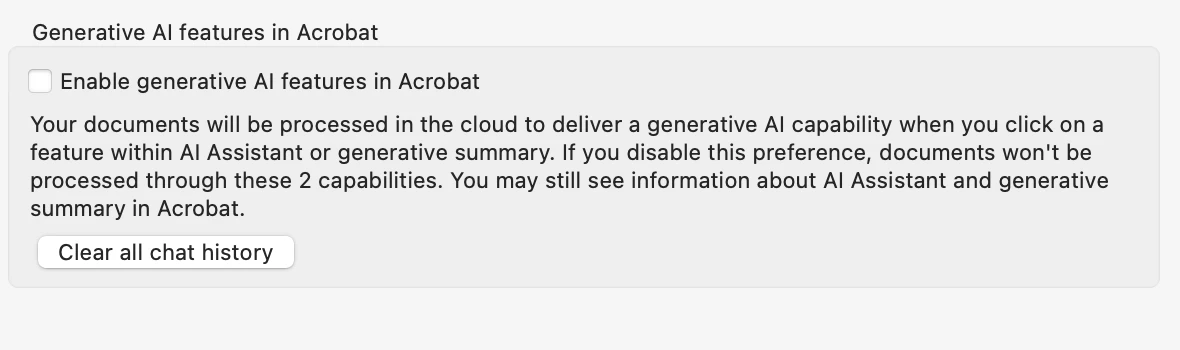
Acrobat AI Assistant helps you understand documents and get answers using generative AI. You can disable generative AI entirely or retain AI Assistant while customizing individual features and interface elements.
Last reviewed: November 28, 2026
Quick Reference: Manage AI features and prompts in Acrobat
1. Completely disable generative AI features
-
Save your work and close all open PDFs.
-
Open Preferences:
-
Select Generative AI.
-
Uncheck Enable generative AI features in Acrobat and select OK.
-
Restart Acrobat, confirm the preference remains unchecked and open a PDF.
In the new Acrobat experience on macOS, disabling this preference can remove AI Assistant, summary banners, AI-related contextual actions and several AI-related Home screen elements while retaining standard PDF tools.
Some Acrobat versions may still display information about AI Assistant and generative summary after disabling these features. This does not necessarily mean generative AI has been re-enabled.
You can re-enable generative AI from the same preference whenever needed.
Learn more: Turn off generative AI features.
2. Retain AI Assistant while reducing interruptions
Go to Preferences > Generative AI and keep Enable generative AI features in Acrobat selected.
Depending on your Acrobat version, platform, account and available features, you may see these options:
| Preference | What it controls |
|---|
| Show AI query bar on document | Uncheck to hide the bottom AI prompt bar. |
| Show Document Summary Banner in the Viewer | Uncheck to hide the summary banner. |
| Auto summarize all documents opened in Acrobat | Uncheck to turn off automatic document summarization. |
| Show AI video cards (this will replace the starred documents, requires restart) | Controls AI video cards displayed in place of starred documents. |
| Enable document editing using AI Assistant (requires restart) | Uncheck to turn off AI-assisted document editing. |
Select OK and restart Acrobat where required. Reopen a PDF to confirm the selected interface elements remain hidden and your preferences are retained.
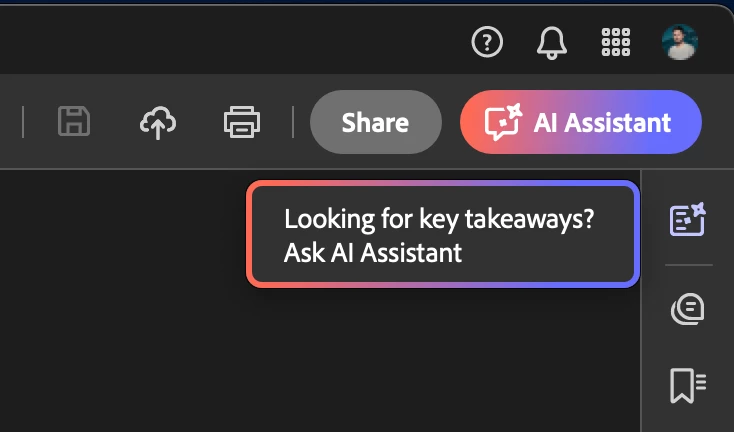
In the new Acrobat experience, you can hide the summary banner and query bar while keeping AI Assistant accessible through the top toolbar and All tools panel.
Hiding the summary banner and disabling automatic summarization are separate actions.
If additional preferences are missing after re-enabling generative AI, apply the change, restart Acrobat and reopen Preferences.
3. Manage recurring messages, missing preferences and preference resets
Reduce startup marketing messages
Go to Preferences > General > Messages from/to Adobe, uncheck Show me messages when I launch Adobe Acrobat and select OK.
Relaunch Acrobat without opening a PDF. This preference controls startup marketing messages, not every notification or online-service message.
Hide contextual pop-ups
-
Go to Preferences > General > Basic Tools.
-
Uncheck Show quick actions on text selection and select OK.
-
Open a PDF and select text to confirm the change.
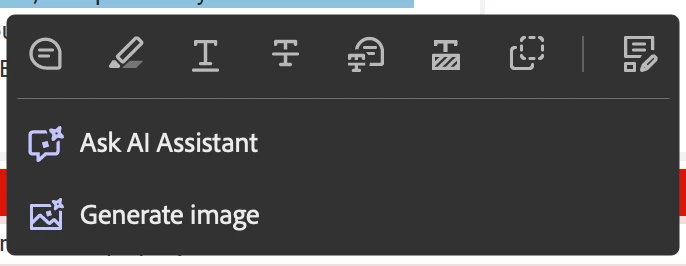
This hides the entire contextual toolbar, including standard commenting and editing shortcuts, not just AI-related actions.
Learn more: Viewing PDFs and viewing preferences.
Troubleshoot missing Generative AI preferences or features
If AI features are unavailable in Acrobat or Acrobat Reader desktop:
-
Update Acrobat and use the new Acrobat experience.
-
Sign in with the Adobe ID associated with your eligible plan.
-
Check your internet connection and supported application language.
-
Try a compatible PDF without password protection or usage restrictions, rather than a PDF Portfolio.
Desktop version 25.001.21288 and later supports the generative AI feature set. Support for older versions was scheduled to end on June 1, 2026. Individual preference availability can vary across releases.
Free users receive limited AI Assistant requests. Acrobat Express and Acrobat Studio include AI Assistant, while users of other eligible plans can obtain expanded access through the AI Assistant add-on.
Administrators can also revoke generative AI access for teams or organizations. If you use a managed account, check with your IT administrator.
Learn more:
Investigate preferences that appear to reset
If AI elements reappear, check whether your master or individual Generative AI preferences have changed.
If a disabled preference becomes enabled again, note whether this happens after restarting Acrobat or installing an update. Share these details with us for further investigation.
Our guide to managing recurring AI elements and interface preferences also covers missing preferences, recurring AI elements and document-layout customization.
4. Document privacy, AI processing and model training
Understand document processing and AI model training
Acrobat AI Assistant uses cloud-based processing to provide generative AI capabilities. We do not use customer document content to train the AI models powering Acrobat AI Assistant.
To turn off generative AI functionality, disable Enable generative AI features in Acrobat, rather than simply hiding AI interface elements.
This preference is separate from other cloud-based workflows, such as cloud storage, document sharing and electronic signatures.
Manage previous AI conversations
Disabling generative AI and clearing existing chat history are separate actions.
To clear an individual document's or PDF Space's chat history:
-
Retain any information from previous conversations that you need.
-
Locate the relevant document or PDF Space in your recent files and use its Options menu to clear chat history.
-
Reopen the relevant conversation to check that its previous content has been removed.
Clearing history removes associated prompts, generated responses and document overviews.
Chat history is stored locally for desktop and mobile apps, and in Adobe cloud storage for Acrobat on the web.
End users can clear existing chat history but cannot turn off chat history itself. Enterprise administrators can disable it through the Adobe Admin Console.
For confidential documents, follow your organization's document-handling and data-sharing policies.
Learn more:
5. Troubleshoot performance or switch to classic Acrobat
Slow startup, lag, freezing or lost edits
-
Save your work regularly and retain backup copies of important PDFs.
-
Check for updates:
-
Restart your computer and compare performance with another locally stored PDF.
-
Check your system requirements and whether other applications are consuming substantial CPU or memory resources.
Our Acrobat startup and performance troubleshooting guide covers system requirements, resource usage, startup preferences, online storage controls and persistent delays.
As Amal mentioned, you can also use Acrobat Diagnostics for further investigation. Review diagnostic information before sharing and avoid posting confidential documents or sensitive logs publicly.
Switch to classic Acrobat
As our Community Experts mentioned, you can switch interfaces where the option is available.
Save your work, then select:
Select Restart when prompted and confirm the classic interface appears.
Classic Acrobat does not support generative AI features. Switching interfaces does not install an older application version.
Learn more: Switch Acrobat experiences and Generative AI availability.
We appreciate your feedback about having greater control over AI features and keeping everyday PDF workflows uninterrupted.
If these preferences do not behave as expected, please share your Acrobat version, operating system, preference settings and which AI elements continue to appear.
We're here to help investigate this further.


 AdChoices