
Participating Frequently
July 7, 2019
Answered

Asking how to stop the"Reopen Closed PDFs" message from appearing?

  • July 7, 2019
  • 13 replies
  • 42562 views

Hi,

Every time I open a PDF document I see a blue background box in the upper right corner with white lettering, "Reopen Closed PDFs  Your last Acrobat session ended abruptly.  Click Restore to open the PDFs from the last session."

I don't know if I am doing something wrong, or this is just another Adobe pop up that comes up on its own.  So, I have to go over and click on the "X" in the upper right inside the box to get it to disappear.

Thanking you in advance for your help.
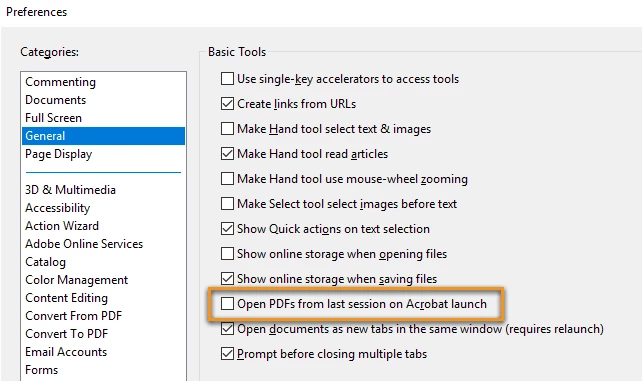
Correct answer Meenakshi Negi

It looked like it worked for me also. But when you open files and get a recent list, it comes back.

And recent files is USEFUL. I don't want to delete it, I want the persistent pop-up to go...

Thanks for checking.


Hi All,

We have released an update today for Adobe Acrobat 2015, Acrobat 2017 and Acrobat DC in which a new preference is added to enable or disable this capability. By default, the preference is disabled.

Please update the applicaiton latest version released for the application.

You may refer to the following link to check the latest versions available. Release Notes | Adobe Acrobat, Reader

For more details on the new update, please refer to the following help document What's new in Adobe Acrobat DC

Let us know if you have any questions.

Regards,

Meenakshi

13 replies

Participant
April 5, 2022

This helped rid the message in Acrobat DC 2020. Credit to Amal.


1) Close Acrobat/Reader and then Open regedit.exe in Run command.

2) Navigate to the Path: HKLM\SOFTWARE\WOW6432Node\Adobe\Adobe Acrobat\DC\ and create a key with name "FeatureState"

3) In FeatureState Create a new item with Type: "REG_DWORD" Name: "SessionRestorePromptAbnormalExit" and Value: 0

4) Relaunch Acrobat/Reader and observe that the Blue popup won't be coming again for you.

Participant
August 13, 2020

This is actually a WRONG answer.

.

Can we get a correct answer?

ls_rbls
Community Expert
Community Expert
August 13, 2020

Is this still happening with the latest Acrobat version update?


Iam starting to wonder if we need to mess around with registry settings.

Participant
August 13, 2020

I checked for updates, closed everything, reopened, rebooted, it does fix the nag screen.

Participant
April 6, 2020

None of these answers on the whole thread stopped the 'Reopen closed PDFs' pop-up.

Inspiring
April 6, 2020

I concur

Very annoying

ls_rbls
Community Expert
Community Expert
April 6, 2020

Hi,


Let's try something.


Can you share a dump file, or check the event manager (if you use windows).


I don't get this problem, so I'm starting to think if this has to do with specific type of files.


Also, you mentioned that none of the solutions offered in the thread worked. That means that the registry editing suggestions are not lockable.


We're gonna have to look harder on that.

ls_rbls
Community Expert
Community Expert
August 20, 2019

I personally don't give up on things, but I have to admit that this patticular restore message showing its face again have beat me down like in a ROCKY movie

ZAccord
Known Participant
August 20, 2019

If you are Adobe employee, I would track it down to the developers. If not, then I understand your frustration.

I am still not clear - is the issue affecting all users or just limited number of them?

ls_rbls
Community Expert
Community Expert
August 20, 2019

No I am not an Adobe employee, i am just an enthusiast like many other Adobe users here that loves  to learn and share.

Hopefully this will get fixed.

ls_rbls
Community Expert
Community Expert
August 15, 2019

I apologize, but I forgot to add this as the first slide  with the link that I provided at the beginning of my last reply.

ZAccord
Known Participant
August 15, 2019

It appears that editing of the register eliminated the popup. Will continue to monitor.

Thank you.

ls_rbls
Community Expert
Community Expert
August 15, 2019

That is great and you're welcome.

Kudos to Ayu$h though.

ls_rbls
Community Expert
Community Expert
August 15, 2019

Hello,

In the link below is a basic explanation, though redundant to this thread about this feature (or bug depending on the point of views).

https://helpx.adobe.com/acrobat/using/whats-new/2019.html#SimplifiedShareexperienceforviewingreviewingandsigning

In my personal case, after reading much and contributing to some ideas in this thread, I consulted the learning the basics guide from that link . So  I came to the conclusion that it seems to be a useful feature.

If you have any type of files in any of the areas of the shared working space, it will keep you updated with last minutes changes and remind you of prioritizing tasks. But because I am not a very organized person, and I cannot keep track of every change I do to my documents ( much less if I choose to share hundreds of documents with other users on a regular basis) , I don't consider it useful if I don't know who, what, when, where, to whom affected those files .

And because it is aimed for networked environments in combination with cloud services, it appears to me that so much is involved in between and so much can go wrong if you are not a very organized person and much less interested in keeping a system well maintained like you would with your vehicle to get to work.

I don't work in a mass production environment or belong to a staff that constantly have to review and approve things when the geographical distance is a limitating factor in a fast workflow environment.

So in my personal case the work around is as follows:

----------------------------------BREAK-------------------------------------

As for the Registry, eventually a user will have to learn some basics to get under the hood and make changes to their system to make it work the way he/she wants. Yes, it may be advanced but not if the propper guidance is followed.

To add value to your last questions about the registry  I am sharing some slides here to aid in that aspect. Ayu$h just abbreviated the registry path for you. But in the long readable way this is how it would be illustrated:

The registry is grouped in a different sets or hives (as Microsoft refers to it; short for logical group of keys); hence HKLM = Handle to Registry Key (HKEY) Local Machine.

The registry path directorys are divided in levels with the "\" (backlash). Just click on the ">" sign next to the following item to continue to go deeper in other subdirectories as shown below:

And then see if Ayu$h recommendation worked out for you. It is still worth trying and  getting familiarized with a new skill

Ayush__Jain
Adobe Employee
Adobe Employee
August 14, 2019

Hi,

Please update your Acrobat (It should Auto update or you should do Help -> Check for updates) and get to the version (2019.012.20036) .

If you do not wish to see the Blue popup which ask you to Restore your Previous session, you can do it as

1) Close Acrobat/Reader and then Open regedit.exe in Run command.

2) Navigate to the Path: HKLM\SOFTWARE\WOW6432Node\Adobe\Adobe Acrobat\DC\ and create a key with name "FeatureState"

3) In FeatureState Create a new item with Type: "REG_DWORD" Name: "SessionRestorePromptAbnormalExit" and Value: 0

4) Relaunch Acrobat/Reader and observe that the Blue popup won't be coming again for you.

Let me know if that helps.

Thanks

Ayush Jain

ZAccord
Known Participant
August 15, 2019

This solution isn't user friendly. Shouldn't the fix be on the developer's end, not on a user?

Please elaborate where to find the path you are referring to? In which HKEY subfolder it should be? I was trying to use Find command in the Reg Editor. The search was taking too long. I stopped it. 

Isn't it a bug on your end that should be fixed ASAP?

Inspiring
August 1, 2019

I am still having this problem on Windows 7 after attempting all of the fixes offered here as well as completely reinstalling Adobe Reader using the Adobe Cleanup Tool. I hope a fix will be discovered soon, thank you.

ls_rbls
Community Expert
Community Expert
July 8, 2019

Please see links below. They are recent as of May and June 2019.

Clearing the last session

Notification when opening pdf: your last acrobat session ended abruptly

These are the best answers I could find for you; it is not happening to some people with Windows 10 though.

As for the antimalware and anti-virus tools, that is a good observation; you can always try and disconnect your computer from the Internet, disable those tools, and then see if your Adobe product is trying to connect to the Internet in an attempt to search and restore files that were not fully synchronize to a cloud service when the file(s) were created.

If that is the case, my best guess would be that the Synchronizer, or some sort of Cloud Service file/folder synchronization is or could be the cause of that message reappearing every time you open Acrobat.

If you are familiarized with the Adobe Creative Cloud Desktop App, check if it runs as StartUp program and disable it. You can also login to your Creative Cloud Service through you user account settings and see if there is a shared service or app that may need to be uninstalled/reinstalled from there.

Worst case scenario would be  doing a backup of all your work first , then uninstall Acrobat from Windows using Control Panel --> Uninstall Program and Features (if it applies to your case); and reinstall again but  this time using a stand-alone installer for your operating system.

Follow these instructions if you have a subscription:

Download and install Acrobat DC subscription

Follow these instructions if you don't have a subscription:

Download Pro or Standard versions of Acrobat DC | Non-subscription

To perform updates to the latest version, detect which version is apt for your operating system,  and/or perform a manual install

follow these instructions

Install Acrobat and Reader updates

LJE208Author
Participating Frequently
July 8, 2019

Hi,

I have been reading and re-reading all you have written.  Thank you so very much for trying to help me.  It has taken you a lot of time and effort to do so. 

I don't use the Adobe cloud.  I do have DropBox, but nothing I do synchronizes to it automatically.  If I want to also save to DropBox, I do it manually there.  I know Adobe is not a start up program.  I use Winpatrol as well and I checked that and it is not shown in their records as a start up program.

For now, I'll just have to live with the pop up as the extensive amount of steps needed to keep experimenting can lead me into more troubles. I do not have any folks to help me if something else goes wrong. 

Thank you so much for all you have done and I am saving all of your replies.

Sincerely,

Linda Ellis

ls_rbls
Community Expert
Community Expert
July 8, 2019

Yes Ma'am , you're welcome.

I hope that in the near future someone comes up with a solution for that.

ls_rbls
Community Expert
Community Expert
July 8, 2019

Yes no problem.  I was reading earlier that maybe a running an update for both your windows 7 and Adobe Acrobat may help; I am suggesting this because it does not make any sense why the settings under Preferences refuse to stay as you choose.

I would still try and clear all recent files to see if that resolves the issue.

Open Adobe Acrobat. Do not open any files or documents. Do not cick on Restore if that message reappears.

Go to your File Menu.

Click on File ---> View Recent---> scroll down to "View All Recent Files" ----- and you will see a list of all recent PDF  files that you have opened before.

On the bottom, right hand corner of that screen,  there is a link in blue letters "Clear Recent".

Click on it to clear all those files; you will not be deleting them, it is just like clearing a temporary folder. You can always access them again by "File---> Open" method.

Close the Adobe Acrobat and reopen it again. See if this works

The following link are a little reduntant to the issues discussed here but further reading never hurts to obtain additional insights.

https://helpx.adobe.com/acrobat/using/whats-new.html

Reopen PDFs Launched in previous sessions on Opening Acrobat/Reader – Share your feedback on Acrobat DC

What's new in Adobe Acrobat DC

LJE208Author
Participating Frequently
July 8, 2019

Hi again,

I finally found the "Clear recent" and did that and when I opened up Adobe I got what you see.  There is a welcome PDF that always comes up too. 

I don't have any problems with any other software on my machine but this one pesky message.  I don't know how to do the updates.  I use Malwarebytes and ESETNOD32 on my machine as well. 

It is getting late.  This is all I can do tonight.  I think this welcome file could be the problem.  What do you think?