
Participant
August 7, 2017
Answered

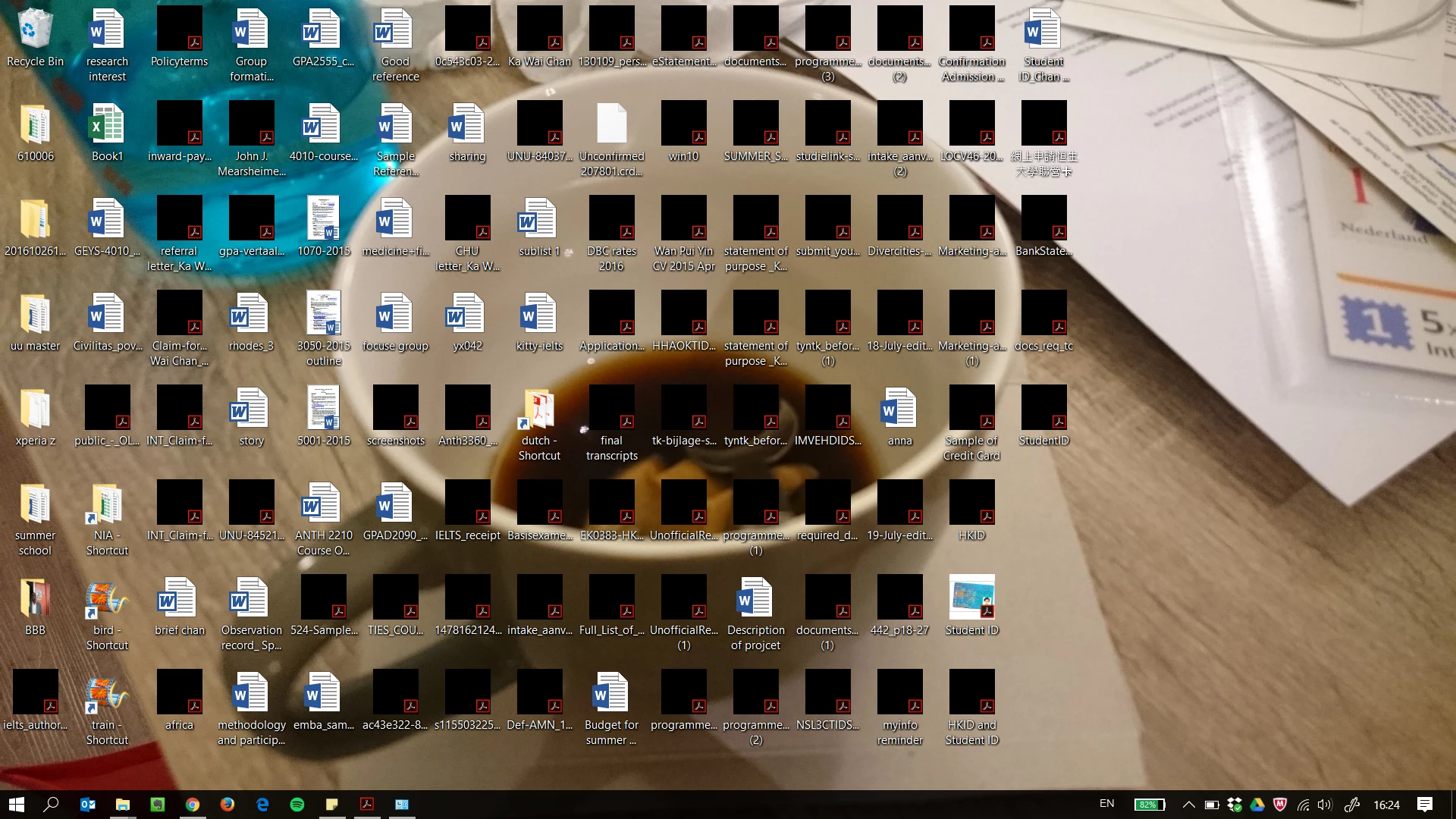
pdf icons on desktop turn into black squares

  • August 7, 2017
  • 15 replies
  • 195086 views

hi,

im using Windows 10 home and the latest version of Adobe Acrobat Reader DC on my Thinkpad X1 carbon. Since i bought this laptop, the icons of pdf files on desktop have turned into black squares (see picture). This problem is solved temporarily by refreshing the desktop, but it happens again when I restart the laptop. Can anyone fix it? Thanks
Correct answer Alan F 2.0

So I have tried many of these and they may all work for you. Mnay did not work for me. Your problem is that you are all looking to fix the symptom. I have fixed the cause. This black icon, for me at least, is generated because i have three monitors and two of them are 4K. The black iocns are generated because of the different screen resolutions. Match the screen resolutions and reboot. Probelm solved. Guessa who's getting that third 4K monitor!


15 replies

Participant
November 12, 2025

I have the actual fix after trying all of the crap posted here and having it work for like five seconds.

disclaimer: this fix worked for me. It may not work for you.?.

I have a mix of 4K and non-4K screens between my laptop and my external monitors.

I have tweaked the Scale under System\Display.

Once I set this scale to the same number for all monitors - BAM! Preview Thumbnails.

<Alan climbs off his soap box.>

Alan F 2.0Correct answer
Participant
November 1, 2024

So I have tried many of these and they may all work for you. Mnay did not work for me. Your problem is that you are all looking to fix the symptom. I have fixed the cause. This black icon, for me at least, is generated because i have three monitors and two of them are 4K. The black iocns are generated because of the different screen resolutions. Match the screen resolutions and reboot. Probelm solved. Guessa who's getting that third 4K monitor!


Participant
September 5, 2024

This problem is irritating to see black boxes. There are two choices to use in this way.


1. The way to slove the problem is changing thumbnail size. In smaller sizes same problem occures.

2. Uninstall Adobe Reader completely and also celan reg files too. When setup started there asks a checkbox to activate show thumbnails preview. Uncheck it. When installatin you can only see Adobe Reader icon not preview. 

S_S
Community Manager
Community Manager
September 11, 2024

Hi @Enes374930119k6v,


Hope you are doing well. Thanks for writing in!


I was able to reproduce this issue by changing the thumbnail size. Also, while keeping the thumbnail size intact, I was able to get past this with the following steps:

1. Go to System Settings-> System;

2. Scroll down to find "About;"

3. In About, click on the Advanced System Settings;

4. In the Advanced tab, click on Settings in the Performance section;

5, Uncheck the option "Use drop shadows for icon labels on the desktop."


Hope this helps.


-Souvik

Participant
February 26, 2024

Still a problem in 2024, how can Adobe be so inept is laughable.


For me not 100% exactly sure which step corrected the issue for me, but my desktop is redirected. I enabled/disabled the PDF preview in Acrobat and performed the listed steps to delete the iconcache which did not resolve the issue, I then moved the files to my local C and then back, and now the icons are correct. I suspect the inverted my have to happen where if files are local C, move to a flash drive or network drive and back again.

Participant
September 11, 2023

My company will not allow the installation of the fix. Why is it that Adobe will not fix this issue themselves?


Participant
July 16, 2023

I had the same problem, and although I tried the suggestions in this thread, it did not fix the solution (Windows 11). I found a solution with the PowerToys (File Explorer add-in) released by Microsoft, which includes some information about Outlook and OneDrive conflicting. It worked fine for me. Anyone who hasn't found a solution might want to try it.

Participant
July 21, 2023

At long last ! A solution that works and persists, not just a temporary trick. I've been SO annoyed for many years at Adobe. Thanks for posting this. The File Explorer settings in PowerToys finally fixed this for me!

gmpeet
Participating Frequently
August 10, 2023

Tried Powertoys v0.72.0. It also does the trick.


But when the pdf preview is enabled in Powertoys, the preview handler in MS Outlook no longer works. (Issue 2)

https://support.microsoft.com/en-au/office/outlook-pdf-preview-error-this-file-cannot-be-previewed-because-there-is-no-previewer-installed-for-it-b78bfe24-ba13-44bd-8289-1919ece7ded2 


This is no problem with the Adobe_Reader_x64_fixes_v3_001 sollution.

Participant
March 21, 2022

Hello 
I also got this problem in my laptop where my pdf icon were turning black 
so what I did is 
1.  choose all the pdf (which  are having black icon )
2. Then make thier .zip form (delete the old ones)

3.  Extract them 
BOOM ! you pdf icon turned to the  the normal ones 
 I have tried this method It was working perfectly 

Participant
November 21, 2021

After trying about 5 "fixes" that did not purist after a reboot. I found that setting a custom scale in settings/display fixes the black icons and also persists past a reboot. Can even set the scale to 100. It is nice to know that Microsoft doesn't actually fix issues when they release a new version. 

Participant
November 22, 2021

I found the true issue.  I had my 1080P Monitor connected and 4k TV connected.  When I have them set at different resolutions I get the black desktop pdf icons.  When they are set at the same resolution everything is fixed.


Also weird is that when I have my Desktop monitor set at 1080 and TV set at 4K I get 11 vertical icons on the desktop.  When they are both set at 1080 I only get 10 icons.

Participant
May 20, 2021

Hi, tried all solutions, but i think I found another one.

While in the desktop I just hold the Ctrl key and scrolled the mouse wheel just one level up and the thumbnails are back.

Participant
May 20, 2021

This is the standard way of enlarging and spreading out icons on the desktop. I guess you are forcing a redraw by doing this. I've had no more problems with this for a long time now

Participant
January 2, 2021

This just happenned to me. After trying many of the dodges in this thread without success. I came up with a simple solution that worked for me:


Right click any black icon and when the context menu pops up, click Copy. Right click a free space on the desktop then for a preview icon choose Paste or, for an pdf icon, choose Paste shortcut. Now go back to the black icon, right click it and click Delete. Done! You can also select multiple black icons (hold down the Ctrl key whilst clicking them), right click any one, select copy and continue as above.


Another tip which I use for showing web links as application icons instead of ugly anonimous browser ones can also solve this. Open Internet Explorer and drag the link's shortcut icon onto it. Often, this is enough to miraculously change the shortcut icon immediately, otherwise, drag the web link from the address bar to the desktop. If it doesn't work, the web site owner has messed up!


I have no idea why the icons turn black. I did notice that by some unknown means, some  taskbar icons had gone black too. Maybe there is a connection?

Participant
January 2, 2021

I just found another quick way of getting an Acrobat shortcut from a black square: Right click the black square then click Create shortcut.