Participant
June 16, 2025
Question

Print to PDF preferences cut off.

  • June 16, 2025
  • 1 reply
  • 276 views

Adobe Print to PDF print preferences has multiple drop downs with buttons to the right of them, These are hidden by the UI not auto scaling properly(at all), Short of taking the users computer and reimaging it, we have found no solution. 

DPI, Resolution, Zoom, Adobe specific UI scaling, Clean removal and reinstall of acrobat. 

Short of re-imaging the computer is there an actual workable solution thats been discovered since this issues has been around for at least a year now. 

This is a new laptop freshly imaged for a user. We have not had this problem on any other machine as of yet, but this is only the 4th we have set up with acrobat pro on windows 11.

Adobe PDF Printing Preferences Window Getting Cut ... - Adobe Product Community - 14515250

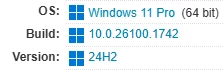
Relevant Info:
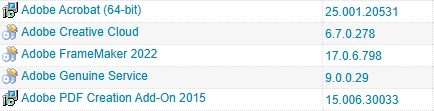

We utilize multiple external monitors through a docking station, Using the native display makes no difference with any of the fixes attempted. 

1 reply

Legend
June 17, 2025

Hi @b.murphy7


Thanks for reaching out and describing the issue you’re seeing with cut-off preferences in the Print to Adobe PDF dialog. Based on your description, this seems related to display scaling or graphics rendering, and I’d like to help you troubleshoot it.

Possible Cause: UI Scaling or Graphics Rendering

This kind of UI cutoff typically results from one of the following:

  • High-resolution displays with custom scaling (e.g., 125%, 150%)

  • System-level display scaling conflicts

  • Graphics hardware acceleration or driver interactions


Suggested Steps:

1. Check Display Scaling Settings

  • On Windows:

    • Go to Settings > Display

    • Make sure the Scale is set to 100% or 125%

    • Restart Acrobat after adjusting to test the behavior


2. Change Compatibility Settings (Windows)

  • Right-click the Acrobat shortcut > Properties

  • Under the Compatibility tab, click Change high DPI settings

  • Check Override high DPI scaling behavior, set to System (Enhanced)

  • Relaunch Acrobat and test again


3. Disable Use of Page Cache or GPU Rendering

  • Open Acrobat > Edit > Preferences > Page Display

  • Try toggling Use 2D graphics acceleration off

  • Restart Acrobat and check the dialog again


4. Update Graphics Drivers

  • Ensure your graphics card drivers are fully up to date

  • If recently updated, also test with a rollback in case a new driver caused the glitch


If Issue Persists:

  • Please provide your OS version, screen resolution, scaling settings, and whether you’re using multiple monitors.

  • A screenshot (with any sensitive info redacted) or a video(preferably) would help confirm if this is a rendering or layout issue we can escalate.


We’re happy to continue assisting and appreciate your patience while we work toward a fix.


~Tariq