
Participant
July 14, 2025
Question

User cannot add Text Comment to any PDFs in Acrobat Pro DC

  • July 14, 2025
  • 2 replies
  • 438 views

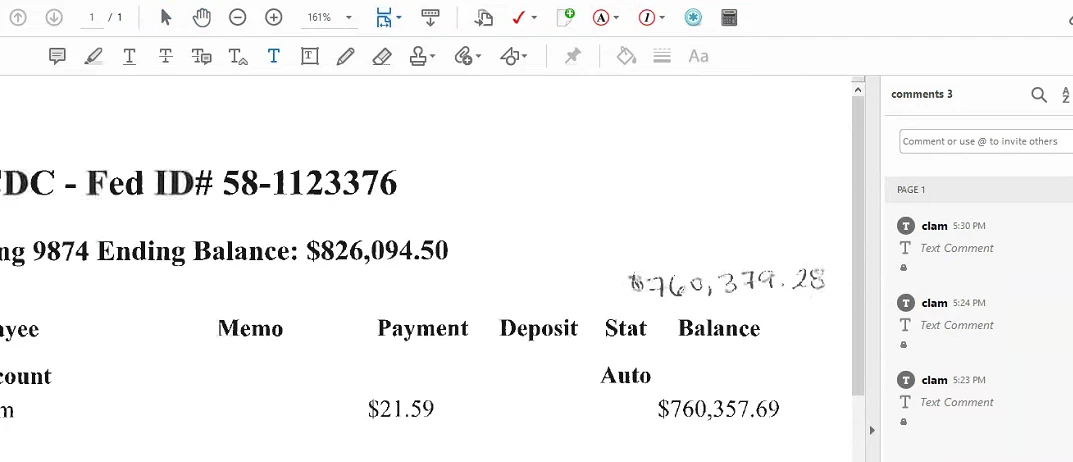
All of the users use the "T" toolbox tool to add comments on PDFs.  Now a single user selects the T toolbar and clicks inside the document, it just creates a locked text box that can't be unlocked or typed inside of.  You cannot even delete the empty comment because it is locked.


2 replies

try67
Community Expert
Community Expert
July 14, 2025

You can use this free tool I've created to unlock all the comments in the file:

http://try67.blogspot.com/2016/12/acrobatreader-unlock-all-comments-free.html

After running it, right-click a comment and select "Make current properties default". Any comment (of that type) that you add after doing that should not be locked any longer.

Participant
July 14, 2025

I have tried doing an update and I ran a repair of the program.

Participant
July 14, 2025

Also, if you double click the locked text box, it brings up the toolbar to edit the font and size of the text for your comment...but everything is greyed out and you can't change it.  I imagine this is because the comment is locked.

Legend
July 15, 2025

Hi @defaultBill


Thank you for reaching out, and sorry for the troubled experience. 

When did this issue start for that user? Has anything changed recently? Judging from the screenshot and toolbar, it seems the user is also using a third-party plugin. Have you tried disabling the plugin?  


Please ensure your copy of Acrobat is updated, to check for any pending updates, launch Acrobat > Help > Check For Updates.


If you are still experiencing the issue, help us with the following details:

  1. Acrobat version installed:  https://adobe.ly/3PQQ7nE
  2. OS name and version.
  3. Screen recording showing the problem. 

The above details will help us reproduce the issue on our end, precisely replicating the workflow. 


Additionally, here are a few things to try:


  1. Right-click the comment and choose “Properties” — check if the “Locked” box is selected. If so, uncheck it and click “Make Properties Default” so future comments aren’t locked automatically.
  2. Check the document’s security settings under File > Properties > Security. If the PDF is signed or certified, Acrobat may automatically lock any changes — including comments — to preserve document integrity.
  3. If the issue occurs in all PDFs (not just one), it’s possible that a preference or profile is corrupted. If needed, we can walk you through resetting Acrobat preferences: https://community.adobe.com/t5/acrobat-discussions/how-to-reset-acrobat-preference-settings-to-default/td-p/4792082 


Let us know what you find — happy to help further based on that!


Best regards,
Tariq | Adobe Community Team