


Legend
November 11, 2025
Question

We Heard You: Full Control Over AI Features in Acrobat

  • November 11, 2025
  • 6 replies
  • 1118 views

Your feedback matters—and we’ve listened.


We understand that not everyone requires AI assistance in their workflow. Many of you shared concerns about intrusive prompts and lack of control, and we’ve taken action. 

Now, Acrobat gives you complete control over AI features through Preferences. You decide what stays on and what turns off—no enforcement, no surprises — just flexibility. 


Important Note: 

Acrobat AI Assistant is continuously evolving, so different users may see slightly different options depending on their version of Acrobat. Rest assured, the available preferences will function as intended. To check the latest version available, please visit here: Release Notes.


Where to Find These Settings 

  1. Go to Menu > Preferences (Windows) or Acrobat > Preferences (Mac). 
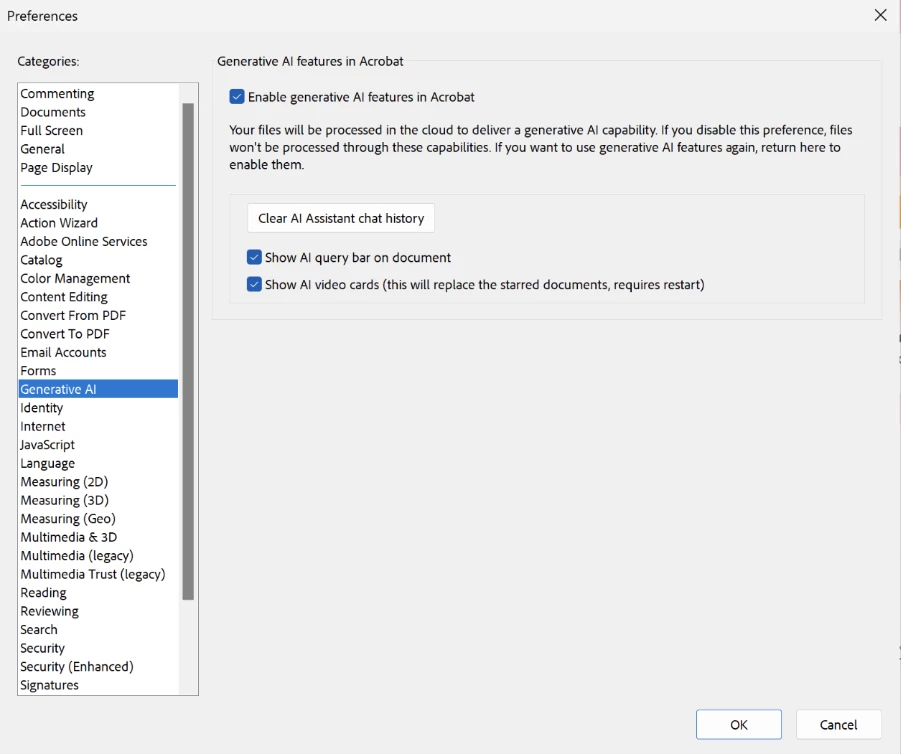
  2. In the left panel, select Generative AI
  3. Here’s what you’ll see:  
  • Enable generative AI features in Acrobat (If you want to disable AI features entirely, simply uncheck this option) 
  • If you want to keep AI enabled but adjust other behaviours, you can select or deselect the remaining options according to your preference: 
  •                   Show the AI query bar on the document 
                        Quick access to ask questions about your PDF. 
  •                   Show AI video cards 
                        Replaces starred documents with smart previews (requires restart). 

You can also clear the AI Assistant chat history at any time for peace of mind. 


Note: We recommend relaunching Acrobat after making any changes for them to take effect.
 

862935iBF4824C972151EDF.png


Business or Enterprise Users
You may visit the link to check how to: Manage AI for Business or Enterprise Deployment 


Why Keep AI On? 

AI in Acrobat isn’t just a buzzword—it’s designed to save you time and simplify tasks

  • Summarise long documents in seconds. 
  • Generate quick insights without leaving your PDF. 
  • Navigate complex files effortlessly. 

These features are optional, but they can make your work smarter and faster. 


Check out Adobe’s official AI usage policy and limitations here:


Community Resources: 


Click the like button if this helps, or reply to share your experience. 


6 replies

Participant
February 3, 2026

This doesn’t work in the Chrome extension. I just got off the phone with Adobe support and they say we can’t disable it. I create PDF’s all day long with my blueprint software. As a default action, it opens the PDF in a new browser tab so I can review it to be sure it’s accurate before saving it.

EVERY time I load a PDF there’s a three to five second lag while it loads this same banner every time.
 

As someone that’s a paying member, I’d like to turn this off. I know Adobe offers AI. If I want it, I know where to go find it. I don’t need the constant reminder that’s happening on EVERY file I load in the browser.
 

Participant
November 17, 2025

This is fantastic news and a great example of listening to user feedback! 

I appreciate that the team didn't just give us a simple "on/off" switch, but granular control over things like the AI query bar on the document and the AI video cards. Sometimes the AI summary feature is genuinely helpful for huge PDFs, but I don't always want those UI elements cluttering my workspace.

Giving us the option to fully disable AI features under Preferences > Generative AI is exactly what users concerned about workflow and potential data processing were asking for.

Thank you for the quick response to the community's concerns! I'm updating now.

Participant
November 12, 2025

Really appreciate this update. It’s great to see Adobe taking user feedback seriously and giving us the choice to control AI features. I like experimenting with the new tools, but it’s nice knowing I can turn things off if I want a more traditional workflow. Thanks for making this flexible, this feels like a thoughtful step in the right direction.

its34722139
Participant
November 11, 2025

Hi Adobe support,


Thanks for listening and your reply. While your solution will work for small deployment with a low number of compliant users, please provide a solution at scale where the users are unable to reverse these settings so the administrators can control this feature for large deployments where restricting access to AI is required.


 I look forward to your prompt reply.


J

Tariq DarAuthor
Legend
November 12, 2025

Hi @its34722139 - Appreciate your comment and feedback. 
We have listed a solution already here: Manage AI for Business or Enterprise Deployment 

Participant
November 11, 2025

Yes! Thank you!

Participating Frequently
November 11, 2025

*Finally* That's great your team listened! 

Though, I wish you'd scrap it altogether. I find it hard to believe that people actually use that functionality.