
Participant
November 14, 2013
Answered

WoodtypeOrnamentsStd Font on Mac

  • November 14, 2013
  • 2 replies
  • 1765 views

Hi,

I just purchased this font. I've followed the installation instructions, placing the .otf file in Mac HD>Library>Fonts>, with all the other font files.

The name appears correctly in Adobe product font lists, but does not give the correct characters (just black dots or boxes with an x in them). In Word, it appears in the font drop down menu as a line of gibberish, although does appear correctly in the window when selected. It likewise gives incorrect characters as per the adobe products.

How do I go about getting it to work properly?

Thanks for your help!
This topic has been closed for replies.
Correct answer MiguelSousa

There are two ways of accessing the glyphs in this font.

One way is through the Glyph Pallete, which is only available in InDesign and Illustrator.

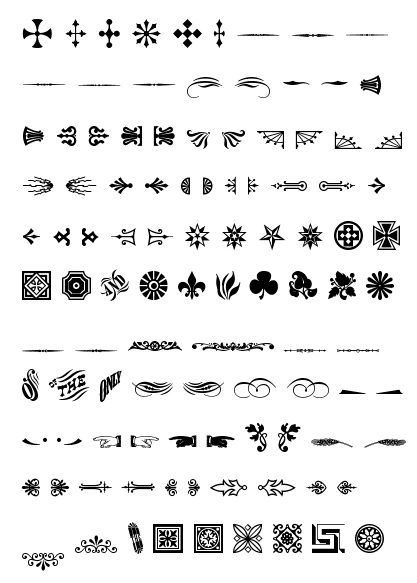
The other way is by using Private Use Area (PUA) characters, which in this font are in the range U+E001 to U+E068. These characters are the chunk of "text" (yes, the boxes) that you see below. Copy & Paste it in the app, and apply the font. The result should look similar to what's shown in the image below. This method should work with any app, MS Word included.

                                                                                                       

There is yet a third way of accessing the glyphs, but it only works for the ornaments that have text (e.g. of, ONLY, AND), and requires an application that supports the OpenType feature called "Standard Ligatures". This method will work in InDesign, Illustrator, Photoshop, TextEdit, and with the most recent versions of MS Word.

2 replies

MiguelSousa
Community Manager
MiguelSousaCommunity ManagerCorrect answer
Community Manager
November 15, 2013

There are two ways of accessing the glyphs in this font.

One way is through the Glyph Pallete, which is only available in InDesign and Illustrator.

The other way is by using Private Use Area (PUA) characters, which in this font are in the range U+E001 to U+E068. These characters are the chunk of "text" (yes, the boxes) that you see below. Copy & Paste it in the app, and apply the font. The result should look similar to what's shown in the image below. This method should work with any app, MS Word included.

                                                                                                       

There is yet a third way of accessing the glyphs, but it only works for the ornaments that have text (e.g. of, ONLY, AND), and requires an application that supports the OpenType feature called "Standard Ligatures". This method will work in InDesign, Illustrator, Photoshop, TextEdit, and with the most recent versions of MS Word.

Dov Isaacs
Legend
November 14, 2013

What do you mean by work properly?

The Woodtype Ornaments font is an OpenType font that is encoded for Unicode. You don't access the characters via standard alphabetic and numeric keys on your keyboard. If you are in a graphic arts application such as Adobe InDesign, Illustrator, and FrameMaker, these special characters may be accessed via the Glyph Palette. For other applications, you use the OS feature to access the glyphs. For MacOS, in the Finder, select Edit=>Special Characters. For Windows, you use the Character Map utility under System Tools.

          - Dov

- Dov Isaacs, former Adobe Principal Scientist (April 30, 1990 - May 30, 2021)
markh2013Author
Participant
November 15, 2013

Thanks for your reply!

I'm afraid this is the first time I've tried to download and use a new font, so I really don't know what I'm doing! I had assumed it worked like Wingdings.

I did get a pdf with the symbols assigned to keys. Is there a method of using them in this way?

Nonetheless, I'm able to find the characters through the Glyph Palette in InDesign, so thanks for your help on that!