


adobeFnt_PseudoFonts.lst Remove File Type Associations to Default / None (Windows 10/11)
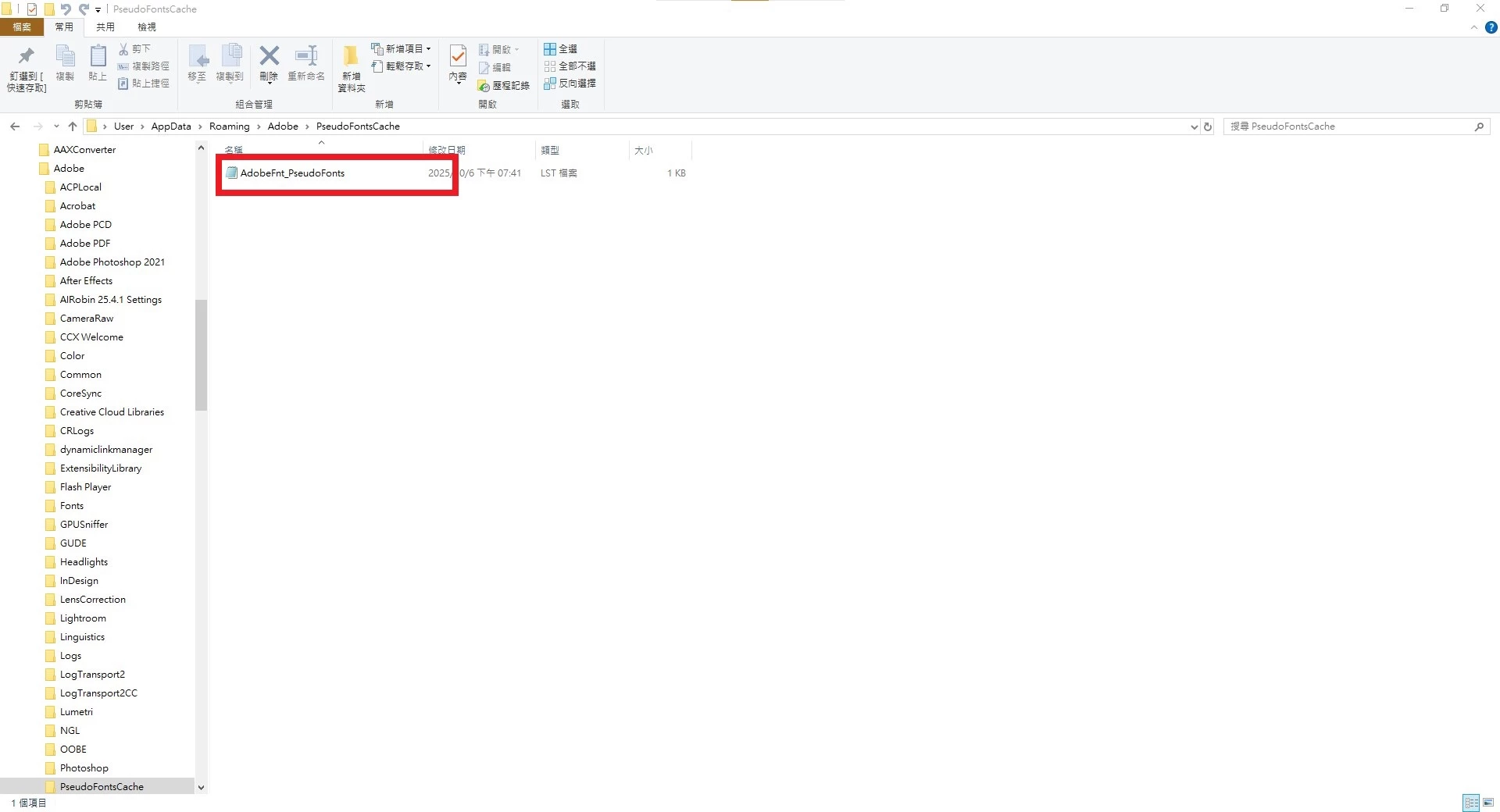
I did something incredibly stupid today. I accidentally made a .lst file open with Notepad... How do I restore the adobeFnt_PseudoFonts.lst file to its default state? Can anyone help me? I want to restore it to the application selection mode, openwith.exe.
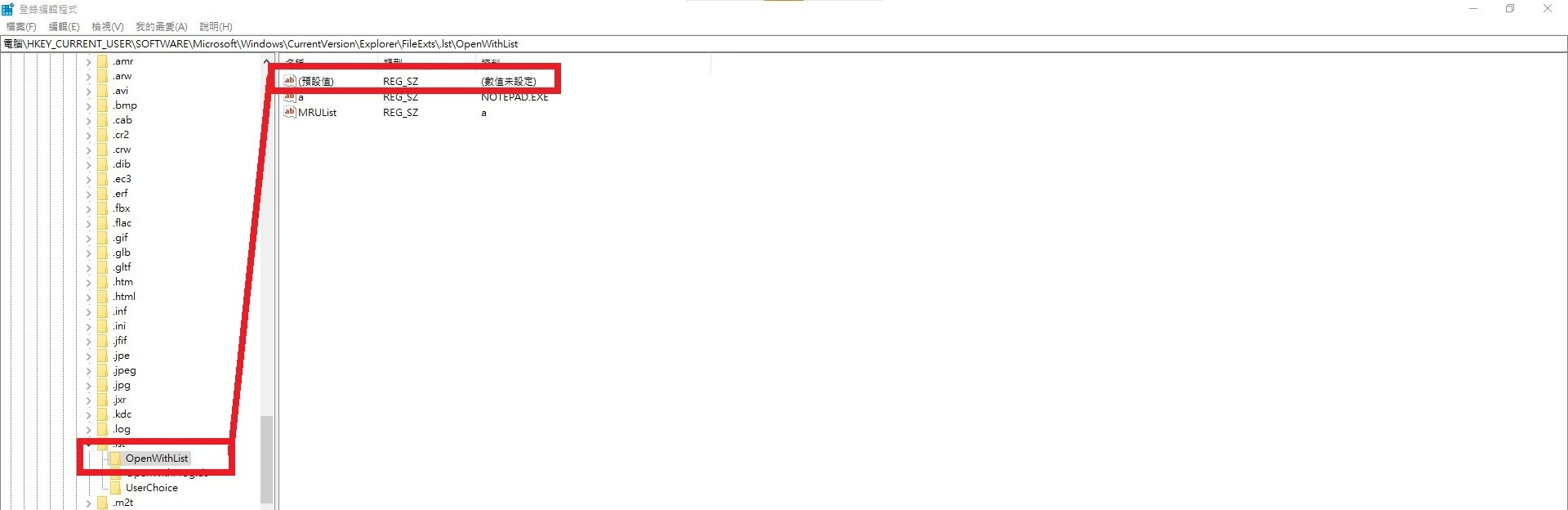
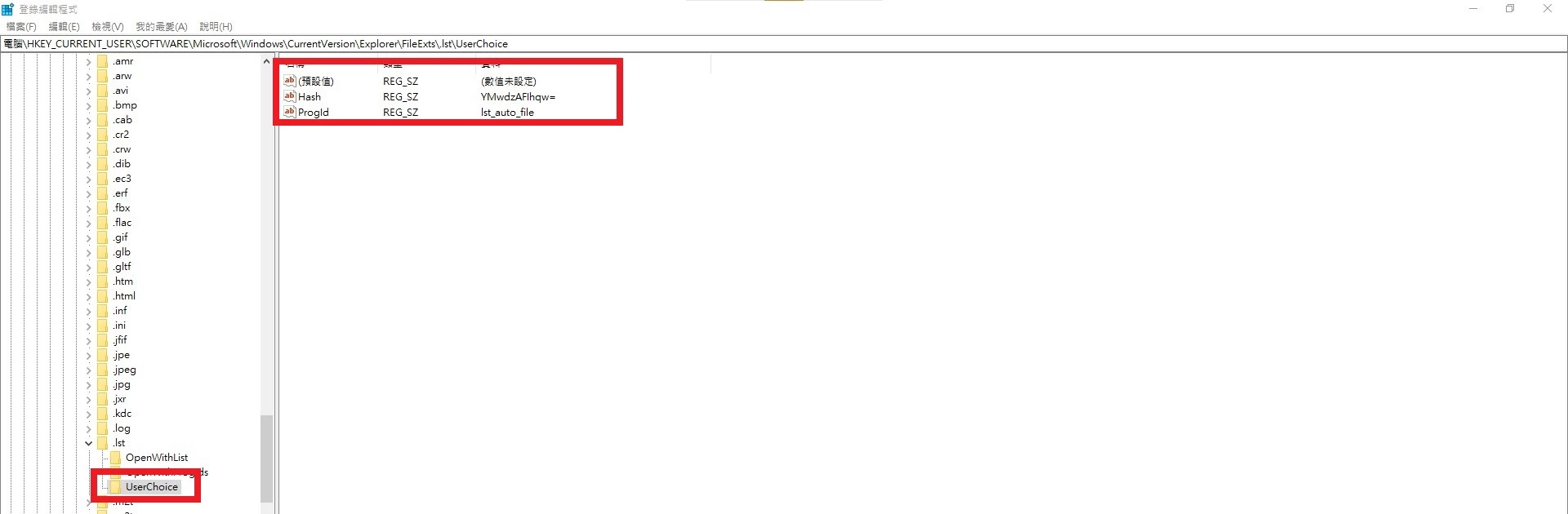
In the registry editor, I deleted Notepad.exe from HKEY_CURRENT_USER\SOFTWARE\Microsoft\Windows\CurrentVersion\Explorer\FileExts.lst\OpenWithList. Then I found the UserChoice subkey under FileExts, deleted UserChoice, and then deleted FileExts again. The error code almost caused my computer to blue screen upon restarting. Even after opening adobeFnt_PseudoFonts.lst, it still pointed to Notepad, which was incredibly frustrating.
Although I tried many methods, I couldn't completely solve the problem. It even nearly caused a blue screen after restarting, which really scared me and made me very annoyed and upset. It was such a small thing, yet it took me a whole process. To be honest, since I don't have Adobe Illustrator installed, it hasn't actually affected the usage yet. However, seeing the system settings become unclean and abnormal makes me feel uneasy, which is why I've been trying to find a way to fix it. I don't know how to fix it, otherwise the computer will have more problems, so I gave up.
Anyway, my desktop is running Windows 10, which I've used for almost 12 years. This year, they announced the end of support for it, and I was planning to get a new Windows 11 computer next October.

 AdChoices