

brittnell
Known Participant
June 12, 2019
Answered

Unusable preview playback in After Effects CC 2019 (16.1.1)

  • June 12, 2019
  • 5 replies
  • 8941 views

The latest version of After Effects has become near unusable for me, as I cannot get my RAM preview to play realtime (30fps) despite any changes I make to the settings, and what I believe is an otherwise well-spec'd system configuration. 


With 1080x1920 sequences, the best I ever seem to get is around 9fps... which just seems absurd.

I've gone through past posts about similar issues (which seem to rear their ugly head every few updates), and have tried all the various recommendations to no avail.

Any tips/tricks/insight/etc. would be greatly appreciated. I'm hoping there might be a solution I'm missing beyond reverting back to CC 2018, which would be very disappointing and problematic.

Thanks in advance,

b


System specs: After Effects CC 2019 (16.1.1)

Windows 10 Pro

AMD Ryzen Threadripper 2990WX 32-Core 3.00 GHz

128 GB RAM

Samsung 2TB 970 EVO SSD (x2)

100 GB After Effects Disk Cache

Nvidia RTX 2080 Ti (x2)

GeForce Driver 430.86 (05/27/2019)

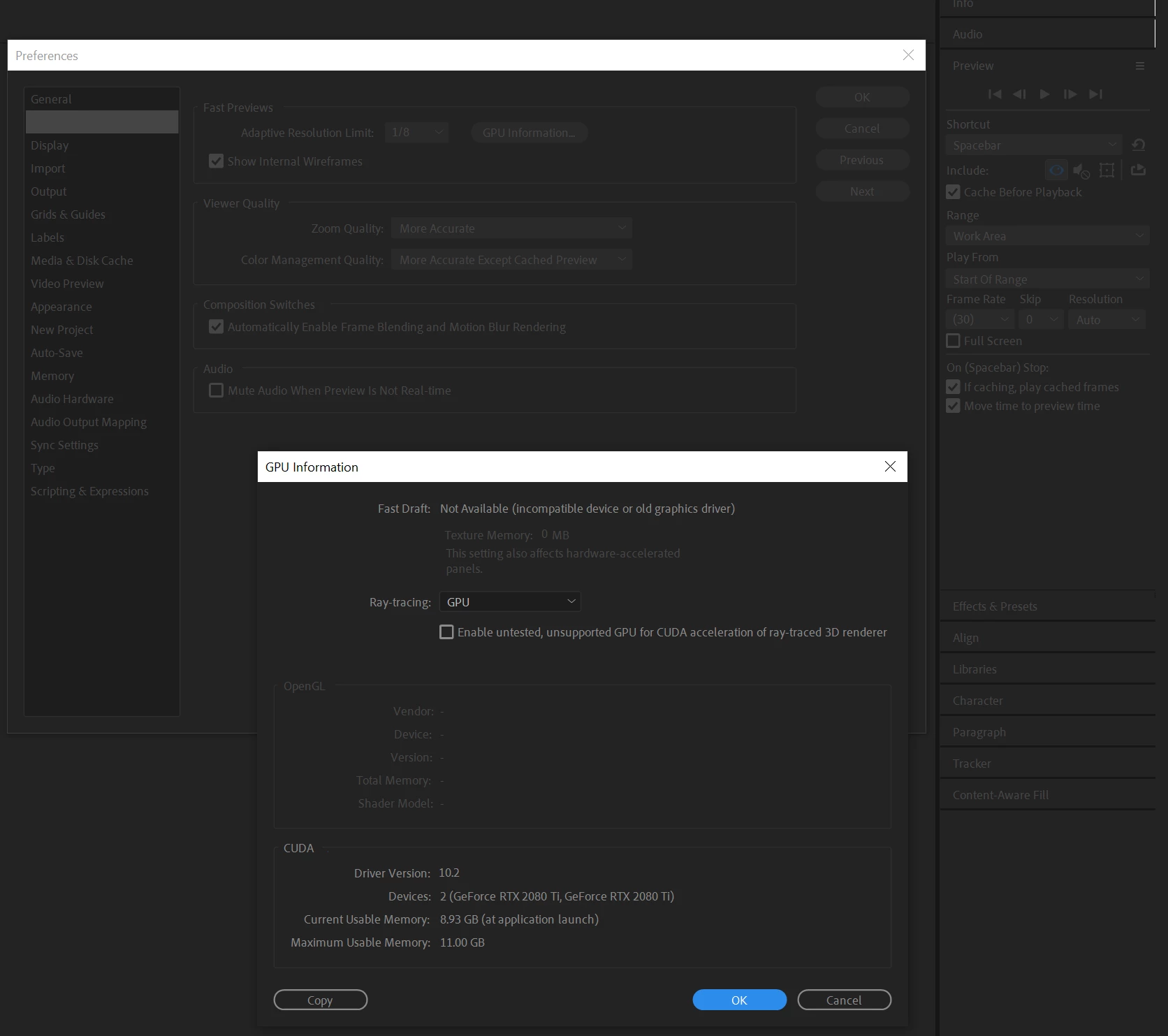
Screen shot attached with most relevant settings visible:
This topic has been closed for replies.
Correct answer Justin Taylor-Hyper Brew

A few things to check:

- Update GPU Drivers
- Clear Memory (Edit > Purge > All Memory and Disk Cache)

- Reset Prefs / Rename Prefs folder (Edit > Preferences > General > Reveal Preferences in Explorer > then rename that folder to something else so AE creates a new one on re-launch)

- Restart your Computer

Did the same type of project playback in real-time on CC 2018? What does you comp look like, what effects and footage types are you using?

Are you letting the timeline cache before playing back?

5 replies

brittnell
brittnellAuthor
Known Participant
October 18, 2019

Hey anyone who's following along! 


I've been doing a bunch of condition testing, and believe I have found something (at least in my case).


The issue seems to only occur when the timeline spans two monitors. So, anything you can do to avoid that condition should help (which is why closing the timeline seems to work).


The simplest solution I've found, is to undock the timeline panel, and have it in one monitor only.


If you want to test this on your own, undock the timeline panel, shrink it into one monitor only, hit spacebar to intiate the preview, then start expanding the timeline window into your second monitor. If it's similar to what I'm seeing, you should notice your playback framerate drop significantly as the panel gets about halfway into the other monitor.


Curious to hear how it works for you all.


Edit: Here's an example of what I'm seeing: https://youtu.be/ReK62OTs_cg

When the timeline panel is constrained to one monitor only, playback is realtime, at 30fps. Extending to the second monitor drops playback to just over 20fps (sometimes dipping even lower). Reducing the panel brings the framerate back up again. 


Kevin-Monahan
Community Manager
Community Manager
October 25, 2019

Britnell,

Thanks for reporting back. For someone that likes such a long timeline, I suggest one of those newer widescreen panels that are popular right now. My office mates have them (sadly, I do not!). 


I'd say that you're probably not alone in wanting to span a Timeline across a dual screen surface. I've seen that in a few cases in the Premiere Pro realm, as well. That said, it isn't common. Most of us use a single monitor for our timelines, I think. I would definitely suspect performance issues if you didn't keep your panels nice and tight, if not at default.


You may want to make a feature request on User Voice, though.


Regards,
Kevin

Kevin Monahan - Sr. Community and Engagement Strategist – Adobe Pro Video and Audio
Participant
October 16, 2019

Hello Guys,

i also have simular playback problems, After Effects CC 2019 (16.1.3) 

RAM preview is filled, green render bar, but still not realtime playback.

I did the prefs and cache thing and also update drivers.  

Inspiring
October 16, 2019
The only solution I've found is to come back to AE CC 2017!! And I think that's absurbs!
brittnell
brittnellAuthor
Known Participant
September 23, 2019

Hey Adobe! 

Can you please sort this out? It's been months, and multiple After Effects updates, without any apparent progress...😩

Working in the timeline, then having to close it every time I want to preview a change has a significant impact on my productivity and positive mental attitude, and I'm not sure how much longer I can continue to work like this!

Thanks,

b


Inspiring
October 15, 2019
I have the same problem! Have you found some solution?
brittnell
brittnellAuthor
Known Participant
October 15, 2019

Unfortunately, no. I did notice your other post, and am disappointed to see that others think this is normal behavior... it's not. It's also not just some "quirk" we shouldn't ask questions about. It's a reproducible issue, where cached playback IS BROKEN when the timeline is visible. Closing the timeline restores normal, expected, full-speed playback, but but this is not a practical work-around, at all, and the underlying bug needs to be acknowledged and resolved!

brittnell
brittnellAuthor
Known Participant
July 9, 2019

Have run into this problem a number of times since, and while renaming the prefs folder seems to help for a bit, it doesn't seem to be a long-lasting solution. 

I just ran into this again today, with the attached file dropping down to 9 frames per second.

I renamed the prefs folder, restarted the machine, and FPS went back up to 30.

However... This was only the case when After Effects was maximized to one of my two monitors. If I extended the interface across both monitors, the FPS dropped down to around 15fps.

I checked task manager while doing this, and didn't see any spikes in memory, cpu, or graphics card usage. I'm not sure what's going on here, but it definitely seems something isn't behaving as it should.

Justin Taylor-Hyper Brew
Community Expert
Community Expert
July 9, 2019

Strange, just tested and multi-screen workspace doesn't affect Ram preview on my end. What's your memory allowance look like in Edit > Preferences > Memory?

Also, do you have a lot of scripts running in the background?

If you can try and reset your prefs, and then test periodically as you change your prefs back they way you like them, you might be able to find what is causing the issue.

brittnell
brittnellAuthor
Known Participant
July 9, 2019

Hey Justin,

My memory looks like this:

     RAM reserved for other applications: 16 GB

     RAM available for After Effects: 111.9 GB

My installed scripts are these, but I don't think they should be running at startup (and none are used in this comp):

I'll keep poking around, and see if I can nail down the actual root of the issue...

Justin Taylor-Hyper Brew
Community Expert
Community Expert
June 12, 2019

A few things to check:

- Update GPU Drivers
- Clear Memory (Edit > Purge > All Memory and Disk Cache)

- Reset Prefs / Rename Prefs folder (Edit > Preferences > General > Reveal Preferences in Explorer > then rename that folder to something else so AE creates a new one on re-launch)

- Restart your Computer

Did the same type of project playback in real-time on CC 2018? What does you comp look like, what effects and footage types are you using?

Are you letting the timeline cache before playing back?

brittnell
brittnellAuthor
Known Participant
June 12, 2019

Thanks.

  • The drivers listed above are the latest
  • I've done the purge all disk/cache
  • I've got "cache before playback" turned on
  • I've restarted my PC (multiple times)
  • The issue occurs across all projects, independent of number of layers, effects, or footage type... I just tried with a simple sequence of 1080 .jpg images, and got the same results (no effects, no layers, nothing "special")

I'll try renaming the Prefs folder, and let you know!

Edit: I forgot to mention that, no, I was not having this issue in CC 2018